




Search “2D to 3D floor plan converter,” and you’ll find dozens of tools instantly. Most look convincing until you actually try them.
I’ve tested the ones that consistently show up, not just the ones with polished landing pages. A few deliver. Most don’t. And the difference isn’t in the feature list.
The ones that fall short assume you know more than most people actually do. You upload a 2D file, click “convert,” and get stuck figuring out settings, fixing broken outputs, or jumping between tools.
EdrawMax handles the full conversion within a single workflow. No extra tools, no back-and-forth. You get a usable 3D floor plan in a few clicks.
In this write-up, I’ll break down how EdrawMax performs as a 2D to 3D converter and compare it with three alternatives worth knowing. So you can pick what actually fits your workflow.
In this article
Why Most 2D to 3D Floor Plan Converters Fail
Compare converters by their input requirements, whether the result remains editable, measurement fidelity, export needs and the cost of the particular conversion workflow. An AI-generated perspective image and an editable, dimensioned 3D project solve different problems; do not treat them as interchangeable outputs.
If you have already chosen a workflow, follow the practical conversion tutorial instead.
Getting a 3D output isn’t the hard part. Getting one that actually reflects your plan is.
The Tool Has to Read Your Geometry, Not Guess It
Walls shift. Proportions drift. The result looks like a 3D floor plan, but it's not accurate. That difference matters the moment someone else is looking at it.
Speed Means Nothing If the Output Is Useless
A converter that produces broken output quickly hasn't saved you anything. It moves the problem downstream, into your editing session or, worse, into a client review. Reliable means clean on the first pass. That's the bar.
I've never had a client accept "I'll fix it later" as a reasonable answer when the output comes back wrong.
The Person Receiving It Won’t Have Your Software
Your client, contractor, or approval committee won't have CAD software. They won't download a viewer. The output needs to open on any device, in a common format, without setup. If it doesn't, the conversion isn't finished.
It Has to Work for People Who Aren’t Architects
Most professional 3D tools assume you already know the workflow. That works for professionals. It leaves everyone else starting from a steeper point than the job requires. A tool that assumes prior knowledge is just another thing to learn.
Overviews of 2D-to-3D Floor Plan Converter
| EdrawMax | Planner 5D | RoomSketcher | Floorplanner | |
| One-click 2D to 3D conversion | ✓ | ✗ | ✗ | ✗ |
| Full workflow in one tool | ✓ | ✗ | ✗ | ✗ |
| Free plan with usable 3D output | ✓ | ✗ | ✗ | ✗ |
| Requires a paid plan for the core feature | ✗ | ✓ | ✓ | ✗ |
| Works without file transfer between tools | ✓ | ✗ | ✗ | ✓ |
| Templates available | ✓ | ✗ | ✗ | ✗ |
| Export without watermark (free) | ✓ | ✗ | ✗ | ✗ |
| Client-ready output on free plan | ✓ | ✗ | ✗ | ✗ |
| Desktop app available | ✓ | ✓ | ✓ | ✗ |
Best 2D to 3D Floor Plan Converter: EdrawMax
EdrawMax solves the handoff problem directly. The Floor Plan to 3D feature sits inside the same canvas where you build or edit the plan. No file transfer, no second application, no geometry lost in transit.
The first time I used it, I had a client-ready 3D view from a plan I'd just built in under three minutes. That's the specific gap it closes.
One-Click 2D to 3D Conversion
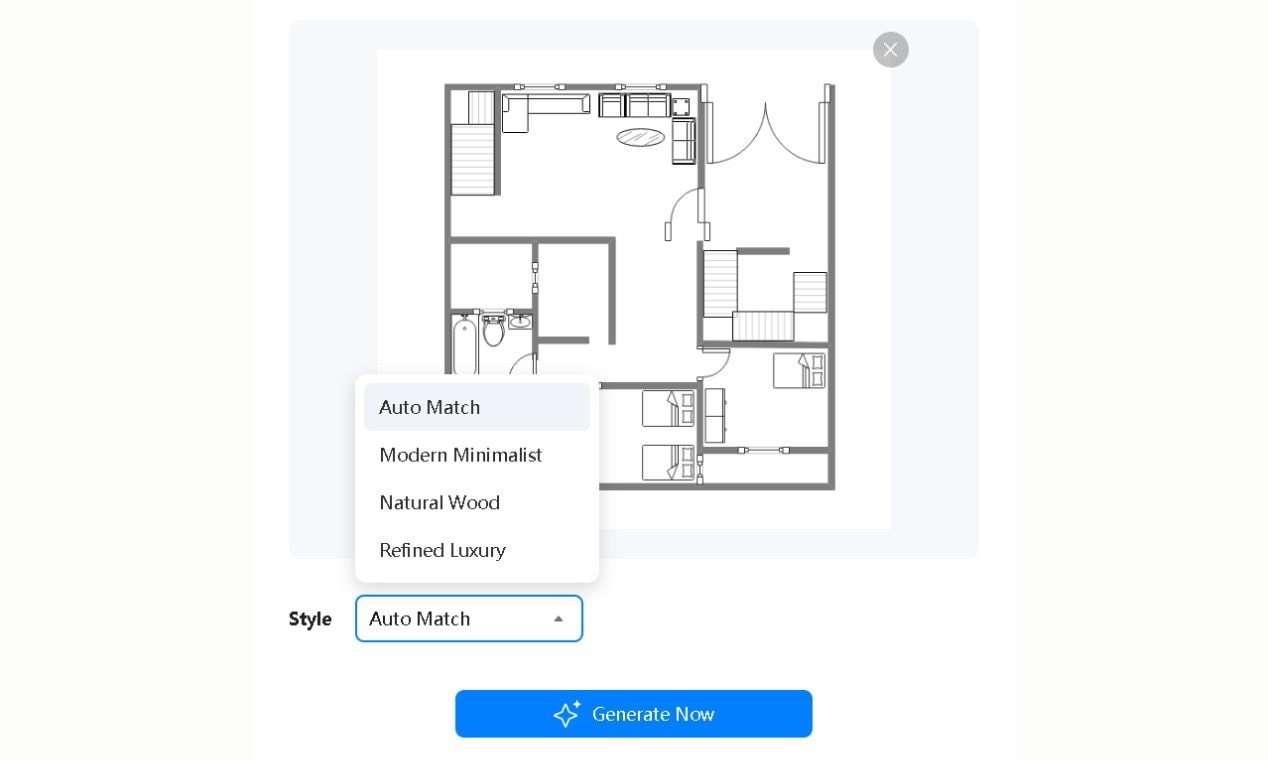
Convert any floor plan on the canvas into a styled 3D view in one click, with four style options available at the point of generation.
- Four styles at generation: Auto Match, Modern Minimalist, Natural Wood, and Refined Luxury. Different outputs for different audiences, no rebuilding required.
Every other workflow I've tested breaks at the point where the file moves between tools. EdrawMax removes that step entirely.
 Get 500 free AI tokens
20,000+ Templates to Get Started
A blank canvas costs time that most people don't account for. That's your starting point before conversion. The closer the template is to your actual space, the less cleanup the 3D output needs afterward.
I rarely start from a blank canvas anymore. Home Plan templates get me there in minutes.
Symbol Library Built for Floor Plans
26,000+ symbols cover walls, doors, windows, furniture, and fixtures, all categorized in the left panel. You place elements. You don't hunt for them.
The furniture symbols are the ones I place most before hitting Generate. They're specific enough to look right in the output without any additional customization.
Export-Ready for Any Audience
PNG, JPG, PDF, Word, PPT, SVG, CAD (.dxf), and more. Clients open PNG on a phone. PDF works for permits. CAD (.dxf) re-enters a technical workflow without conversion.
Works Across Devices
EdrawMax runs on Windows, macOS, Linux, Web, iOS, and Android. The web version is accessible without downloading anything.
EdrawMax offers a free plan. Paid plan pricing is available at edrawmax.com/pricing.
How to Convert a 2D Floor Plan to 3D in EdrawMax
Here's the full workflow process from plan to exported file.
Step1 Get a Floor Plan on the Canvas
- Open the Templates gallery and search for a floor plan type that matches your space
- Click Use immediately on the one that fits closest
- Prefer building your own? Hit New and start from scratch
- You can also import your 2d design into the canvas
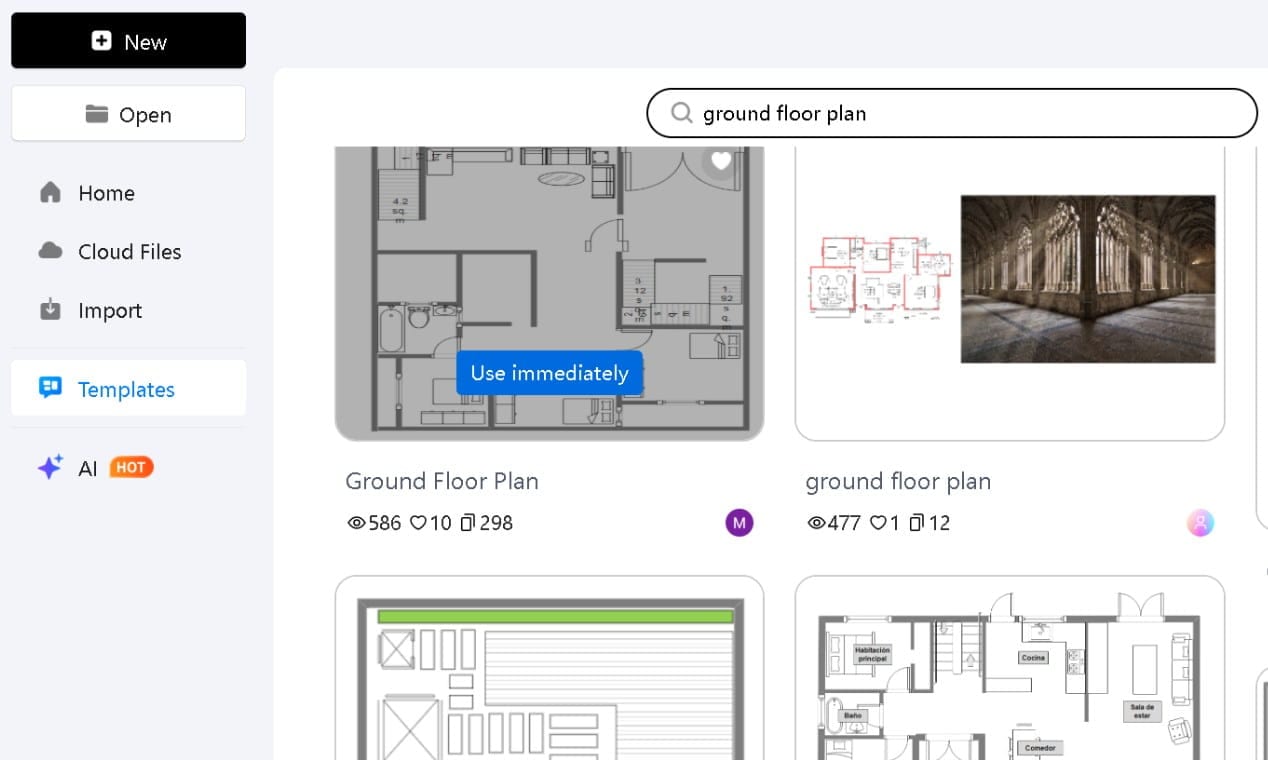
The closest template is good enough. You don't need a perfect match before you convert. The generation step handles the rest.
Step2 Convert It
- On the canvas, select the full or a specific part of the floor plan you want to convert
- Click Floor Plan to 3D in the pop-up
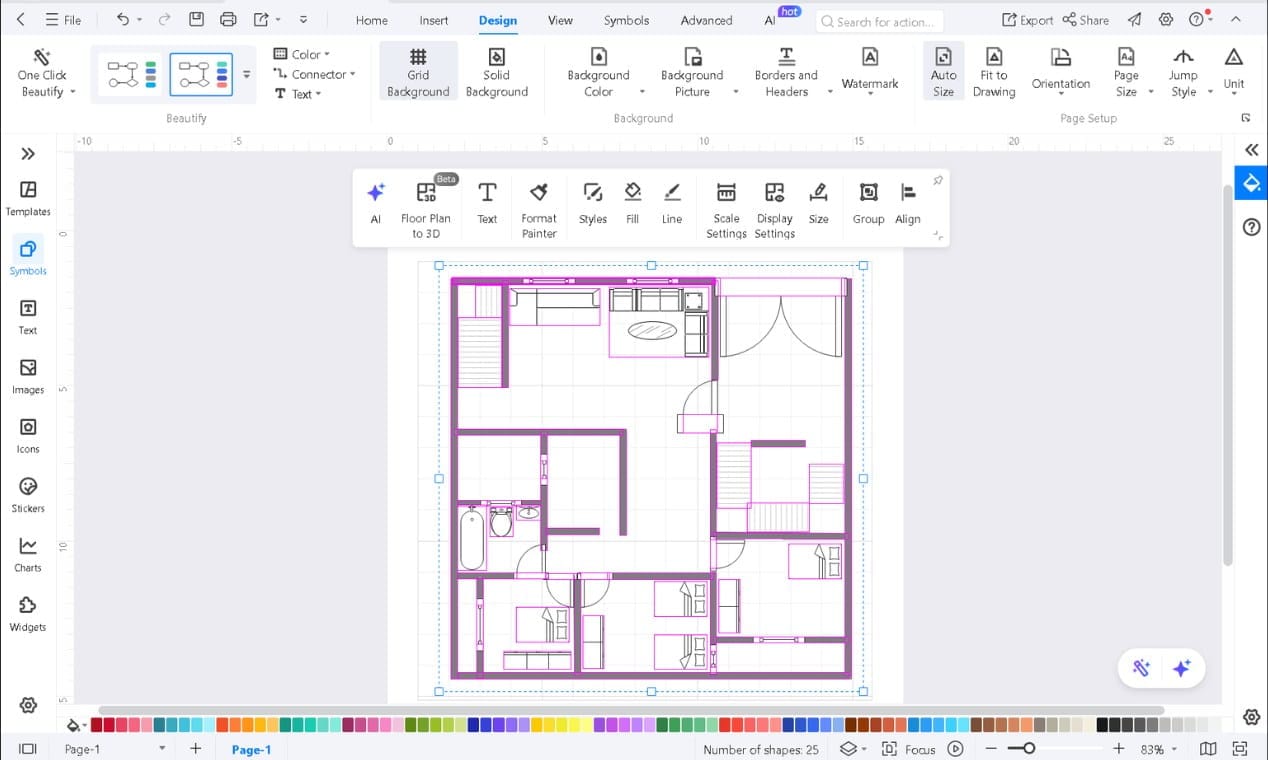
- Choose Generate This Page or Generate Selected Shape
Generate This Page converts the full canvas. Generate Selected Shape works on your active selection only, useful when you want to convert a specific space without affecting the rest of the plan.
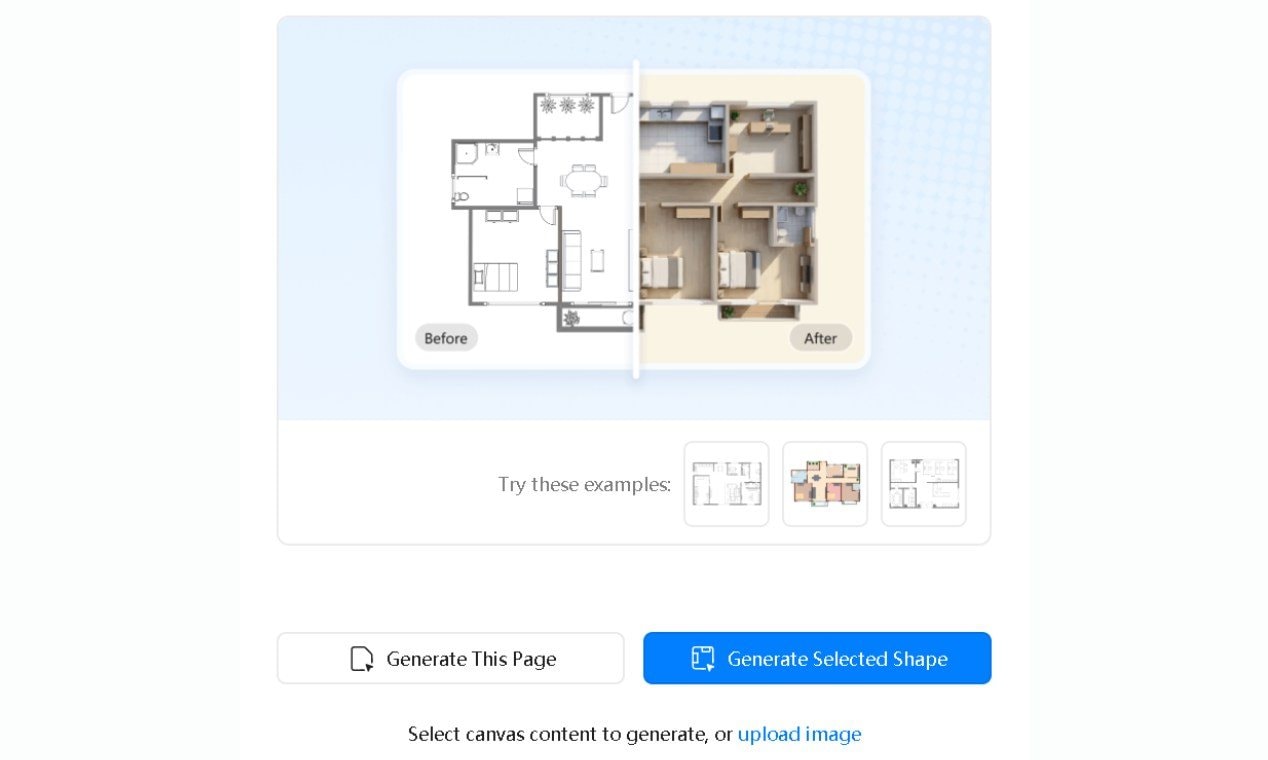
- Pick a style and click Generate Now. Output typically lands in under a minute.
Wrong style for the wrong audience, and the output lands flat regardless of quality. A client buying a home reads Refined Luxury differently than a contractor checking wall clearances.
Step3 Check the Output
- Select the generated image on the canvas and modify it from the pop-up menu
- Adjust lets you handle brightness, contrast, and transparency
- Edit Image helps you clean up backgrounds and enhance the image overall
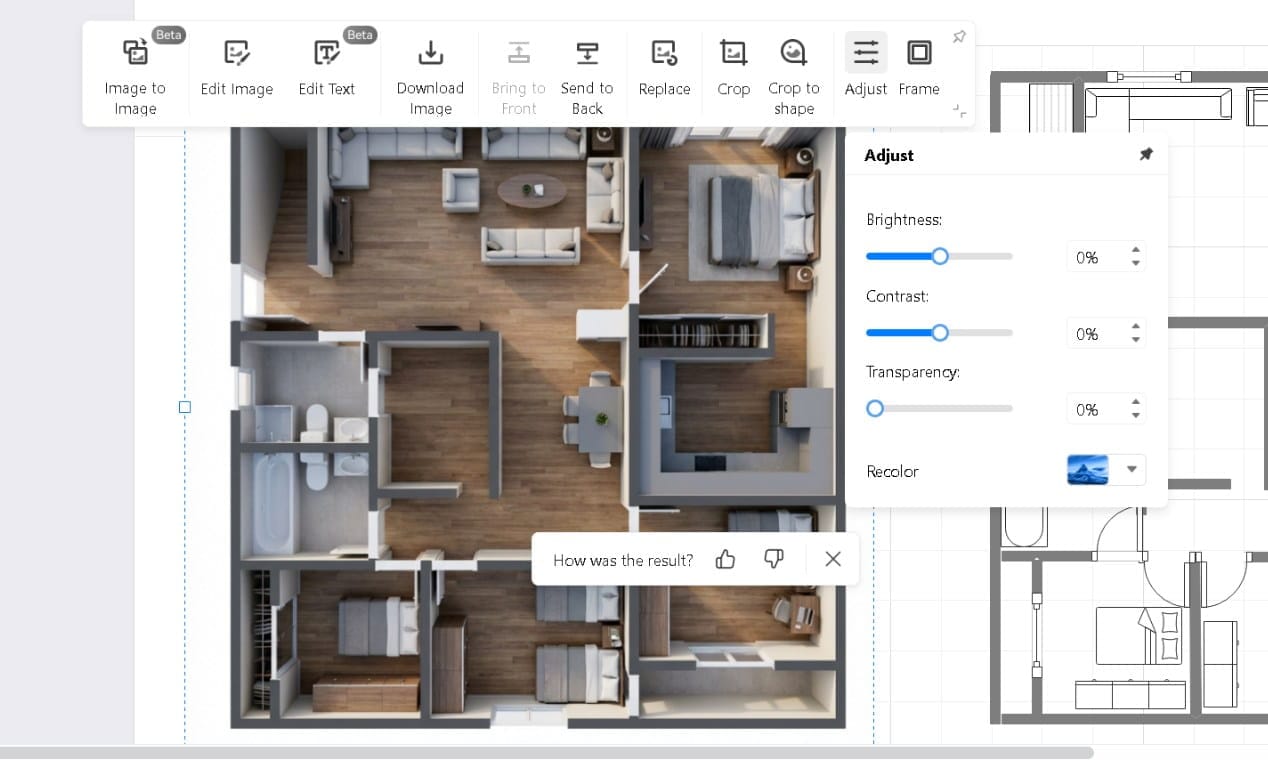
Running the generation twice with identical settings often produces a cleaner second result. Try that before touching manual edits.
Look at the walls first. If the geometry was clean going in, they'll be clean coming out. That's where output quality is won or lost.
Step4 Save It
- Download Image in the pop-up saves the 3D image only
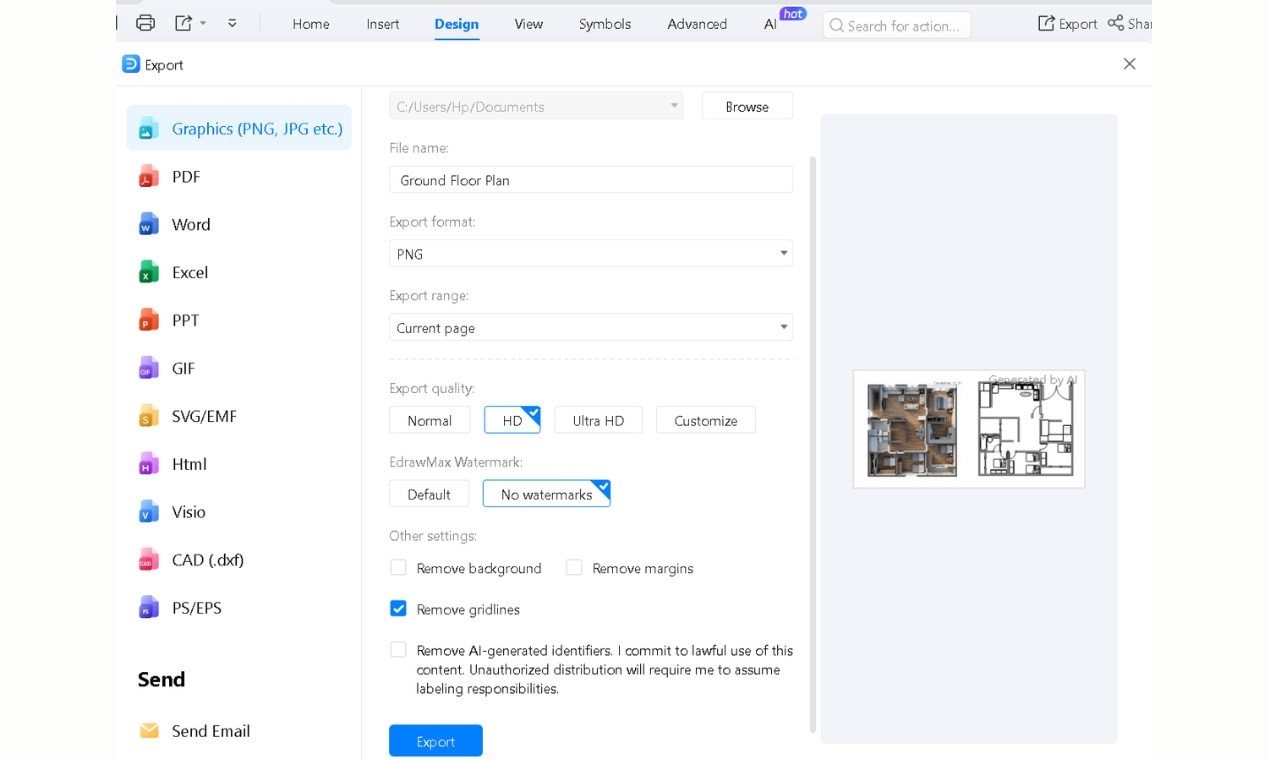
- Go to Export in the top-right for full format control: PNG, JPG, PDF, PPT, SVG, CAD (.dxf)
- Set quality, click Export to download instantly
Planner 5D
What it is: Home design tool on web, iOS, Android, Windows, and macOS.
The feature that matters: AI Plan Recognition. Upload a 2D image or blueprint, and get an editable 3D project automatically.
Who it's for: First-time users who want a styled 3D result from an existing plan without learning any design software.
Honest limitation: AI Plan Recognition requires Premium. Most of what makes this tool useful costs money. The gap between free and Premium is wider here than at most tools in this price range.
Pricing: Free available. Premium from $4.99/month (annual), which unlocks AI Plan Recognition and the full 10,000+ item catalog. Professional from $33.33/month (annual) adds unlimited 4K renders and CAD export.
For most users comparing 2D to 3D converters, Premium is the relevant tier.
RoomSketcher
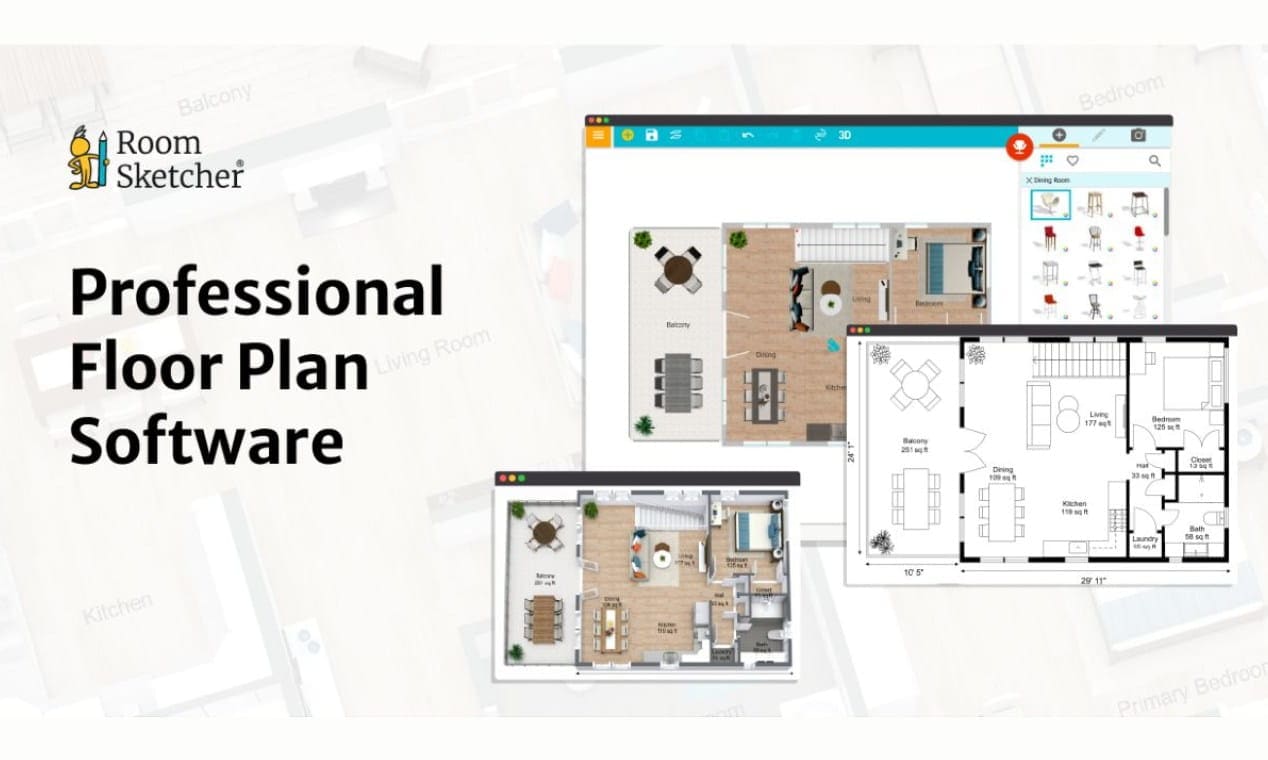
I'd point a real estate agent toward RoomSketcher before most other tools in this comparison. However, drawing from a blueprint requires Pro. The free plan doesn't include it. Worth knowing before you commit.
What it is: Floor plan and visualization tool for real estate professionals and interior designers, available on the web, Windows, and macOS.
The feature that matters: A complete visualization stack. 2D floor plans, 3D floor plans, 3D photos, 360-degree views, and Live 3D walkthrough in one place. AI Convert turns a blueprint image into an editable floor plan automatically.
Honest limitation: The free plan sounds more useful than it is.
Pricing: Free Plan available. Pro from $12/month (billed annually at $144). Team from $35/month (annual).
Floorplanner
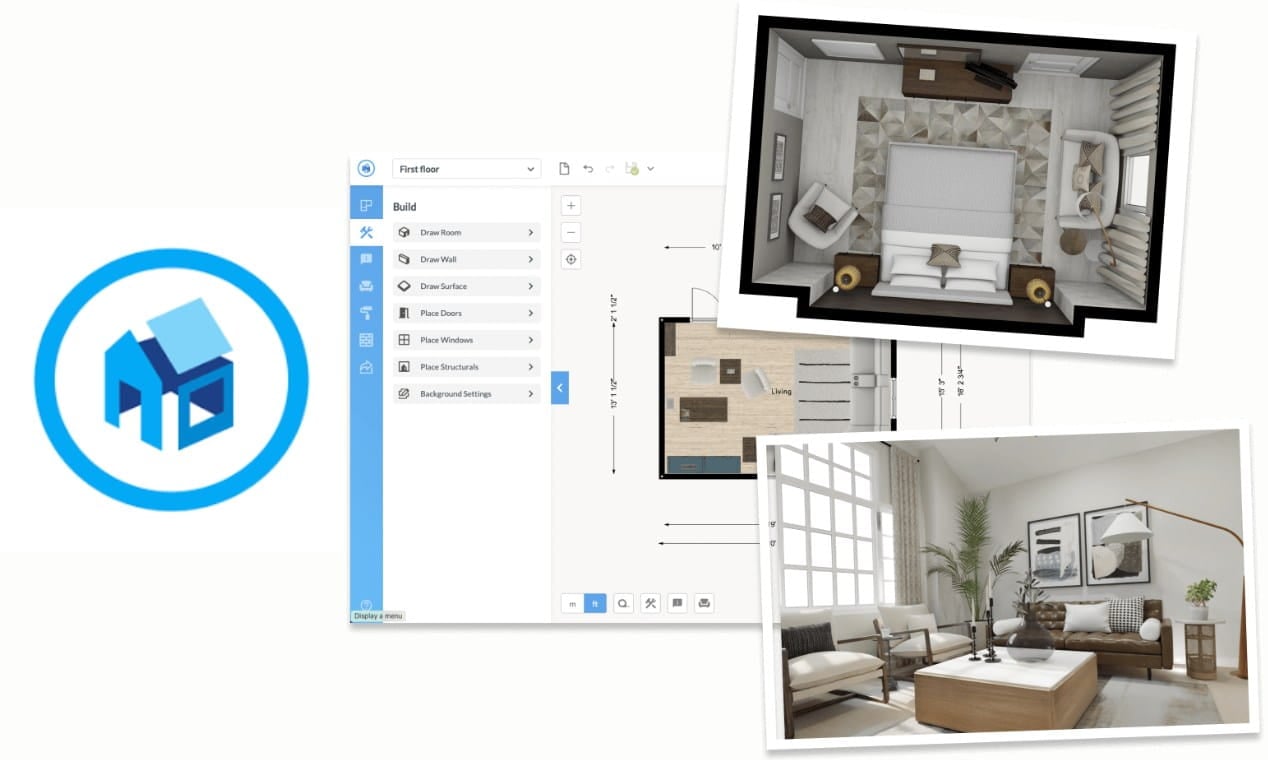
Free since 2007, browser-based, no installation required. That's the defining fact about Floorplanner before anything else.
The feature that matters: Real-time 3D view and a library of 260,000+ 3D models, both available on the free plan. For a rough concept or a quick property layout, that's a legitimate starting point.
Who it's for: Personal projects and quick layouts where a rough 3D view is enough and a subscription isn't justified.
Honest limitation: Free exports are 960x540px with a watermark and a ten-minute cooldown between exports. Watermark removal costs two credits. HD costs five. Five credits run $8.15. Nothing client-presentable comes out of the free plan without spending credits.
Closing Remarks
All the tools listed here can produce a 3D floor plan. The difference is how much work it takes to get one you can actually use.
Planner 5D, RoomSketcher, and Floorplanner each fit a specific use case. If you already know your workflow, they can work well. Most people don’t. They have a floor plan and a deadline.
EdrawMax is built for that situation. The conversion happens inside the same canvas, with no tool switching or geometry loss. You get a clean 3D output without extra steps.
If you’re still deciding, start with EdrawMax. It’s free to try, and the conversion takes one click.
AI Diagram Generator
Enter your prompt. Upload files if needed. Generate diagrams, charts, or slides instantly.