




A diagram speaks faster than a paragraph. Creating one can be painfully slow. I have spent hours on diagrams that should have taken ten minutes.
AI diagram tools promised instant help by typing. The reality often disappoints. Shapes collide. Labels misplace. The output is a flat image. You must regenerate to fix the errors.
Nano Banana Pro approaches diagrams differently within EdrawMax. It creates separate, pro-level illustrations. Mostly, every shape, line, and label is distinct.
Here, I'll show you how Nano Banana Pro improves image generation in EdrawMax, list hands-on prompt strategies that work, and walk you through creating science illustrations step by step.
In this article
- What Nano Banana Pro Actually Fixes in Diagram Generation
- How to Write Prompts That Produce Clear, Usable Diagrams
- Generate Science Illustrations Inside EdrawMax with Nano Banana Pro
- How EdrawMax + Nano Banana Pro Gives More Accurate Diagrams
- Prompt Templates That Speed Up Diagram Creation
- How to Fix Common AI Diagram Problems
- Wrap-Up
What Nano Banana Pro Actually Fixes in Diagram Generation
Nano Banana Pro, now called Gemini 3 Pro Image, brings visual reasoning to diagram creation. It understands how parts connect and where they belong.
Text That You Can Actually Read
Most AI image tools produce blurry or wrong labels. Nano Banana Pro produces sharp, clear text. It works in multiple languages as well.
Layouts That Follow Logic
The engine understands relationships between diagram parts. Ask for a flowchart, and the steps connect in sequence. For a data dashboard, sections are grouped by category. The model knows that a "process flow" means boxes linked by arrows moving in one direction.
Visuals That Stay Consistent
When a diagram has multiple panels or sections, the style stays uniform. Colors match. Line weights stay the same. Font sizes remain consistent. It matters for storyboards, step-by-step infographics, and multi-part illustrations.
Grounding in Real Data
Nano Banana Pro connects to Google Search. When you ask for a diagram based on the latest information, it pulls accurate data. A chart showing 2025 statistics reflects actual numbers, not made-up values from training data.
Sketches Become Diagrams
The model translates rough inputs into structured outputs. Upload a hand-drawn wireframe, and it produces a clean version. Describe a sketch in words, and it builds the diagram you imagined.
This shifts AI diagram generation from making pictures to making usable assets.
How to Write Prompts That Produce Clear, Usable Diagrams
A prompt is a set of instructions. They say, garbage in, garbage out. So the clearer your instructions, the better your diagram. Here's how to write prompts that work.
Build Prompts in Four Parts
- Role: Assign an identity. "Act as a science illustrator" or "You are a process analyst" shapes how the AI approaches the task.
- Task: State the goal directly. "Design a water cycle diagram" beats "something about water."
- Context: Provide specifics. Name every component. Describe connections. Mention any decision points or branches in the process.
- Format: Define the visual output. Include layout direction, color scheme, icon style, and text placement.
Use Complete Sentences
Write prompts like you're briefing a designer.
For instance:
"Create a diagram showing how blood flows through the heart, with arrows indicating direction and labels for each chamber."
will work better than:
"heart blood flow diagram labels."
Describe the Layout Explicitly
Don't assume the AI knows how to arrange parts.
For science diagrams, use terms like these:
- "Cross-section view" for internal structures.
- "Orthographic top-down view" for floor plans or maps.
- "Isometric view" for 3D representations.
- "Bird's eye view" for ecosystem layouts.
- "Lateral view" for side perspective.
Say "arrange steps in a vertical sequence" or "position the sun at the top center with arrows pointing downward."
Limit Label Length
Keep each label concise, like under four words. "Mitochondria" works. "The mitochondria are the powerhouse of the cell" will likely blur or won't render correctly.
Choose a Visual Style
Name the look you want. Options include:
- "Technical schematic" for precise diagrams.
- "Textbook illustration" for educational materials.
- "Minimalist flat design" for clean presentations.
- "Whiteboard sketch style" for informal explanations.
- "Blueprint style" for technical plans.
Add Negative Instructions
Tell the AI what to skip. Examples:
- "No gradients"
- "Avoid cartoon style"
- "No background decorations"
- "Exclude decorative borders"
- "No 3D shading"
Negative prompts prevent unwanted elements from appearing.
Feed It Reference Image
Nano Banana Pro accepts image inputs. Upload:
- A rough hand-drawn sketch to guide the layout.
- An existing diagram you want to improve.
- A photo showing the subject you wanna illustrate.
- Multiple images to blend elements from each.
The AI uses your visual reference as a starting point instead of guessing.
Generate Science Illustrations Inside EdrawMax with Nano Banana Pro
When Nano Banana Pro landed inside EdrawMax, it removed one of my biggest annoyances: switching tools just to refine scientific diagrams. Now I open EdrawMax, write my prompt, and let the AI do the heavy lifting.
Here’s how I use it on desktop and web.
Method 1: Use the AI Floating Button (Desktop)
 Get 500 free AI tokens
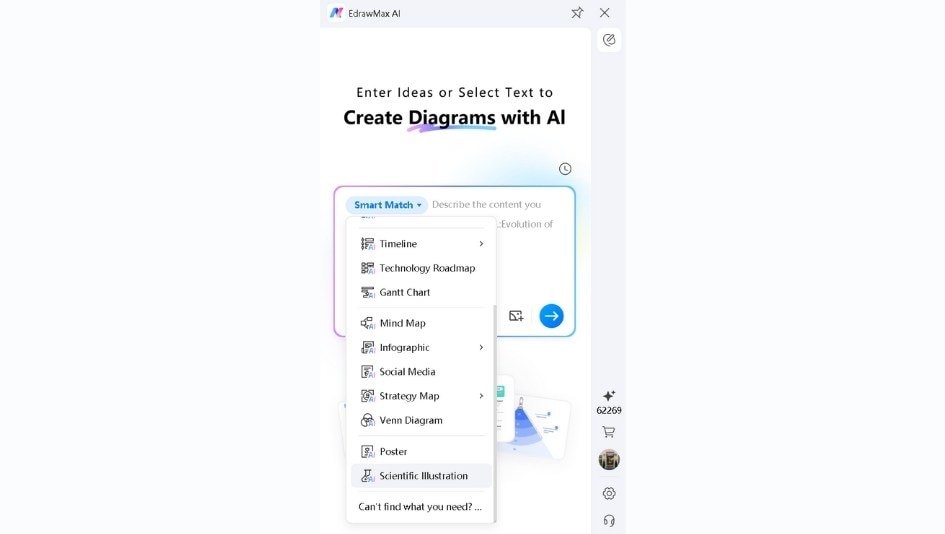
Step1 Open the AI Floating Button
- After installing EdrawMax, I found a small floating icon on the right side of my screen.
- Clicking it brings up the AI interface instantly.

Step2 Give Your Prompt to the Scientific Illustration Model
- At first, the panel shows Smart Match.
- I switch it by opening the dropdown and picking Scientific Illustration.
- It loads the model designed for accurate science diagrams.
- Then, I describe exactly what I need, such as “labeled plant cell illustration with cell wall, vacuole, and chloroplasts.”
- Hit Enter and wait a moment.
Step3 Use the Output
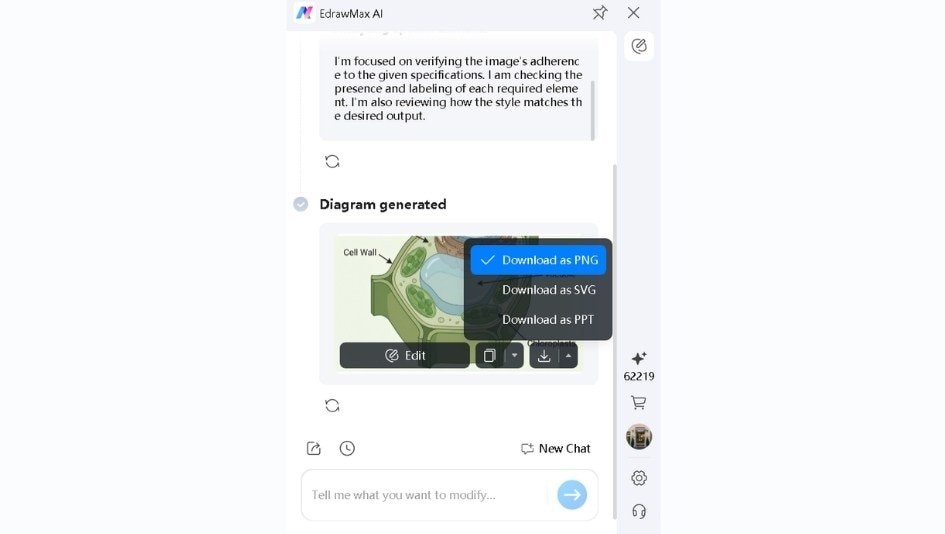
- Finally, I usually send it straight to the canvas to add more labels, annotations, and elements.
- Sometimes I copy it to slides or export it as SVG when I need sharp print quality.
Method 2: Use the Edraw Agent in EdrawMax Web App
Step1 Enter Your Prompt in the Scientific Illustration Model
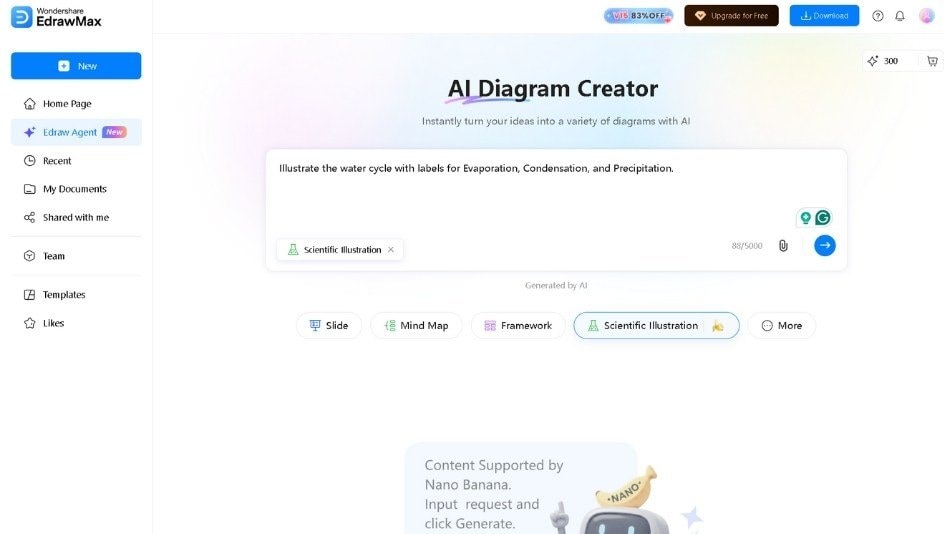
- On the online version, I click Edraw Agent from the left panel.
- The model selector appears, and I activate Scientific Illustration mode before prompting.
- Next, I type the clear prompt, making sure to specify labels or layout if I have preferences.
- Finally, I press Enter or tap the arrow icon to generate it.
Step2 Review the Result
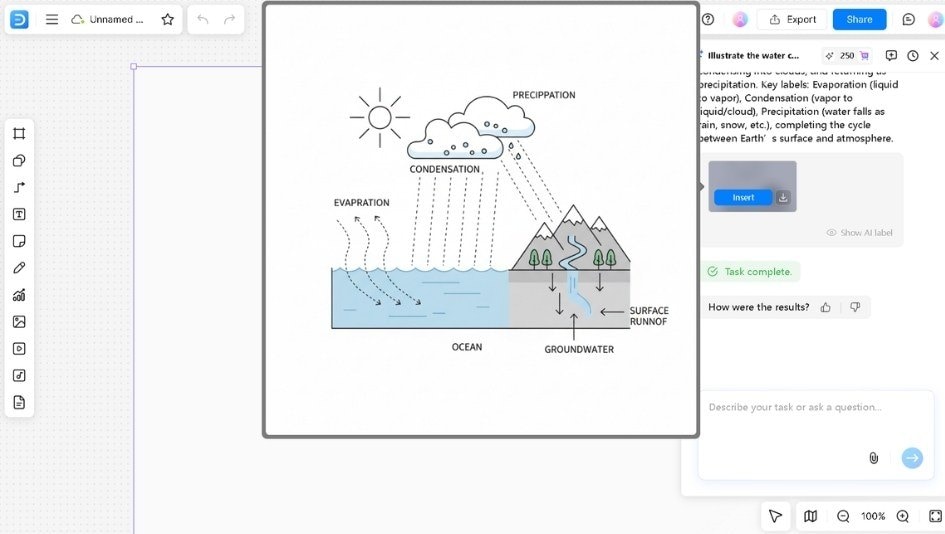
- The new tab displays the output you can insert into the canvas.
- Hover over it to have a look at what Nano Banana Pro in EdrawMax made.
- I zoom in, check alignment, and regenerate if something feels off.
- When it works, I refine spacing or add extra labels using the editing tools on the left side panel.
How EdrawMax + Nano Banana Pro Gives More Accurate Diagrams
Most AI diagram tools end at generation. You get an image. If something is wrong, you start over. EdrawMax extends the process by giving you a workspace to build on top of AI outputs.
The Generated Diagram Is a Starting Point
Nano Banana Pro creates the core visual. The output cannot be edited internally. You cannot select individual shapes within it or change their properties. But you can treat it as a foundation and add to it.
Expand with 26,000+ Symbols
EdrawMax's symbol library covers science, engineering, business, education, and more. After generation, open the library panel. Browse categories or search for specific shapes. Drag symbols onto your canvas next to or on top of the AI diagram.
A chemistry diagram missing a reaction arrow? Add one from the library. A biology illustration without a scale bar? Insert one manually.
Position Elements Exactly Where Needed
EdrawMax provides alignment tools, grid snapping, and ruler guides. When you add new shapes, they align precisely as you need. Labels remain where you place them. Arrows point exactly where they should.
This control doesn't exist in pure AI generators. They place elements based on probability. EdrawMax lets you place elements as you intend.
Build Composite Diagrams
Run multiple prompts for different parts of a complex illustration. Generate a food web. Generate individual animal icons separately. Arrange all pieces on one canvas. The final diagram combines AI speed with manual arrangement.
Annotate and Label Freely
Add text boxes anywhere on the canvas. Write explanations, labels, or notes that the AI didn't include. Format text with different sizes, colors, and fonts. Position annotations exactly where they help most.
Export Everything Together
Your AI-generated core, plus all added elements, is exported as a single file. Choose PNG, SVG, PDF, PPT, or other formats. The final diagram is ready for presentations, reports, or printing.
Prompt Templates That Speed Up Diagram Creation
I learned that having a ready-made sentence structure makes a huge difference. Instead of thinking from a blank page, I just fill in the blanks. This significantly speeds up the creation of science diagrams.
Here are some templates I find super helpful for common science visuals:
General Science Diagram Templates
Template 1: Simple Cycle Diagram
"Create a simple cycle diagram showing [Topic: The Water Cycle]. Use four steps labeled [Label 1: Evaporation], [Label 2: Condensation], [Label 3: Precipitation], and [Label 4: Collection]. Use blue arrows to show the flow."
Template 2: Basic Cross-Section
"Draw a cross-section diagram of [Topic: an apple]. Label the main parts: [Label 1: Skin], [Label 2: Flesh], and [Label 3: Seeds]. Use a technical schematic style."
Template 3: Structure and Function
"Make a diagram of [Topic: a plant leaf]. Label these three parts: [Part 1: Vein], [Part 2: Stem], and [Part 3: Blade]. Show one simple arrow from the leaf pointing to the word Photosynthesis."
Biology-Specific Templates
Template 4: Simple Organism Anatomy
"Draw a simple diagram of [Organism: a frog]. Label just two body parts: [Part 1: Leg] and [Part 2: Eye]. Use a clean flat design."
Template 5: Basic Food Chain
"Illustrate a simple food chain using three pictures in a line: [Producer: Grass], [Primary Consumer: Rabbit], and [Secondary Consumer: Fox]. Use arrows to show energy moving from grass to rabbit to fox."
Earth and Space Templates
Template 6: Planet Structure
"Design a cross-section view of [Planet: Earth]. Label the three layers: [Layer 1: Crust], [Layer 2: Mantle], and [Layer 3: Core]. Do not use background decorations."
Template 7: Simple System Layout
"Make a diagram showing [System: The Solar System]. Show only the Sun at the center and the Earth orbiting it. Use a whiteboard sketch style."
Chemistry/Matter Template
Template 8: Atomic Model
"Create a very simple diagram of [Particle: an atom]. Label two parts: [Part 1: Nucleus] in the center and [Part 2: Electron] orbiting around it. Use only red and white colors."
How to Fix Common AI Diagram Problems
It’s AI. Even with Nano Banana Pro, you might hit a snag. Here is how I handle the output when it gets weird:
When Labels Come Out Wrong
The AI might write "Mitochnodra" instead of "Mitochondria." Trying to fix this through prompts rarely works.
This is the way out: Generate without text. Add "no text labels" to your prompt. Then open the diagram in EdrawMax and use the Text tool to type correct labels yourself. This gives you 100% accuracy and cleaner results.
When Text Looks Blurry
Small font sizes cause the AI to produce fuzzy text that's hard to read.
What to do: Request "large, bold headers" in your prompt. If the output still blurs, place a white rectangle over the blurry text in EdrawMax. Then type fresh text on top of it.
When the Style Gets Too Busy
Sometimes the AI adds shading, textures, or artistic effects that make diagrams hard to read.
Consider this handled: Include "vector art style" or "flat line art" in your prompt. These terms push the AI toward simpler visuals. The output looks more like a technical diagram and less like a painting.
When Steps or Parts Go Missing
You asked for five steps in the process. The AI gave you four.
Here’s the fix I use: Don't regenerate everything. Accept what works. Open EdrawMax's symbol library and drag a matching shape onto your canvas for the missing step. Building on a "mostly correct" diagram is faster than waiting for a perfect one.
When Extra Lines Clutter the Image
The AI sometimes adds decorative swirls, borders, or lines you didn't request.
How to sort it out: Use the Crop tool in EdrawMax to cut away busy edges. Or place white rectangle shapes over the unwanted parts to hide them. Both methods clean up the diagram without regeneration.
When Colors Don't Match
The diagram structure is correct, but the colors clash with your document or presentation.
This should do the trick: You can't easily recolor individual pixels. Instead, apply a filter to the entire image in EdrawMax. Use the Color Correction tool to shift the hue and saturation until the diagram matches your color scheme.
Wrap-Up
Diagram creation no longer needs to be a bottleneck. Nano Banana Pro generates visuals that follow scientific logic. EdrawMax lets you build on those visuals without limits.
Missing a label? Add it. Wrong color? Adjust it. Need another element? Drag it from the library.
The AI starts the work. You finish it. The result is a diagram that looks exactly how you need it.
Try it with your next science diagram. Open EdrawMax, activate Scientific Illustration mode, and see how fast you can go from idea to finished visual.
AI Diagram Generator
Enter your prompt. Upload files if needed. Generate diagrams, charts, or slides instantly.




 (AI & Web)