




I had regenerated the same science diagram four times. Each version got closer but still missed something: a label, the right perspective, and the detail level I needed for my presentation the next day.
Fixing it manually would take an hour. Regenerating again felt like gambling. I was stuck between bad options because my prompt didn't specify enough upfront.
Most failures trace back to vague instructions. The AI can't read your mind. It only knows what you type. Clear prompts work on the first try.
In this write-up, I'll walk you through writing prompts to specify precisely what you need, with templates you can adapt in under a minute.
In this article
- What You Can Build With Nano Banana Pro
- Before You Blame AI, Fix Your Prompt
- Free Prompts for Nano Banana You Can Try Right Now
- What Professionals Do to Generate Better Scientific Illustration Diagrams
- Generate Science Illustrations with Nano Banana in EdrawMax
- Use Nano Banana for the Art and EdrawMax for the Diagrams
What You Can Build With Nano Banana Pro
Regular AI image tools fall short in different ways when it comes to science diagrams. Here's how Nano Banana Pro offers a solution.
Problem 1: Text and Labels Appear Wrong
Most AI tools misspell scientific terms, place labels in the wrong spots, or produce text you can’t read.
Nano Banana Pro keeps labels clear, spelled correctly, and fixed to the right parts of the diagram.
I tested it by creating a neuron illustration with dendrites, an axon, a myelin sheath, and a synaptic terminal, all placed exactly where they should be.
Problem 2: Scientific Accuracy Doesn't Matter to Regular AI
When you ask for a DNA double helix, other AI systems create a nice-looking shape but ignore the science. The base pairs don’t match. The sugar-phosphate backbone bends the wrong way.
Nano Banana Pro follows actual scientific rules:
- DNA twists to the right.
- Benzene rings keep their 120-degree angles.
- Cell membranes show the phospholipid bilayer in the proper orientation.
Problem 3: Detail Levels Don't Match Educational Needs
Classroom diagrams should have simple yet clear layouts. Research figures' illustrations need deeper detail. Regular AI usually delivers only one style that doesn't function.
Nano Banana Pro lets you pick the level of detail in your prompt. If you ask it to make a simple diagram for 7th grade, it gives you a clear, basic layout. Similarly, a request for a detailed illustration for undergraduate biochemistry adds the extra structures you need.
Who Needs This
Everyone can use Nano Banana Pro to create quick, accurate science diagrams. Ideal users include teachers, students, researchers, textbook teams, and lab instructors.
Before You Blame AI, Fix Your Prompt
Your Prompts Decide Whether the Diagram Looks Smart or Messy
I requested "cell diagram" five times, and each attempt reminded me how much control the prompt actually has.
First attempt: blurry organelles floating randomly. Second: better shapes but no labels. Third: labels appeared, but half were misspelled. Fourth: correct spelling, but wrong structures emphasized. The fifth attempt finally worked, but only because I'd added eight specific details to my prompt.
The AI didn't improve from one attempt to the next. My instructions did.
Most failed outputs trace back to these missing elements: clarity (what you want), structure (how it should look), and constraints (what to avoid). The AI fills gaps with guesses. Those guesses rarely match your needs.
When you type "draw photosynthesis," the AI doesn't know if you need a simple overview for elementary students or a detailed chloroplast cross-section for college biology. It picks randomly. You regenerate, wasting valuable time.
The Ultimate Prompt Writing Guide for Nano Banana Pro
Every working prompt contains six parts. Skip one, and your output may drop in quality.
Part 1: Name the Exact Subject
Don't write "cell." Write "plant cell," "animal cell," or "prokaryotic bacterial cell."
Don't write "molecule." Write "glucose molecule," or "DNA nucleotide," or "water molecule showing hydrogen bonds."
Specificity eliminates guessing. I tested this with chemistry diagrams. "Draw ethanol" produced random carbon chains. "Draw ethanol molecule (C₂H₅OH)" created the correct two-carbon structure with an OH group.
Part 2: Set the View Angle
Science-based diagrams need specific perspectives:
- Cross-section (cut through the middle)
- Side view (lateral perspective)
- Top-down view (looking from above)
- 3D model (showing depth)
- Exploded view (showing parts separated)
I requested a "mitochondria diagram" and got a random blob. I requested a "mitochondria cross-section showing inner and outer membranes with cristae folds" and got a textbook-quality illustration.
Part 3: Define Detail Level
Add one phrase specifying complexity:
- "Simplified for middle school."
- "Detailed for undergraduate biology."
- "Basic overview with 5-7 main parts."
- "Comprehensive diagram with all substructures."
This controls how much information appears. A 7th-grade digestive system needs 6 labeled organs. A medical school version needs blood vessels, muscle layers, and nerve supply.
Part 4: Specify Label Requirements
State exactly what needs labels:
- "With numerical labels (1, 2, 3...)."
- "With text labels for each part."
- "With arrows pointing to key structures."
- "Unlabeled (I'll add text later)."
Once, I generated an unlabeled heart diagram. But later, I had to add my own labels in EdrawMax to match the course terminology.
Part 5: Choose Visual Style
Style affects readability. Specify the style with one instruction, like:
- "Clean textbook style"
- "Scientific illustration with shading"
- "Simple line drawing"
- "Colorful educational poster style"
Textbook style works for printed handouts. Colorful poster-style works for classroom projection.
Part 6: Add Background Context
Finish with environment details:
- "On a white background."
- "On a transparent background."
- "In a cellular environment."
- "Isolated with no background elements."
White backgrounds work for documents. Transparent backgrounds let you layer diagrams in presentations.
Putting It All Together
Weak prompt:
"Draw a neuron."
Strong prompt:
"Draw a neuron diagram from the side view, simplified for high school biology, with text labels for dendrites, cell body, axon, and synaptic terminals, in a clean textbook style, on a white background."
Free Prompts for Nano Banana You Can Try Right Now
Here's the prompt cheat sheet everyone asks for. Copy these templates, fill in the blanks, and paste them into Nano Banana Pro. Each template follows a tested structure that produces almost final results on the first try.
Biology Diagram Prompt
Draw a [SPECIFIC BIOLOGICAL SUBJECT] in [VIEW ANGLE], [DETAIL LEVEL], with [LABEL TYPE], [VISUAL STYLE], on a [BACKGROUND COLOR] background.
Fill-In Guide
- [SPECIFIC BIOLOGICAL SUBJECT]: "plant cell from leaf tissue," "human digestive system," or "bacterial cell structure."
- [VIEW ANGLE]: "cross-section," "side view," or "top-down view."
- [DETAIL LEVEL]: "simplified for grade 7, showing 6-8 main parts" or "detailed for college biology."
- [LABEL TYPE]: "text labels with arrows" or "numbered labels 1-10."
- [VISUAL STYLE]: "clean textbook style" or "colorful educational poster style."
- [BACKGROUND COLOR]: "white" or "transparent" or "light blue."
Example Completed Prompt: "Draw a plant cell from a cut view, simple for grade 6, with text labels for the cell wall and nucleus, in a clean textbook style, on a white background."
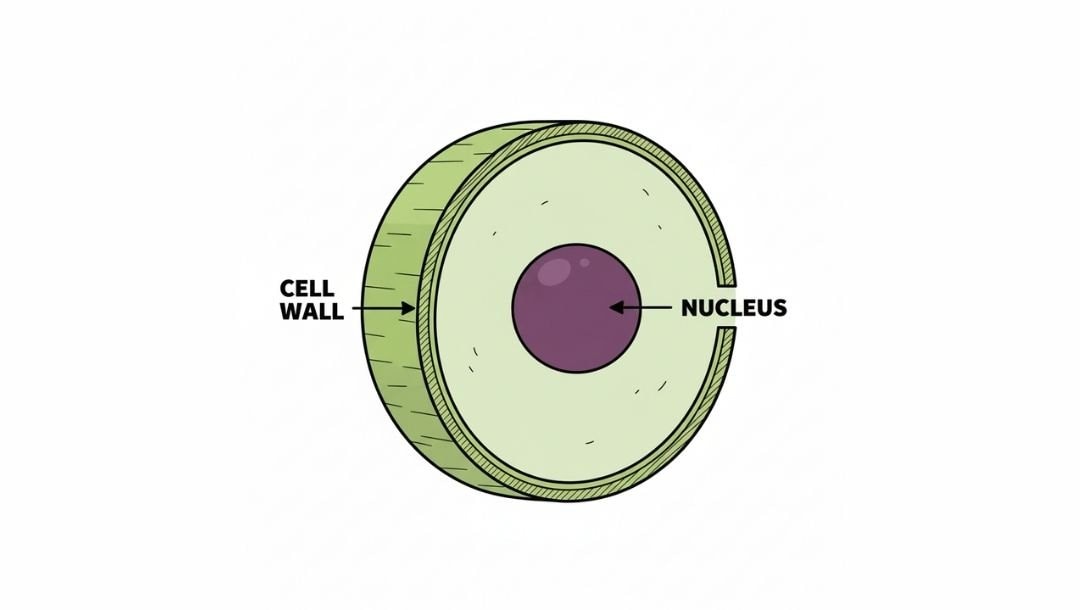
What It's For: Cell structures, organ systems, biological processes, plant anatomy, and ecosystem relationships.
Chemistry Reaction Prompt
Draw a [SPECIFIC REACTION] showing [REACTANTS] converting to [PRODUCTS], [DETAIL LEVEL], with [LABEL TYPE], [VISUAL STYLE], on a [BACKGROUND COLOR] background.
Fill-In Guide
- [SPECIFIC REACTION]: "combustion of methane," "photosynthesis reaction," or "acid-base neutralization."
- [REACTANTS]: "CH₄ + O₂" or "specific molecules by name."
- [PRODUCTS]: "CO₂ + H₂O" or "specific molecules by name."
- [DETAIL LEVEL]: "simplified with molecular formulas only" or "detailed showing electron movement."
- [LABEL TYPE]: "with chemical formulas labeled" or "with reaction arrows and coefficients."
- [VISUAL STYLE]: "clean chemical equation style" or "3D molecular model style."
- [BACKGROUND COLOR]: "white" or "transparent."
Example Completed Prompt: "Draw a combustion of methane reaction showing CH₄ + 2O₂ converting to CO₂ + 2H₂O, simplified with molecular formulas and balanced coefficients, with labels for reactants and products, in a clean chemical equation style, on a white background."
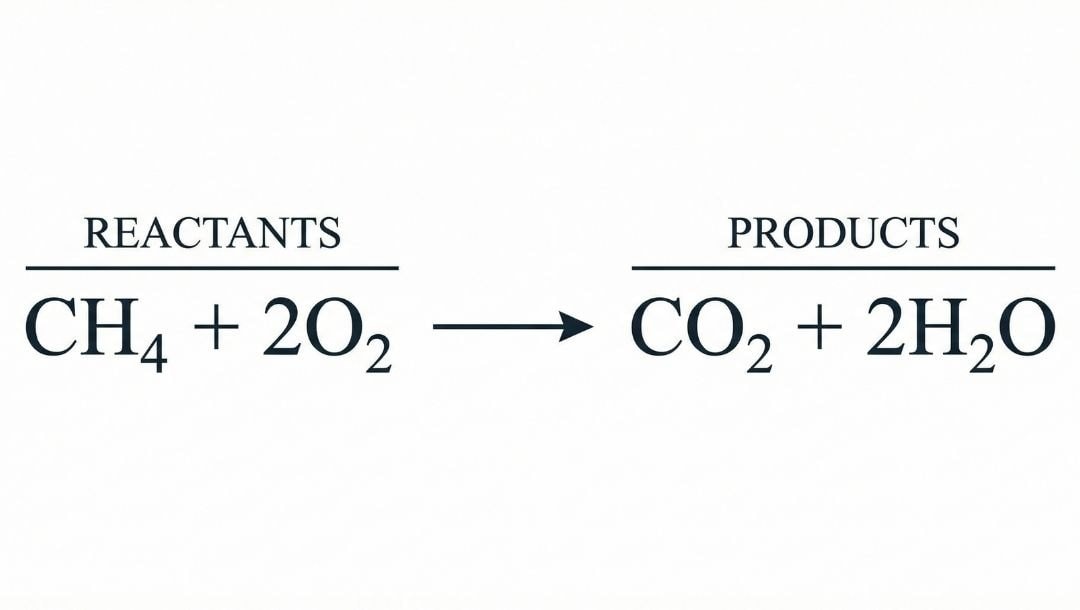
What It's For: Chemical equations, reaction mechanisms, molecular interactions, and bonding processes.
Lab Equipment Setup Prompt
Draw a [LAB SETUP NAME] showing [EQUIPMENT LIST], arranged for [PURPOSE], [DETAIL LEVEL], with [LABEL TYPE], [VISUAL STYLE], on a [BACKGROUND COLOR] background.
Fill-In Guide
- [LAB SETUP NAME]: "distillation apparatus," "titration setup," or "microscope configuration."
- [EQUIPMENT LIST]: "round-bottom flask, condenser, collection flask, heat source" or list specific tools
- [PURPOSE]: "separating liquids by boiling point" or specific experiment goal
- [DETAIL LEVEL]: "basic setup showing main components" or "detailed with all connections and clamps."
- [LABEL TYPE]: "text labels for each piece of equipment" or "numbered labels 1-8."
- [VISUAL STYLE]: "technical illustration style" or "simple line drawing."
- [BACKGROUND COLOR]: "white" or "light gray."
Example Completed Prompt: "Draw a distillation apparatus showing a round-bottom flask, condenser, collection flask, and heat source, arranged for separating liquids by boiling point, with a basic setup showing main components and connections, with text labels for each piece of equipment, in a technical illustration style, on a white background."
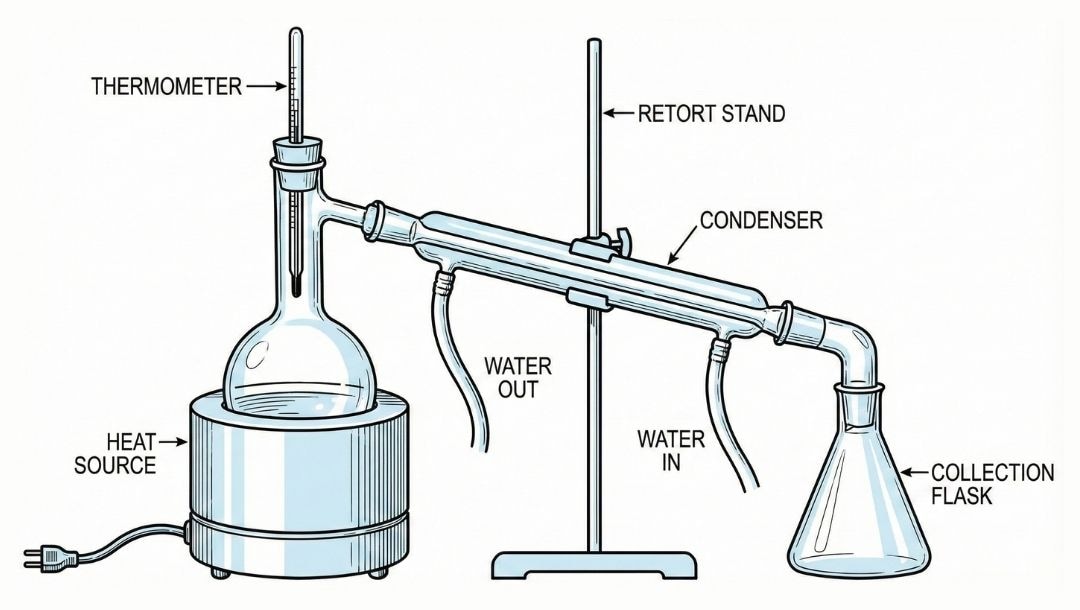
What It's For: Laboratory apparatus, experimental setups, equipment configurations, and measurement tools.
Physics Process Prompt
Draw a [PHYSICS CONCEPT] diagram showing [KEY ELEMENTS], [DETAIL LEVEL], with [LABEL TYPE] including [SPECIFIC MEASUREMENTS], [VISUAL STYLE], on a [BACKGROUND COLOR] background.
Fill-In Guide
- [PHYSICS CONCEPT]: "simple electric circuit," or "force diagram," or "wave motion."
- [KEY ELEMENTS]: "battery, resistor, switch, light bulb connected in series" or specific components
- [DETAIL LEVEL]: "simplified for high school physics" or "detailed with all component values."
- [LABEL TYPE]: "standard circuit symbols with values" or "arrows showing direction."
- [SPECIFIC MEASUREMENTS]: "voltage, resistance, and current values" or relevant units
- [VISUAL STYLE]: "standard circuit diagram style" or "vector diagram with arrows."
- [BACKGROUND COLOR]: "white" or "grid background."
Example Completed Prompt: "Draw a force diagram showing a bar magnet picking up 5 paper clips, simplified for grade 3, with arrows showing the magnetic force going from the magnet to the clips, with labels for 'North' and 'South' poles, in a simple line drawing style, on a white background."
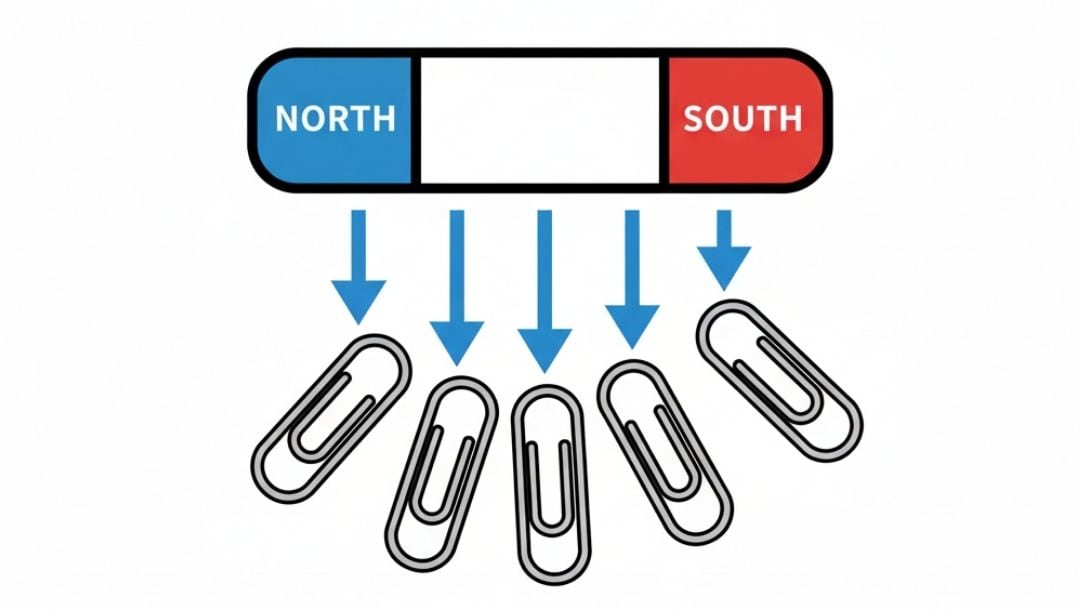
What It's For: Force diagrams, wave motion, energy transfer, circuit schematics, motion illustrations.
Anatomy Illustration Prompt
Draw an [ANATOMICAL STRUCTURE] in [VIEW TYPE], [DETAIL LEVEL], with [LABEL TYPE], showing [SPECIFIC FEATURES], [VISUAL STYLE], on a [BACKGROUND COLOR] background.
Fill-In Guide
- [ANATOMICAL STRUCTURE]: "human heart," "skeletal hand," or "respiratory system."
- [VIEW TYPE]: "frontal cross-section" or "lateral view" or "anterior view."
- [DETAIL LEVEL]: "simplified for middle school showing 4-6 main parts" or "detailed medical illustration."
- [LABEL TYPE]: "text labels with leader lines" or "numbered labels with key."
- [SPECIFIC FEATURES]: "4 chambers and major blood vessels" or relevant anatomical details
- [VISUAL STYLE]: "medical textbook illustration style" or "simplified anatomical drawing."
- [BACKGROUND COLOR]: "white" or "light beige."
Example Completed Prompt: "Draw a tooth cut in half, a simple view with 3 main layers, with text labels for each layer, showing enamel, dentin, and pulp, a simplified anatomical drawing, on a light beige background."
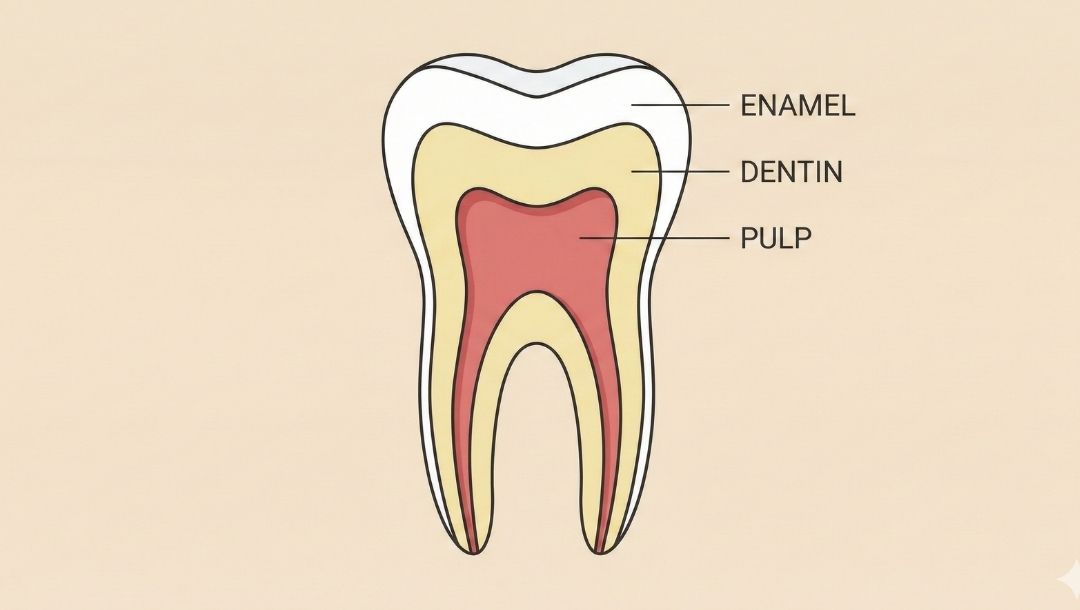
What It's For: Human body systems, organ structures, muscle groups, skeletal diagrams, and physiological processes.
Environmental Science Prompt
Draw an [ENVIRONMENTAL PROCESS] showing [KEY COMPONENTS], with [ARROWS/CONNECTIONS] indicating [FLOW TYPE], [DETAIL LEVEL], with [LABEL TYPE], [VISUAL STYLE], on a [BACKGROUND COLOR] background.
Fill-In Guide
- [ENVIRONMENTAL PROCESS]: "water cycle," "food web," or "carbon cycle."
- [KEY COMPONENTS]: "evaporation, condensation, precipitation, collection," or specific elements
- [ARROWS/CONNECTIONS]: "arrows," or "lines," or "flow indicators."
- [FLOW TYPE]: "water movement," "energy transfer," or "nutrient cycling."
- [DETAIL LEVEL]: "simplified for elementary students with 4 main stages" or more complex
- [LABEL TYPE]: "text labels on each stage" or "process names with descriptions."
- [VISUAL STYLE]: "colorful educational diagram style" or "clean scientific illustration."
- [BACKGROUND COLOR]: "light blue" or "white" or "natural landscape."
Example Completed Prompt: "Draw a food web showing grass, rabbits, snakes, and hawks, with arrows indicating energy transfer, simplified for elementary students with 4 main stages, with text labels on each component, in a colorful educational diagram style, on a white background."
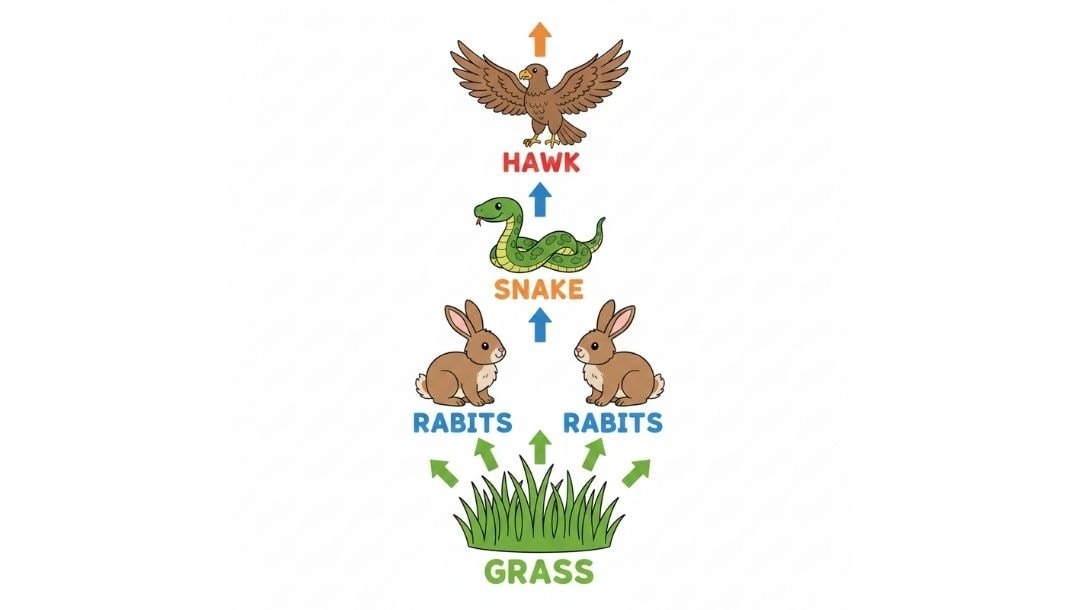
What It's For: Ecosystems, food webs, water cycles, carbon cycles, energy flow, and climate processes.
Molecular Structure Prompt
Draw a [MOLECULE NAME] as [MODEL TYPE], showing [SPECIFIC FEATURES], [DETAIL LEVEL], with [LABEL TYPE], [VISUAL STYLE], on a [BACKGROUND COLOR] background.
Fill-In Guide
- [MOLECULE NAME]: "glucose molecule" or "caffeine molecule" or "water molecule."
- [MODEL TYPE]: "ball-and-stick model," "space-filling model," or "skeletal formula."
- [SPECIFIC FEATURES]: "all atoms and bonds" or "hydrogen bonds" or "functional groups."
- [DETAIL LEVEL]: "showing molecular formula C₆H₁₂O₆" or "3D representation with bond angles."
- [LABEL TYPE]: "element symbols on each atom" or "bond types labeled."
- [VISUAL STYLE]: "3D molecular model style" or "2D structural formula style"
- [BACKGROUND COLOR]: "white" or "transparent."
Example Completed Prompt: "Draw a water molecule as a space-filling model, showing the oxygen and hydrogen atoms, with the molecular formula H₂O displayed, with element symbols (H, O) on each atom, in 3D molecular model style, on a white background."
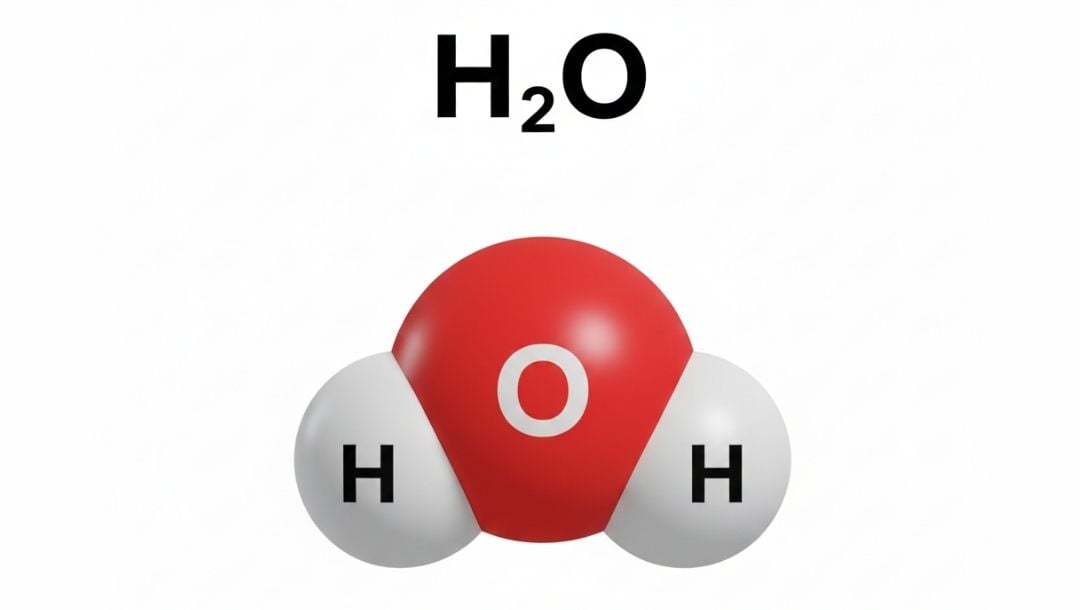
What It's For: Chemical compounds, molecular geometry, bonding patterns, isomers, and crystal structures.
Quick Usage Tips
- Start with the closest template to what you need.
- Fill in the blanks from left to right in order.
- Copy the completed prompt exactly as written.
- Paste into Nano Banana Pro and generate.
- Adjust one element at a time if the first result needs refinement.
What Professionals Do to Generate Better Scientific Illustration Diagrams
Test Variations First
Run small prompt changes before committing. Adjust one detail at a time and generate a few versions. Compare them to your reference to see which one matches the depth you need.
Use Precise Terminology
Pull exact terms from your textbook or syllabus. List every structure by its proper name and match the labeling style and orientation. Specific language produces cleaner, more accurate diagrams.
Compare Against a Reference
Place the output beside your source. Check proportions, placement, and labels. If something looks wrong, regenerate with direct corrections to control shape, detail, or unwanted elements.
Save and Reuse Prompt Templates
Keep a library of successful prompts sorted by subject and grade. Note what made each prompt work. When reusing, only swap the structure or topic to maintain style and clarity.
Keep Style Consistent
Use the same style, color rules, and coding system throughout a unit. Consistency helps students process visuals faster.
Match Detail to the Use Case
Limit complexity based on whether the diagram is for teaching, assignments, or test prep. Confirm all labels align with exam terms or standards.
Test Clarity with Real Users
Show the diagram to a few students or colleagues. If they pause or misinterpret parts, reduce clutter or simplify labels.
Generate in Batches
Create multiple diagrams in a single session and compare them. It speeds up review and exposes inconsistencies. Use targeted constraints for size, detail, and readability, especially if you need clean printouts.
Generate Science Illustrations with Nano Banana in EdrawMax
EdrawMax includes Nano Banana Pro built into the platform. You can generate science illustrations without leaving your workspace or switching between tools. Pick the method that fits your workflow.
Method 1: Use AI Floating Ball on Desktop
 Get 500 free AI tokens
Step1 Activate the AI Floating Ball
- Locate the AI Floating Ball on the right panel after installing EdrawMax Desktop.
- Click to activate it.

Step2 Prompt the Scientific Illustration Model
- Click the mode selector dropdown.
- Change from Smart Match to Scientific Illustration.
- Write your prompt in detail.
- Or you can copy any template from this guide and paste it into the prompt field.
- Fill in your specific subject, view angle, and detail level.
- Hit Enter or click the arrow icon.
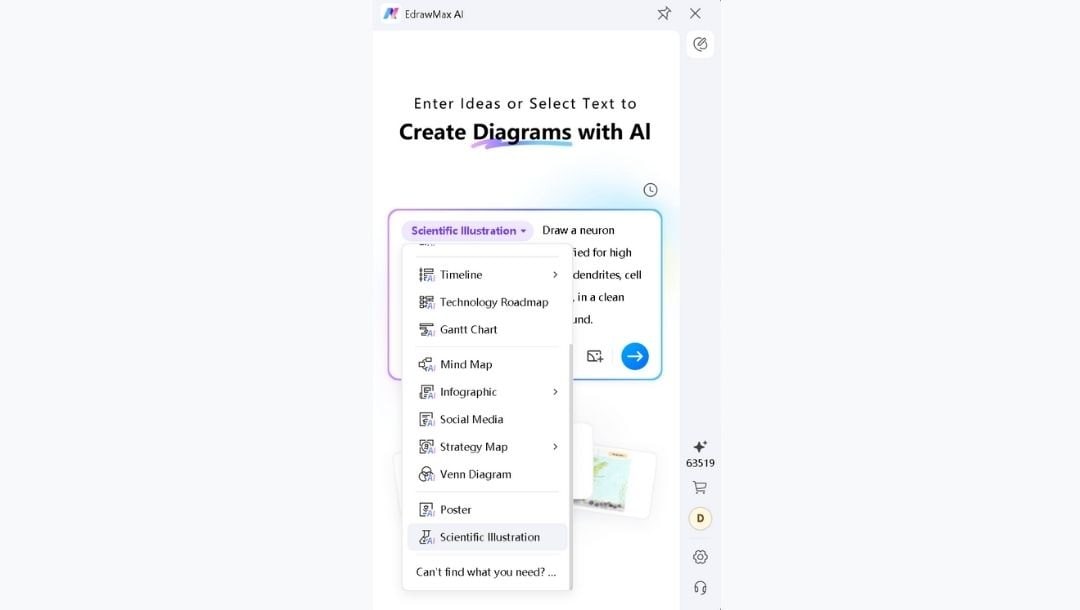
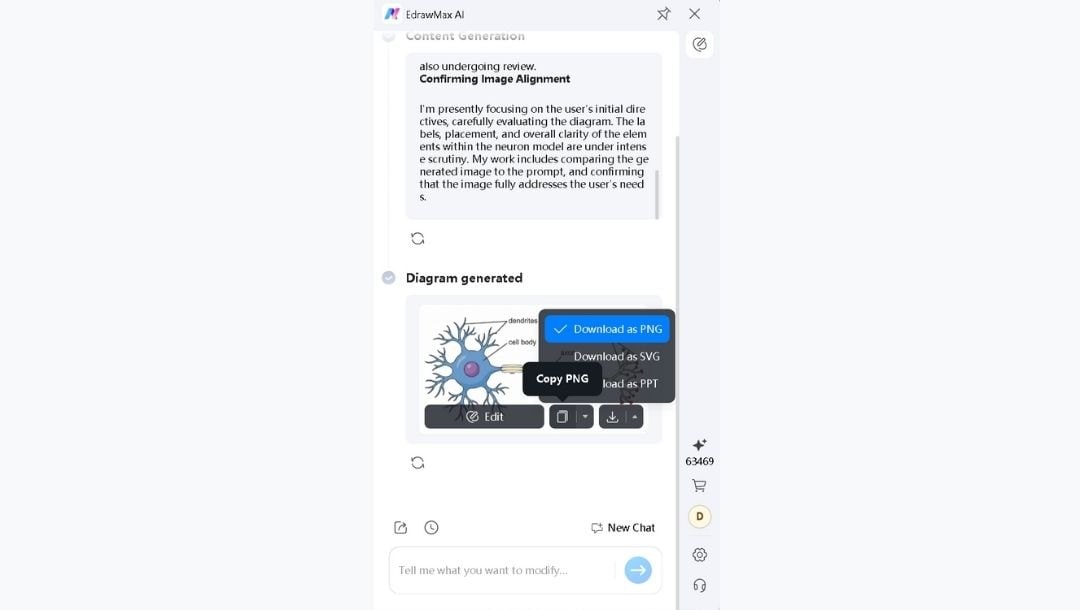
Step3 Export the Diagram or Continue Editing
- Edit: Send the diagram to EdrawMax desktop for detailed work.
- Copy: Add image to clipboard
- Download: Export as PNG (images), SVG (vector), or PPT (presentations)
Method 2: Use Edraw Agent Online
Step1 Launch the AI Agent
- Select Edraw Agent from the left side panel in EdrawMax Online.
- Choose the Scientific Illustration model.
Step2 Paste and Generate
- Copy any template prompt from this guide.
- Paste into the prompt box and fill it.
- Hit the Go icon or press Enter.
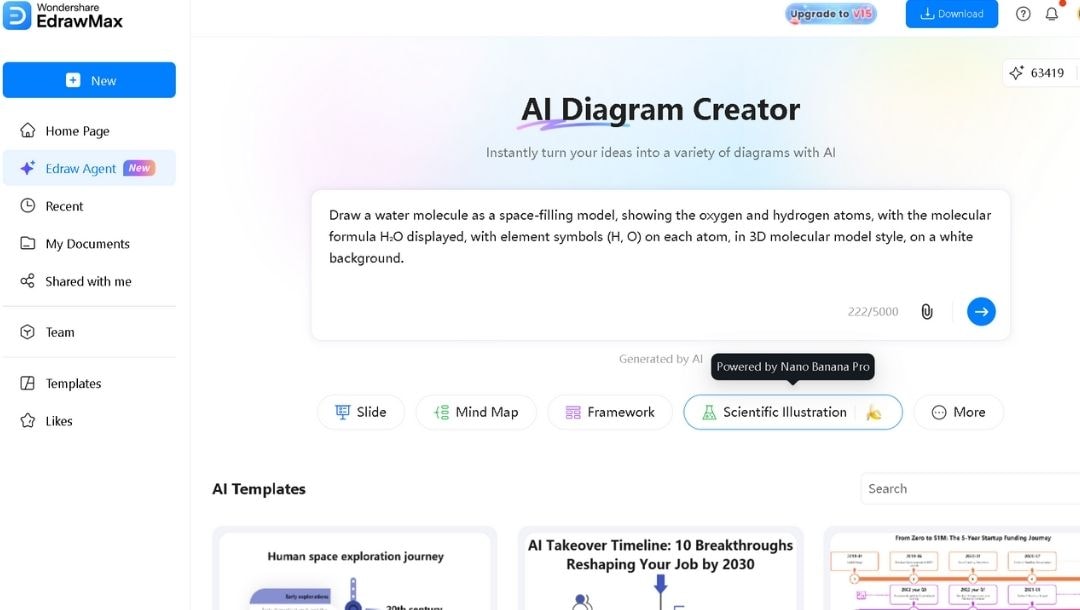
- The diagram appears in a new tab, and you can adjust it in the canvas or regenerate it if something is off.
Use Nano Banana for the Art and EdrawMax for the Diagrams
Standalone Nano Banana Pro
It creates scientific illustrations in seconds. You can generate molecules, cells, lab tools, or anatomical parts with ease.
But there's no editing canvas, so if something looks off, you need to adjust your prompt and use a reference image to regenerate.
Nano Banana Pro Inside EdrawMax
It produces the same high-quality visuals and drops them straight into EdrawMax so you can adjust or add them to your diagrams in a jiffy. This turns each AI draft into a complete diagram.
You can add labels that point to specific parts. Insert arrows to show direction, flow, or transfer. Use scientific symbols from EdrawMax, including circuit parts, chemical notation, and measurement tools. Add scale bars for size checks. Build legends that explain colors or symbols.
Grids and guides help you place everything neatly. Lock the background so your notes stay put. Export your work as a PDF for journals, an SVG for scaling, a PNG for slides, or as a shareable link for team feedback.
Both the desktop and web apps support this setup.
Try Yourself
Open EdrawMax and see how AI generation plus editing tools help you create material that’s ready to share.
AI Diagram Generator
Enter your prompt. Upload files if needed. Generate diagrams, charts, or slides instantly.




 (AI & Web)