



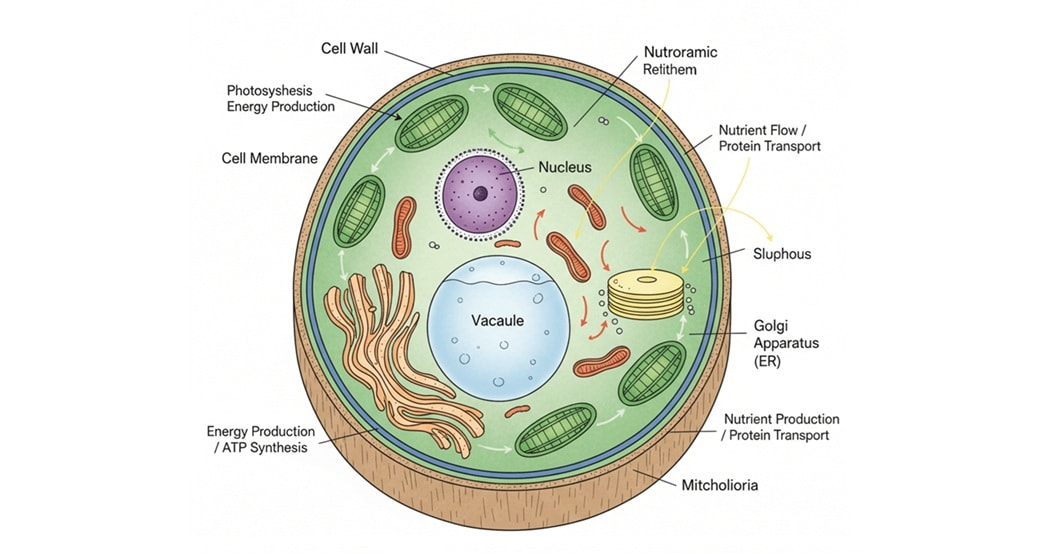
Today, many students and researchers use AI tools like Nano Banana to create clean and detailed images for reports, lessons, and presentations.
This guide explains how to use Nano Banana Pro, write strong prompts, and convert images into formats you can use. You will also learn how EdrawMax helps you edit and improve your diagrams with more control.
In this article
How To Access Nano Banana Pro
Nano Banana works on different platforms, so you can choose the setup that fits your workflow.
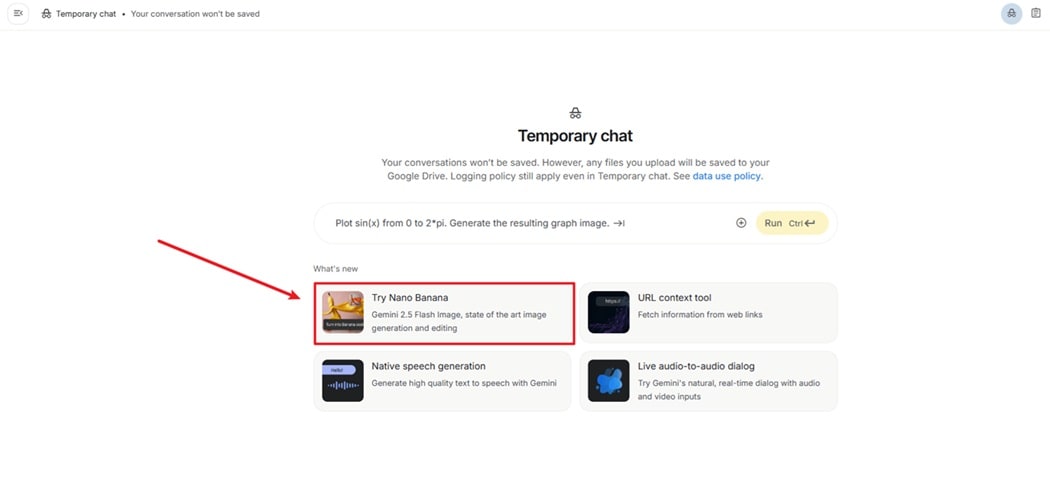
Google AI Studio
Nano Banana on Google AI Studio is easy to use. You do not need to install anything. You can open your browser and go to:
LobeHub
LobeHub is great for people who want to run Nano Banana locally. It offers flexible control and deeper customization.
Vertex AI
Vertex AI is useful for developers who want to connect Nano Banana to research tools or build custom workflows with its API.
Main Features of Nano Banana
Nano Banana includes powerful features for creating scientific diagrams. Below are its main advantages:
| Feature | Description |
| Text-to-Image | Creates high-quality images based on written text. |
| Image Fusion | Combines multiple images to form new scientific scenes. |
| Style Transfer | Matches the design of another image to help keep a consistent look. |
| High-Fidelity Text Rendering | Produces clean, readable labels for scientific figures and posters. |
Example: Making a Plant Cell Diagram With Nano Banana
Here is a simple workflow for creating a plant cell diagram.
Step1 Write a Strong Prompt
A clear prompt helps the AI produce an accurate scientific image. Here are helpful tips:
- Describe the scene in detail
- Set clear conditions such as color, style, and labels
- Adjust the prompt step by step
- Use English for higher accuracy
- Add negative prompts to avoid unwanted elements
Example prompt request given to an AI writing helper:
“Please generate a plant cell diagram with labels. Keep the style simple and the colors calm. Make sure it is suitable for science education. Improve this prompt in English and include negative keywords.”
This can produce a strong English prompt like:
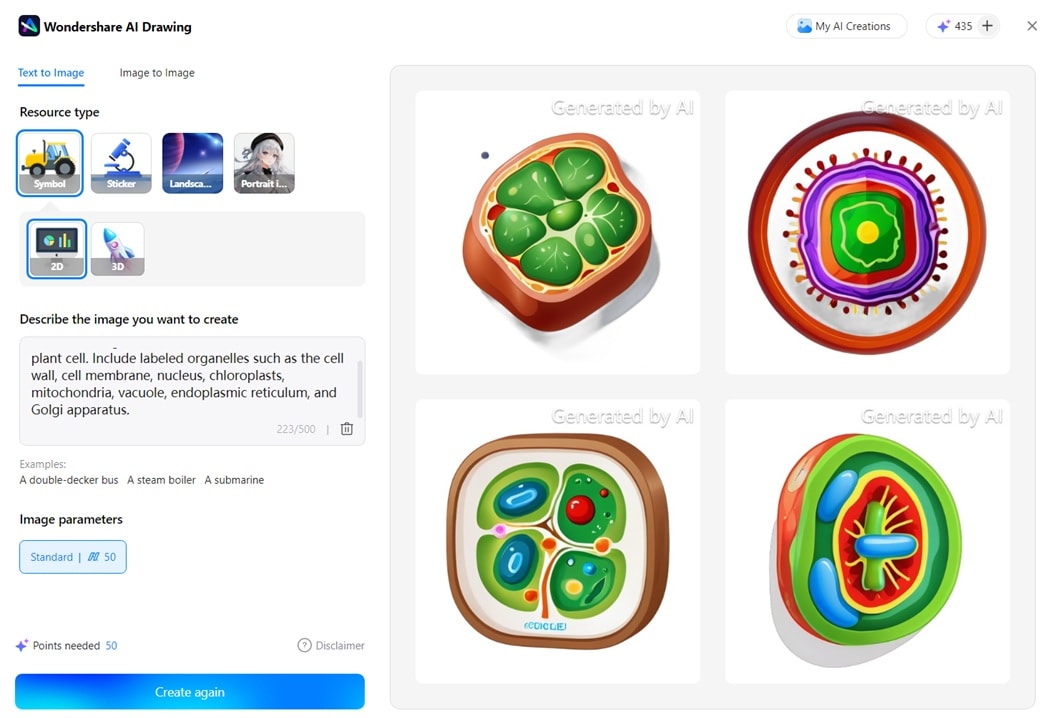
Generate a high-resolution scientific illustration of a plant cell. Include labeled organelles such as the cell wall, cell membrane, nucleus, chloroplasts, mitochondria, vacuole, endoplasmic reticulum, and Golgi apparatus.
Use a clear educational style with simple colors and a clean background.
Do not include blurry textures, decorations, gradients, artistic effects, cartoon styles, or watermarks.
Step2 Generate the Scientific Diagram
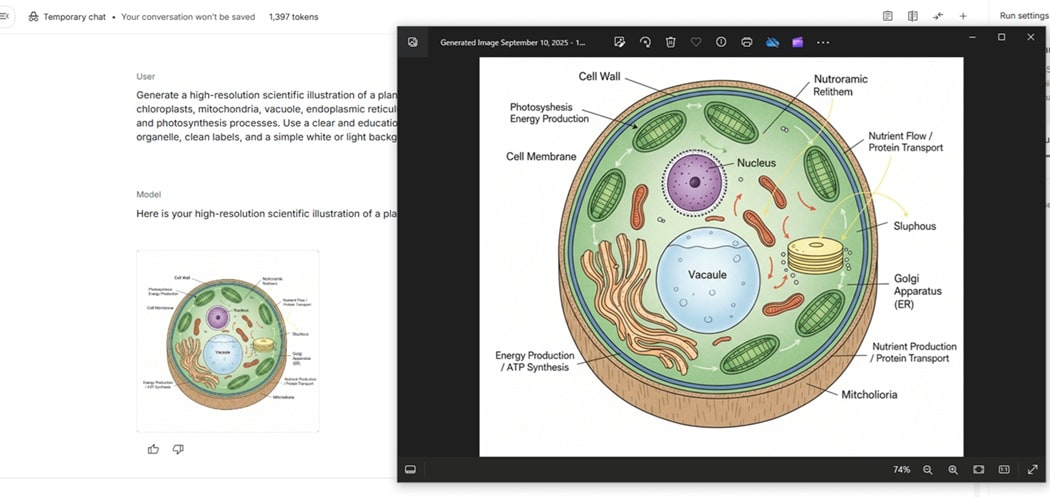
Enter your prompt in Nano Banana. If the result does not match your goal, adjust the prompt and generate a new version. You can save images by hovering your mouse and clicking the download button.
Step3 Convert the Image Format
Nano Banana exports PNG or JPG. If you need an editable vector file like SVG, you can convert the image using tools such as:
- Vectorizer
- Convertio
These tools help you prepare diagrams for research papers and academic posters.
Recommended Scientific Diagram Tool: EdrawMax
Nano Banana is great for fast image generation. But when you want to refine diagrams, adjust labels, or organize complex layouts, Wondershare EdrawMax gives you more control. Below are its key features:
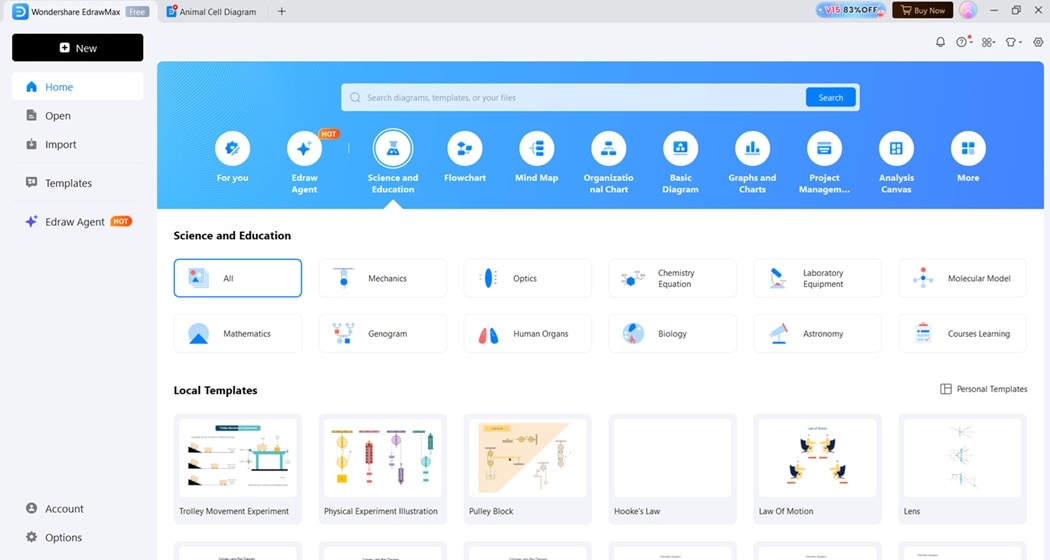
Feature 1: Large Set of Vector Materials
EdrawMax includes many ready-made templates and vector shapes for biology, chemistry, and physics.
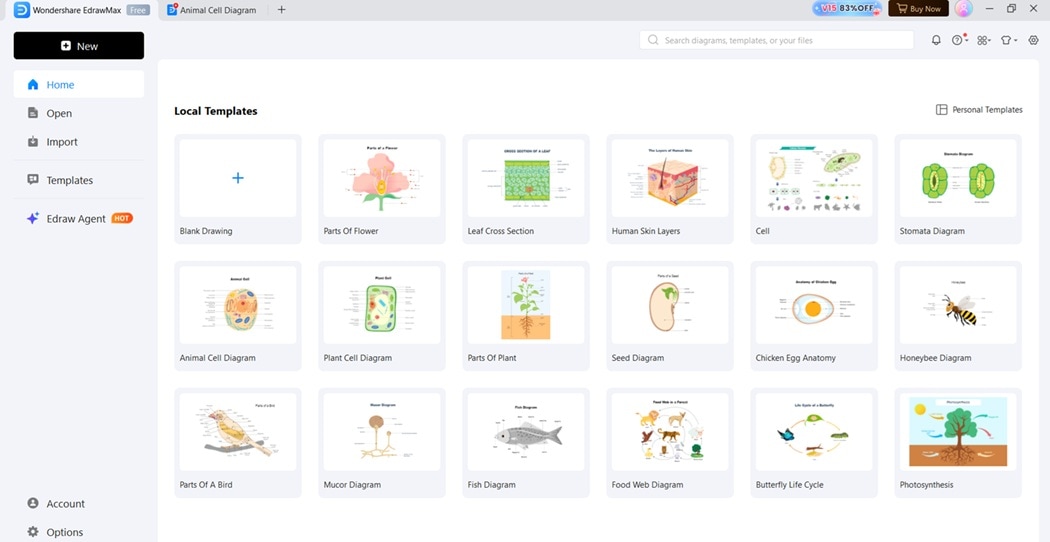
It also includes an AI material generator for making custom icons.
Feature 2: Advanced Editing Tools
You can change colors, adjust size, and edit scientific shapes with precision. You can also save different versions of your work.
Feature 3: Many Import and Export Options
EdrawMax supports SVG, PNG, JPG, PDF, and Visio import. This helps students and researchers prepare diagrams for reports and journals.
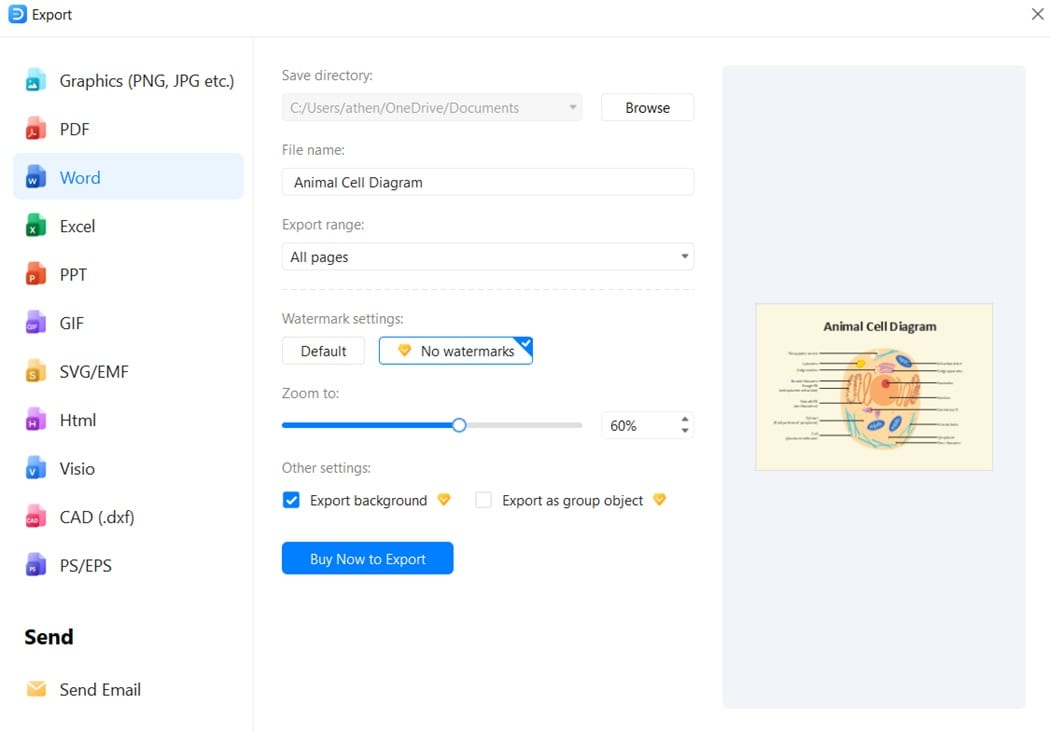
How To Generate Scientific Diagrams Using AI Floating Ball
EdrawMax includes an AI floating ball that lets you use Nano Banana inside the app. This helps you create diagrams faster without switching tools.
 Get 500 free AI tokens
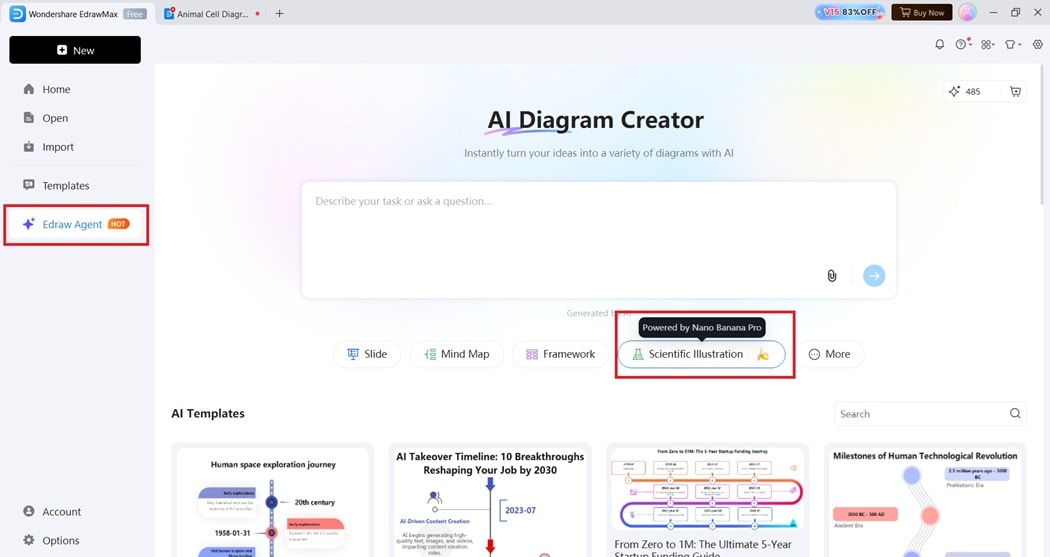
Step1 Open the AI Floating Ball
Open EdrawMax and choose Edraw Agent from the menu. Select the Scientific Illustration powered by Nano Banana
Step2 Enter Your Prompt
- Write your scientific diagram prompt.
- You can ask for plant cells, animal cells, chemical processes, lab setups, or physics diagrams.
Step3 Generate and Insert Into Your Canvas
EdrawMax will create images based on your description. Select the one you like and insert it into your diagram for editing.
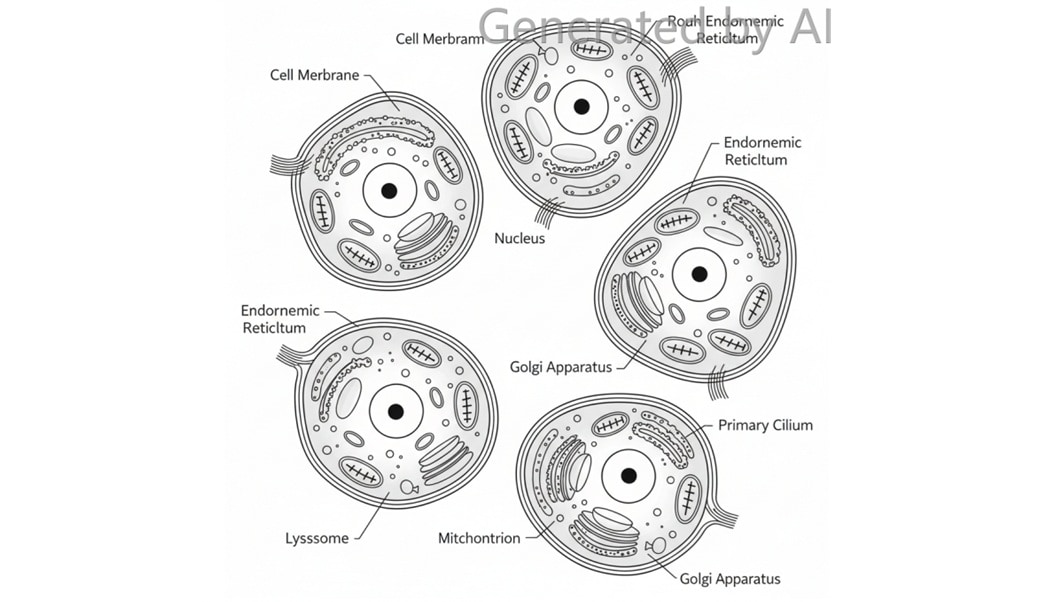
This workflow helps you combine AI generation and manual editing in one place.
How To Generate Scientific Diagrams in EdrawMax Online
EdrawMax Online also includes an AI Agent panel where you can use Nano Banana directly in your browser.
Get 500 free AI tokens
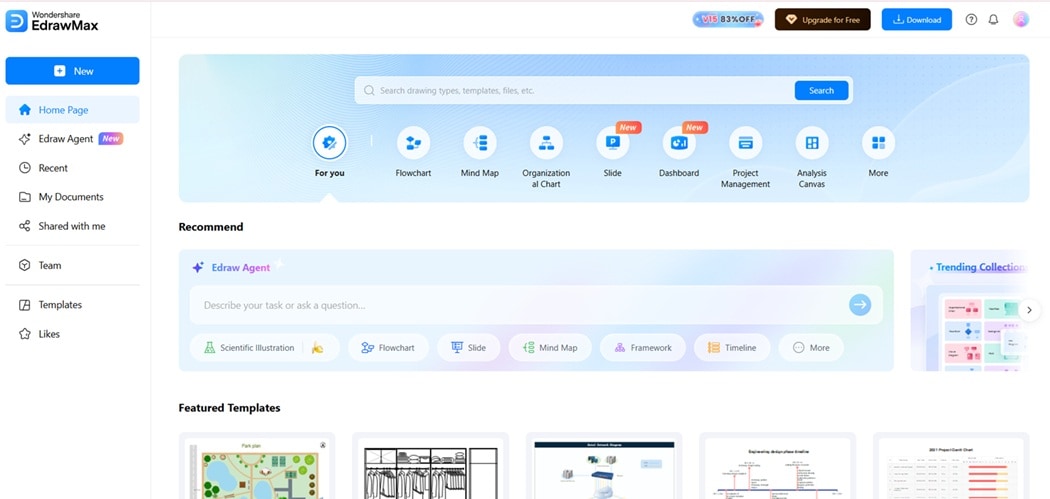
Step1 Open EdrawMax Online
Go to the official site and sign in.
Step2 Open the AI Agent Panel
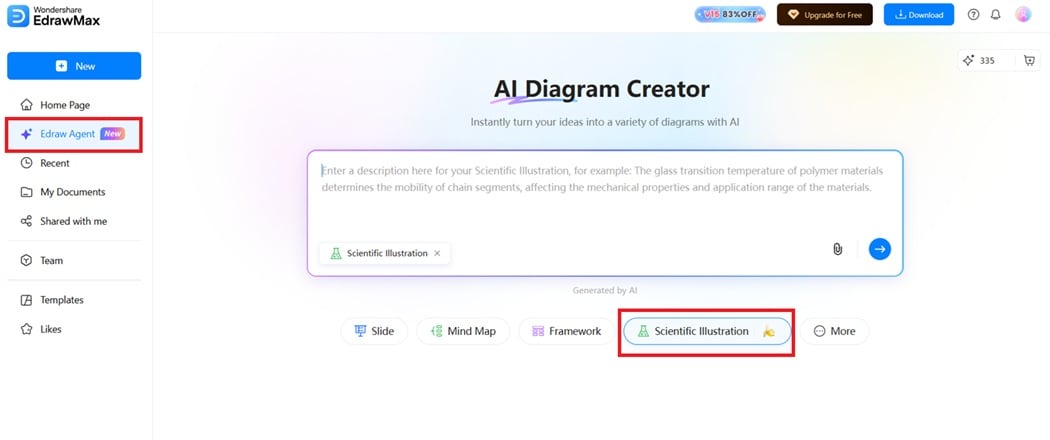
Click the Edraw Agent button on the left side of the screen. Select Scientific Illustration to access Nano Banana.
Type your scientific diagram instructions. The AI will produce several image options.
Step3 Enter Your Prompt and Generate
Type your scientific diagram instructions. Wait for the AI to produce several image options.
Add the image to your online diagram.
Continue editing with online tools.
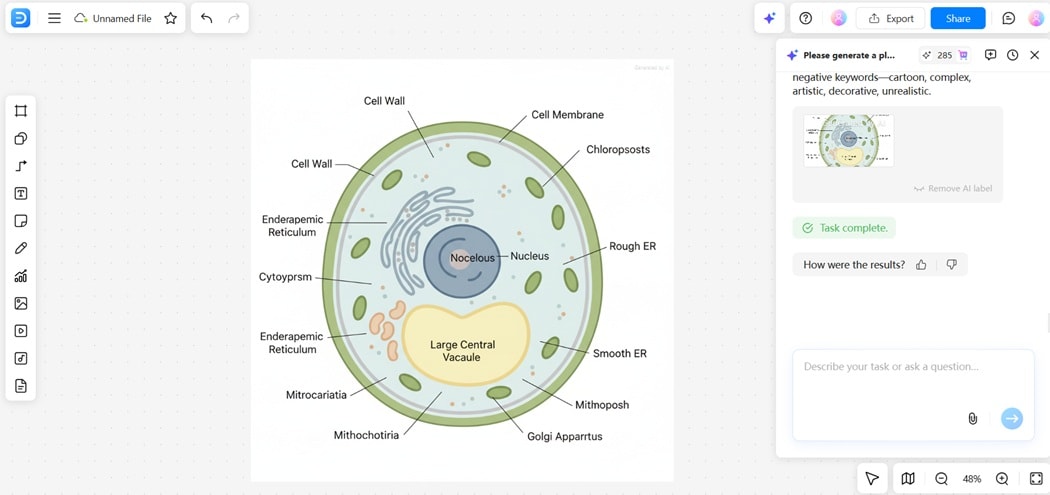
This helps you create diagrams anywhere, even without downloading software.
FAQ
-
1. Can I edit Nano Banana images directly?
Nano Banana exports PNG or JPG files, so you cannot edit them inside the tool. You can adjust colors, labels, or shapes using external software like Photoshop, Illustrator, or other editing apps. -
2. What output formats does Nano Banana support?
Nano Banana mainly produces PNG and JPG images. It does not offer vector formats like SVG. If you need scalable graphics, you can convert the output using third-party tools or editors afterward. -
3. What other AI tools can create scientific illustrations?
You can try MidJourney, Stable Diffusion, and DALL·E for scientific diagrams. They can produce strong visuals, but you may need careful prompt editing to get clean labels and accurate scientific structures. -
4. What should I focus on when making scientific diagrams?
Focus on clarity and correctness. Use simple labels, clean colors, and organized layouts. Avoid clutter, strong effects, or distracting decorations so the diagram stays easy to read and supports scientific understanding.
Conclusion
Nano Banana helps you create quick base images for scientific lessons and research. When you pair it with EdrawMax, you get full control of editing, labeling, and layout.
This mix gives you both speed and accuracy. Try both tools to build clean and helpful scientific diagrams for your work.
AI Diagram Generator
Enter your prompt. Upload files if needed. Generate diagrams, charts, or slides instantly.




 (AI & Web)