EdrawMax User Guide for Desktop
How to use EdrawMax AI Copilot
Generate and Optimize AI Prompts
One common gripe with AI is the difficulty of crafting the right prompt to ensure it produces exactly what we want. Across EdrawMax, there are plenty of ways to generate and optimize prompts.
The same is true for the AI Copilot, which gives you tools to make prompts. After all, it’s meant for quick-and-easy work. You shouldn’t have to think long and hard for a prompt.
Step ❶ Generate Random Prompts
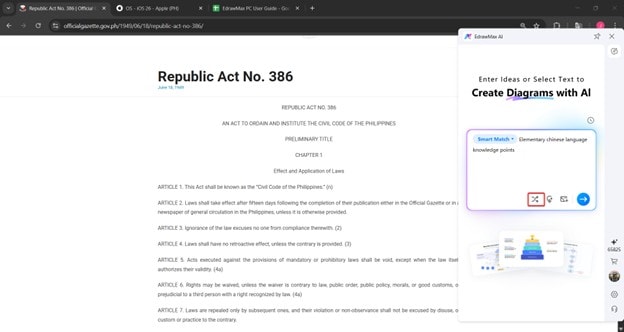
- If you need an example, click the Random Example button. These prompts are already tailored to their topics and can serve as a good reference for what a prompt should look like.
- You can click on that button as many times as you like.
Step ❷ Optimize Prompts
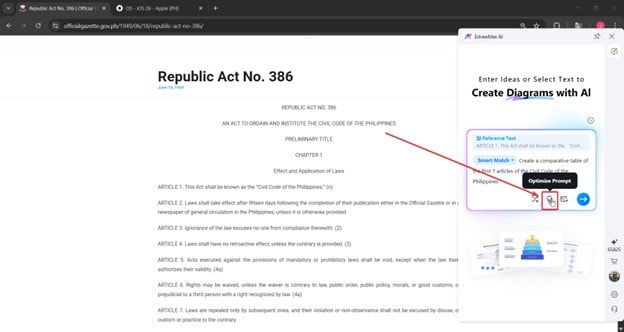
- To optimize prompts, use the Optimize Prompt button as marked below.
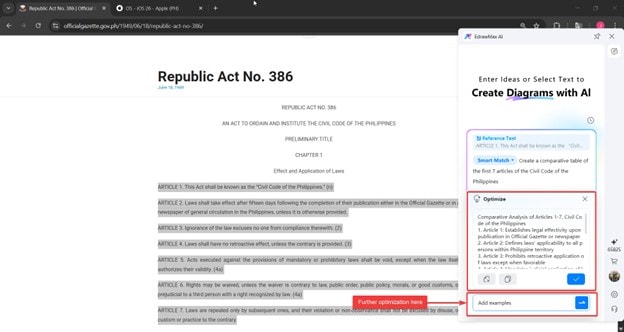
- You will see the result of the optimization. To further enhance the prompt, you can add further optimization requirements using the text box below.
Input To Generate Diagrams
The AI Copilot is designed to let you easily capture any content you see while browsing or studying. This way, you can quickly generate diagrams that you can work on and edit accordingly.
Input Your Ideas
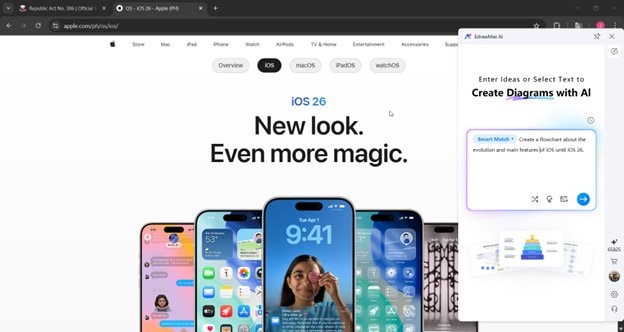
- Open the AI Copilot and type in your ideas every time you find something while reading.
Open and Close the AI Copilot
The AI “Copilot” is one of the latest features in EdrawMax V15. It provides quick access to EdrawMax’s AI tools from almost anywhere on your desktop. This means that you can generate diagrams straight from an article you’ve found online, or ask EdrawMax for help in improving text or images that you’re working on in Microsoft Word.
❶ How To Open the AI Copilot
- The AI Copilot is available whenever the EdrawMax app is minimized or closed.
- However, you’ll still have to open EdrawMax when you start your computer, so the Copilot appears automatically.
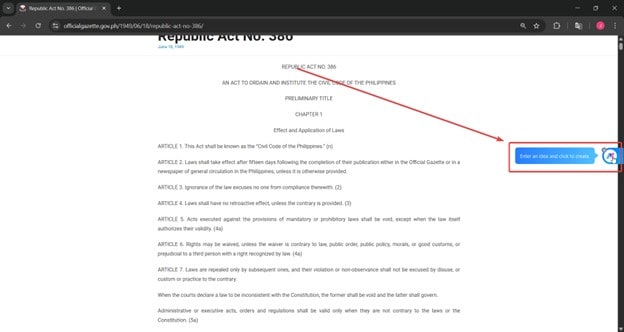
- To access its features, click the ball.
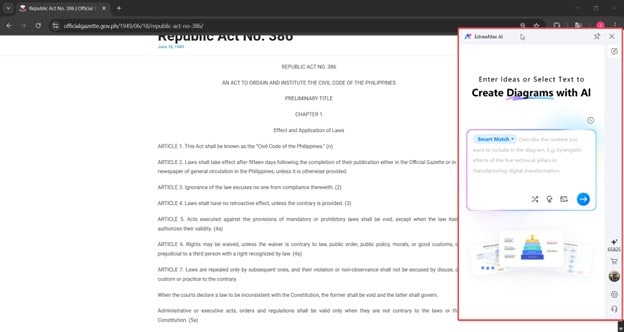
❷ How To Close the AI Copilot
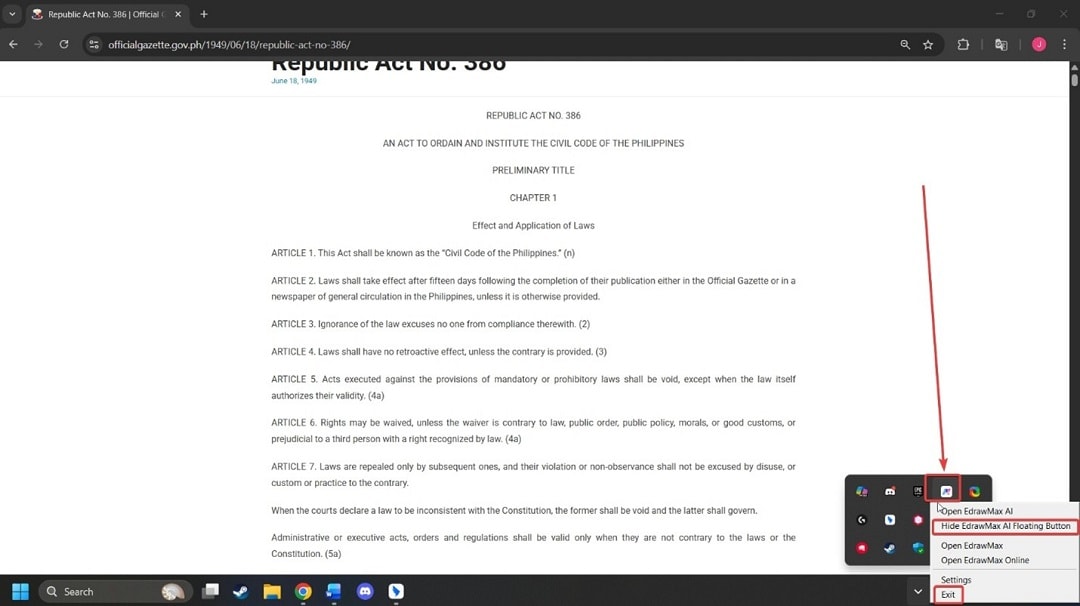
- To remove it from your desktop view, go to your desktop’s system tray.
- Then, right-click the **EdrawMax AI icon**.
- On the pop-up menu, select either **Hide EdrawMax AI Floating Button** or **Exit**.
Reference Text to the Diagram
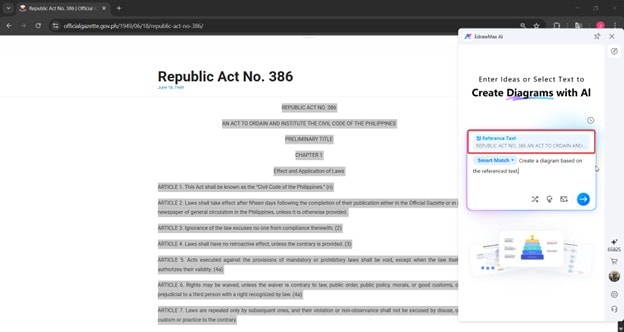
A cool way to add reference text to the diagram is to highlight the text or content. The highlighted content will help the AI contextualize the diagram it produces.
This works for texts in Microsoft Office tools or in any browser. To do this, after highlighting the text content on your browser or Word, open the Copilot.
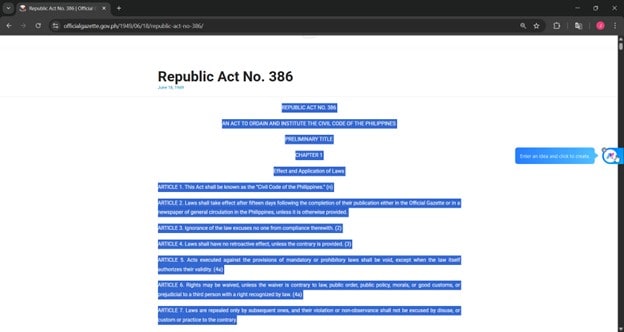
Then, you’ll see the reference text automatically added as an attachment in the prompt area. You can then work with this accordingly.
Adding Image References
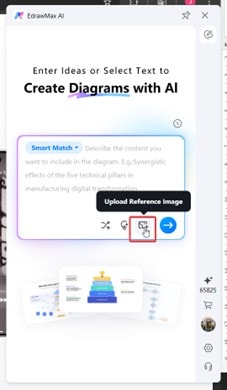
- You can also feed images you’ve downloaded directly to the AI.
- This is especially handy when you see an infographic on a website. You can download it and ask EdrawMax to make the diagram for you.
- The added image will serve as a reference and contextualize the diagram generation.
Accessing Settings, Support, and Pricing in the AI Copilot
Aside from the diagram creation and context-specific tools of EdrawMax’s AI Copilot, it also gives access to essential menus. These are the Settings, Support, and Pricing menus.
Settings
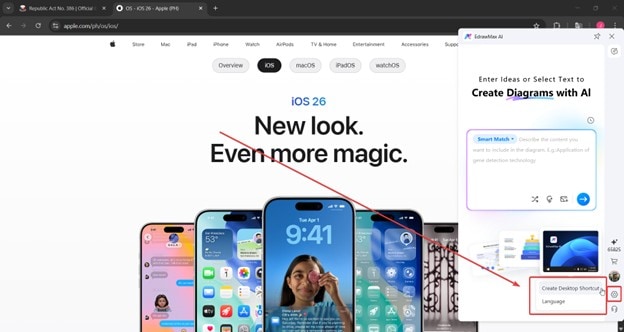
- The settings menu provides two options that you can edit relevant to the AI Copilot:
- Create Desktop Shortcut. This creates a quick-access button for the AI Copilot, so you won’t have to open EdrawMax entirely every time you need the ball.
- Language. Changes the language used by the AI Copilot. Currently, it supports 12 major languages (English, Mandarin, French, Spanish, Korean, Japanese, Bahasa Indonesia, etc.)
Support
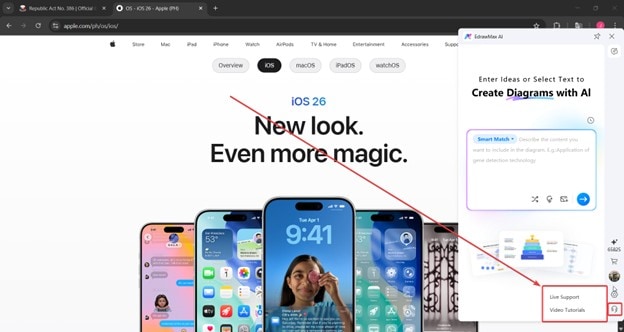
- If you need help, access the Help menu from the sidebar of the AI Copilot. This gives you access to Live Support or Video Tutorials.
Pricing
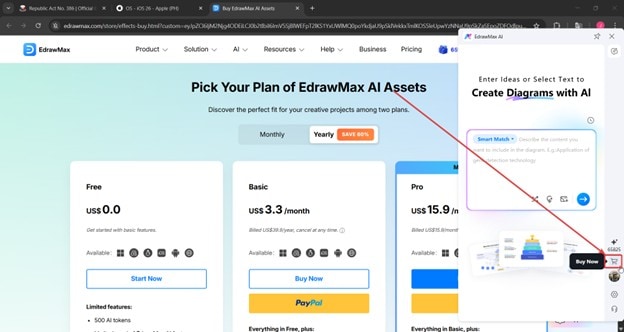
- Lastly, if you need to purchase an EdrawMax subscription quickly, select the Buy Now option. This will take you to the pricing page for EdrawMax, where you can purchase a plan to maximize its features.
Switch Diagram Types
EdrawMax’s AI Copilot supports the same range of diagrams as in the main program. It supports the major diagram types available in EdrawMax and more.
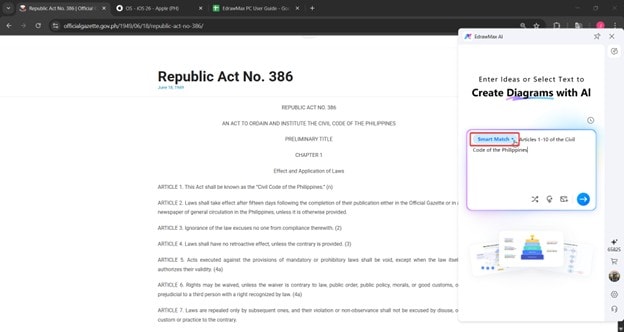
❶ Smart Match
- By default, Smart Match is enabled. This function determines the best diagram type based on the prompt or information you’ve given it.
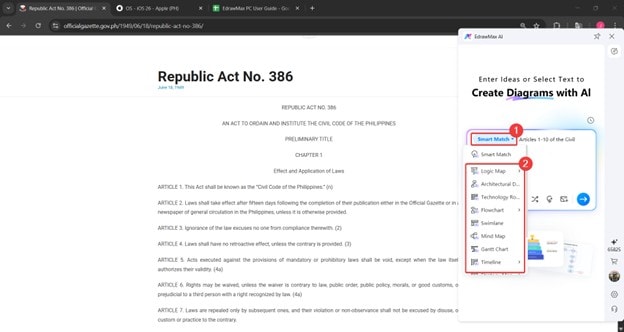
❷ Switching Diagram Types
- If you want a specific type of diagram, click the drop-down menu. You can choose from different diagram types like Logic Map, Architectural Diagram, Flowchart, etc.
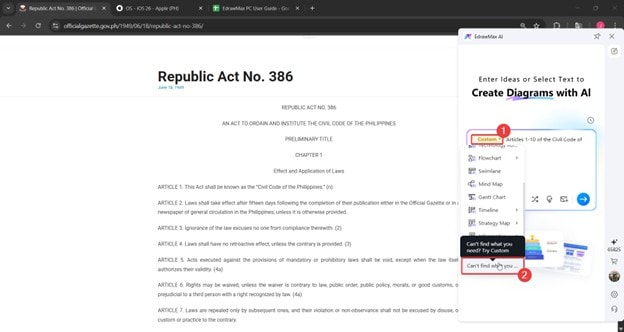
❸ Custom Diagrams
- When you scroll down the drop-down menu, you’ll notice an option called “Can’t find what you need? Try Custom.” This allows you to specifically set the specifications and parameters of the diagram you’re creating.
 (AI & Web)