Think Bigger From EdrawMax User Guide
How to Share Files from EdrawMax Mobile
Sharing files from EdrawMax mobile allows you to collaborate with teammates or present your work to clients. Whether it's a shareable link or a direct message, you can do it all in just a few taps.
Step ❶ Select Your File
- Go to the Files or Recent tab
- Tap the file you want to share to select it
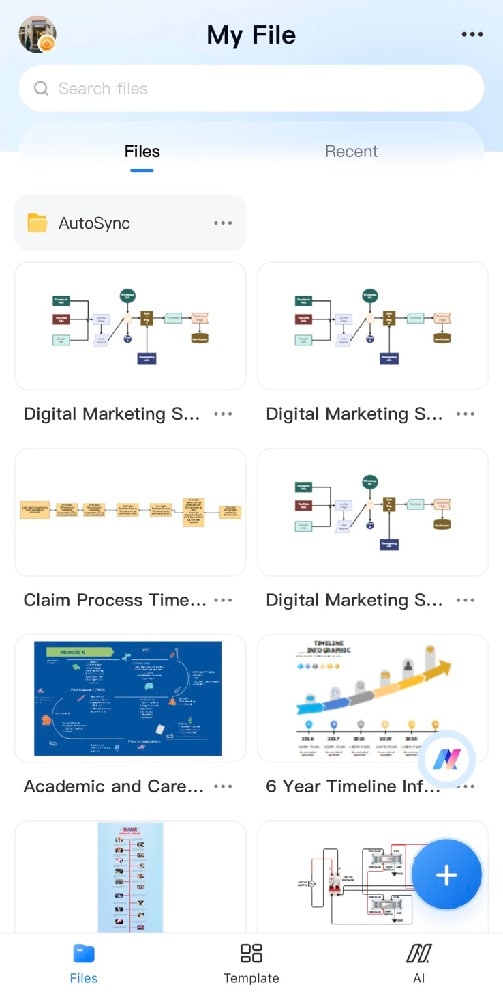
Selecting a file in EdrawMax mobile
Step ❷ Access Share Options
- On your selected file, tap the More button (⋯)
- From the menu, select Share to open sharing options
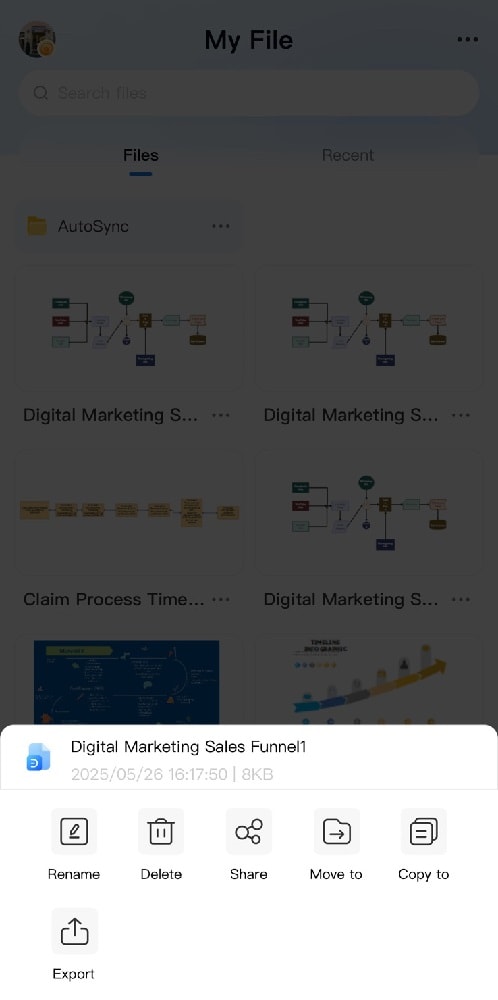
Accessing share options in EdrawMax
Step ❸ Choose Sharing Method
- Select your preferred sharing method:
- Copy Link: Generates a shareable link to clipboard
- Messaging Apps: WhatsApp, Messenger, etc.
- Email: Gmail, Outlook, etc.
- Cloud Storage: Google Drive, Dropbox, etc.
- Other Apps: Any compatible application
- Complete the sharing process in your selected app
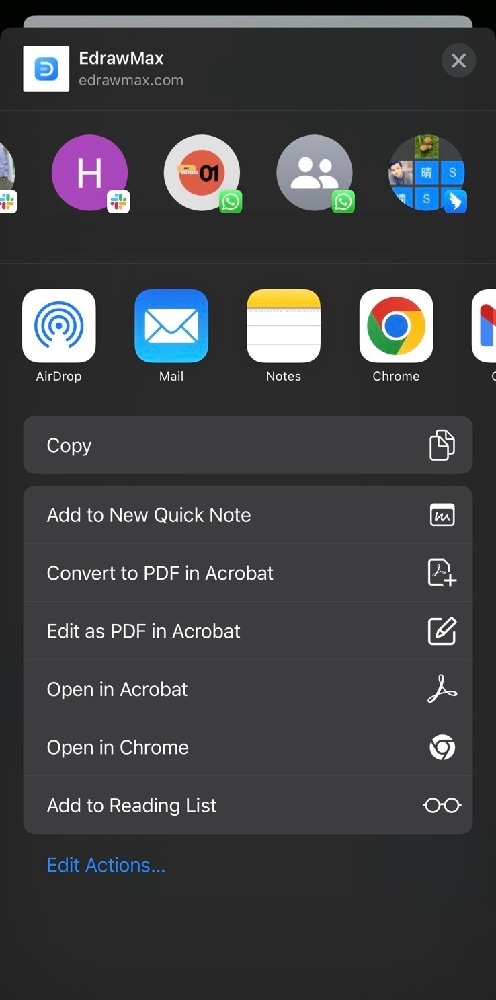
Available sharing methods in EdrawMax
Pro Tip:
For team collaboration, use the shareable link option which allows real-time updates when you make changes to the file.
Sharing Options Explained
- View-only link: Recipients can view but not edit
- Editable link: Recipients can make changes (Pro feature)
- Export as PDF/Image: Share as static file
- Direct share: Send via installed apps
- QR code: Generate scanable code for quick access
Security Note:
Be cautious when sharing editable links. Use password protection for sensitive documents.