




You might be tired of switching between coding and drawing tools. Many developers feel the same way because it disrupts their workflow. This is what has made diagrams-as-code so popular. Mermaid gives you the possibility to build diagrams. VS Code Mermaid lets you create flowcharts, ER diagrams, Gantt charts, and more. You don't have to switch between multiple software.
The developers depend on the best VS Code Mermaid extensions to make the experience smoother. These extensions include previews, editing options, and instant fixes directly within VS Code. Today, in this guide, we will tell you what Mermaid is, how to use it with VS Code, and all the relevant extensions.
Here’s where we begin the details!
In this article
What is Mermaid and Why Use It in VS Code?
Mermaid is a coding tool that converts plain code to diagrams. You do not have to drag shapes or press buttons, but write short lines of text. Mermaid creates bright illustrations from your text. The method simplifies the process of creating diagrams, thus making them more predictable and simpler to update.
Common Diagrams You Can Create
Mermaid allows the creation of a variety of diagrams. You are able to draw flow charts to map out a process. Class and ER diagrams are used to plan the database and system design. State diagrams depict transitions, and Gantt charts monitor timelines. This diversity in a single tool implies that you do not have to switch to other applications.
Why Use Mermaid with VS Code
Using Mermaid with VS Code has a number of benefits. First, all remains within a single environment, and thus, you do not have to change tools. It allows you to write, preview, and refine diagrams without losing direction.
The syntax is minimal, and this lowers the amount of time required to format visuals. Extension also enhances the experience by including live previews, error checking, and editing. It incorporates both code and diagramming into one seamless process. This enables teams to exchange ideas effectively.
How to Set Up Mermaid in VS Code
Now, we will take you through the process to use Mermaid in VS Code. You will get to know how to install the extension, create your first Mermaid code, and preview the results.
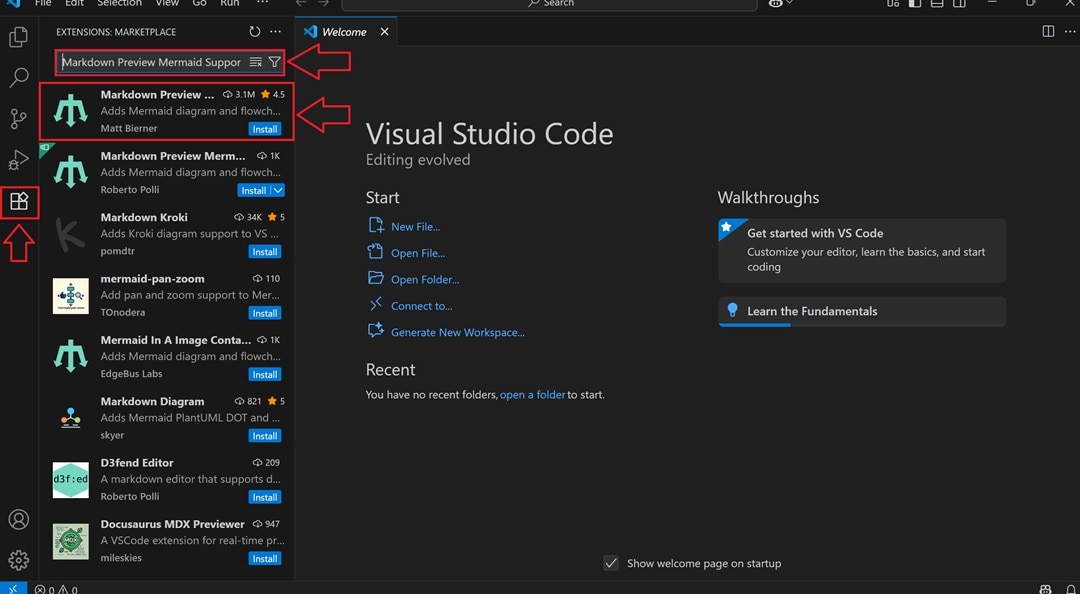
Step1 Search for the Mermaid Extension
- In VS Code, click on the Extension icon in the left toolbar.
- Search Markdown preview mermaid support.
- Press the Install button to start.
Step2 Create and Save a Markdown File
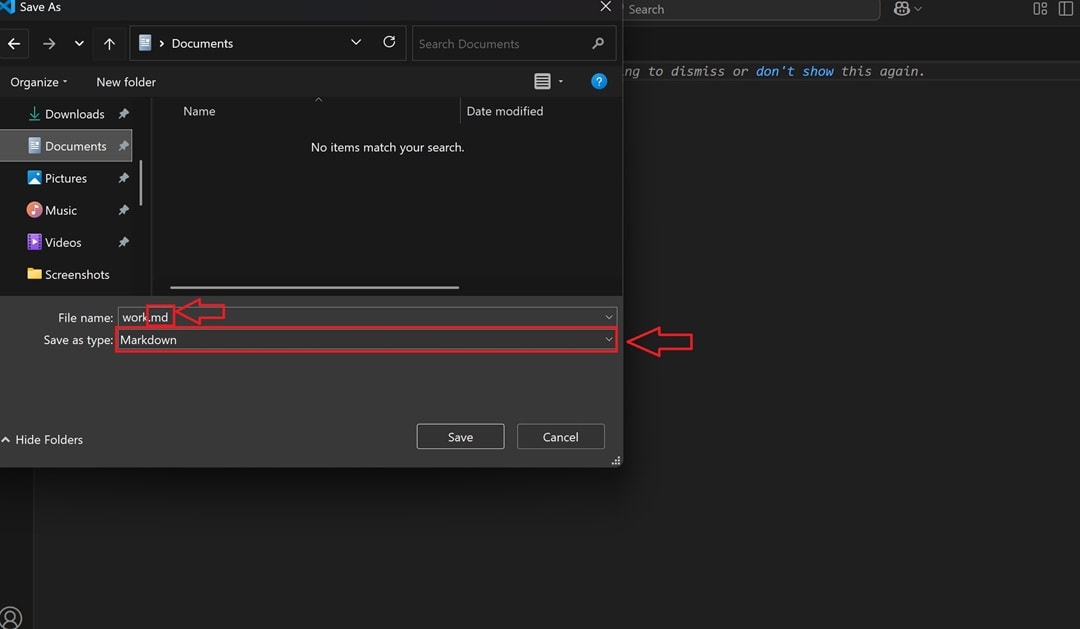
- Select the File menu and open a text file.
- To save it, enter a filename.
- Ensure the name ends with the .md extension.
- The purpose of this step is that Mermaid supports Markdown files best.
Step3 Add Mermaid Code in the Markdown File
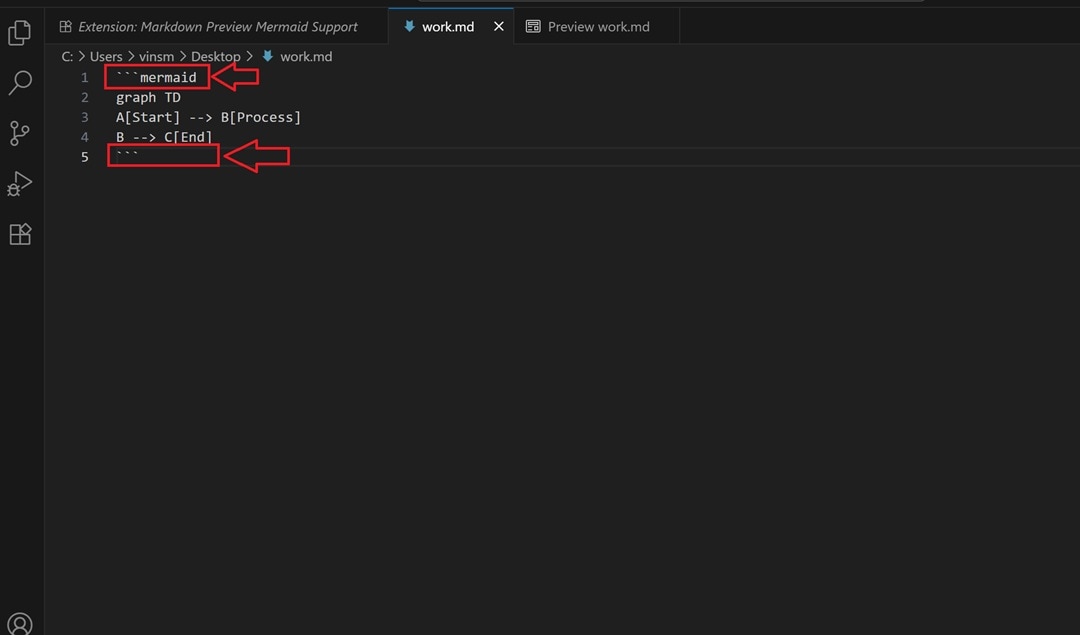
- Open the Markdown you saved.
- Start the code with three backticks and type the word mermaid.
- Place your code in between backticks.
Step4 Preview Your Diagram
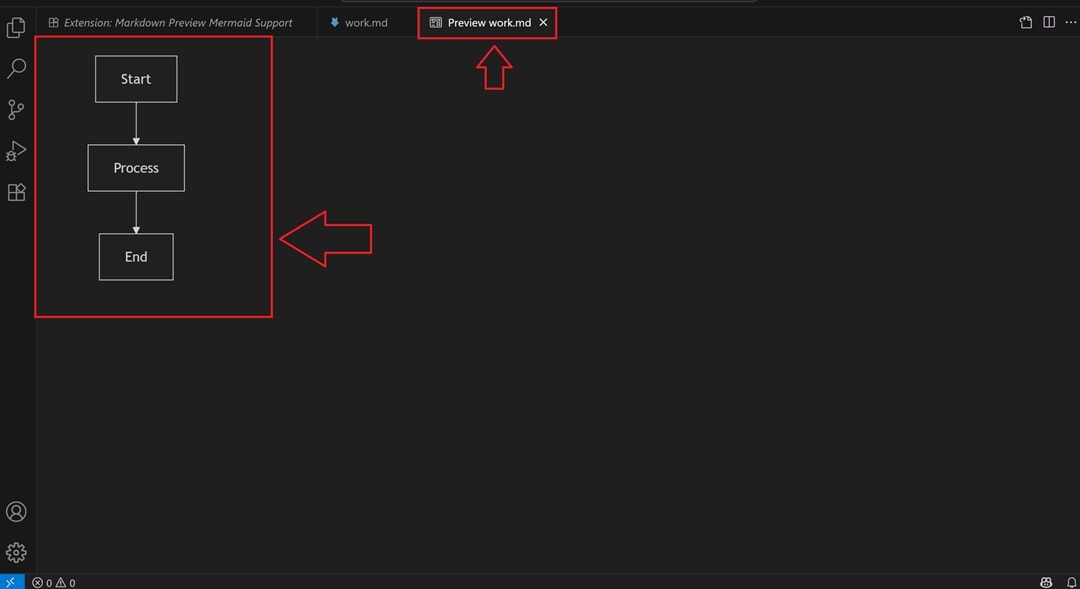
- When you are done coding, press Ctrl+Shift+V.
- This opens a preview mode where you can see your diagram.
- This way, you can confirm structure and flow without leaving VS Code.
Step5 Watch Out for Common Errors
- Sometimes, you will find an empty preview or a broken diagram.
- It normally occurs due to a missing backtick.
- Recheck the syntax and be sure that the extension is in place before coding again.
Best VS Code Extensions for Mermaid
Here are some of the top VS Code extensions for Mermaid:
Mermaid Chart
Mermaid Chart enables you to make drawings quickly out of plain text. You can view them at the same time as well. The extension includes several quick commands that reduce additional clicking. This is a good choice, provided you want your speed and accuracy.
Markdown Preview Mermaid Support
This is one of the most relied-upon extensions to Mermaid. It also works well with Markdown files; therefore best used for project notes and documentation. Live preview makes it possible to write diagrams and check results without changing windows.
Mermaid Preview
VS Code Mermaid Preview is a simple extension that gives you clean previews. It does not overload you with unnecessary features. Rather, it provides a constant and predictable method of viewing your diagrams while writing them.
vscode-mermAId
vscode-mermAId is flexible and can be used with several versions of Mermaid. This is useful where your project requires some syntax updates. It also permits rendering adjustments, where you have control over how the diagrams are going to look. It will be helpful to designers who prefer to customize.
Mermaid Graphical Editor
Not all people like to make diagrams using text. Mermaid Graphical Editor closes that distance by allowing you to edit diagrams graphically. You can switch between Code and Graphical View.
Auto-Mermaid
Auto-Mermaid is automation-based. It works on monotonous assignments and does them on your behalf. It can produce diagrams directly based on a certain pattern or templates. This extension can help with time-saving in cases where you are dealing with recurring structures.
Common Issues and Fixes
Despite the correct setup, Mermaid inside VS Code does not necessarily work perfectly well. Users can find preview glitches, rendering errors, or slow performance. Here are some errors and fixes that might help you in your journey.
Issue 1: Blank Preview Screen
Sometimes, even after writing a perfect Mermaid code, you won't see anything in the preview section. This may be frustrating, particularly when you are convinced the syntax is right.
Fix: Make sure that you begin and end the code block with three backticks. Make sure that the word 'mermaid' is there after the starting backticks.
Issue 2: Diagram Render Errors
You can get to see half lines or figureheads. This usually occurs when you have some symbol that is not supported or typing errors in your code.
Fix: Node labels should be simple and without special characters. See the Mermaid documentation on supported syntax. A smaller snippet can also be tested to pinpoint the error.
Issue 3: Extension Not Working After Install
The Mermaid extension might not work even after being installed. This normally occurs when the VS Code fails to reload.
Fix: Open VS Code again to refresh the extension. If this does not work out, verify the extension settings and upgrade to the most recent version.
Issue 4: Slow Rendering with Large Diagrams
The diagram that contains multiple nodes can take a long time to load or break in preview. This occurs more in ancient systems.
Fix: Split large diagrams into small diagrams in a series of Markdown files. This enhances the work and simplifies diagrams. In addition, save resources by closing VS Code tabs you are not using.
Tips for Working with Mermaid in VS Code
Tip 1: Use Comments to Stay Organized
Mermaid code may become tangled when lots of nodes and connections are added. Comment on your Markdown file to give explanations on parts of the diagram. By the time you come back, you won’t have to guess what each of the parts really means.
Tip 2: Keep Diagrams Small and Focused
Big illustrations can be impressive to the eye, difficult to read, and difficult to modify. Decompose your different ideas into small diagrams describing one aspect of the system. This makes troubleshooting simple, and the previews work smoothly within VS Code.
Tip 3: Experiment with Themes
Mermaid favours various themes, and VS Code extensions frequently permit switching between the themes. Experiencing light, dark, or custom themes can make you aware of which one goes best with your team. It also brings clarity while exchanging diagrams in presentations or reports.
Tip 4: Validate Syntax Early
A single lost character can disrupt the preview. You don't have to wait till the diagram is completed. Rather, just write a bit, preview the diagram, and keep writing. This way, you will not spend your time searching for errors in a huge block of code.
Turn Mermaid Code into Visuals with EdrawMax
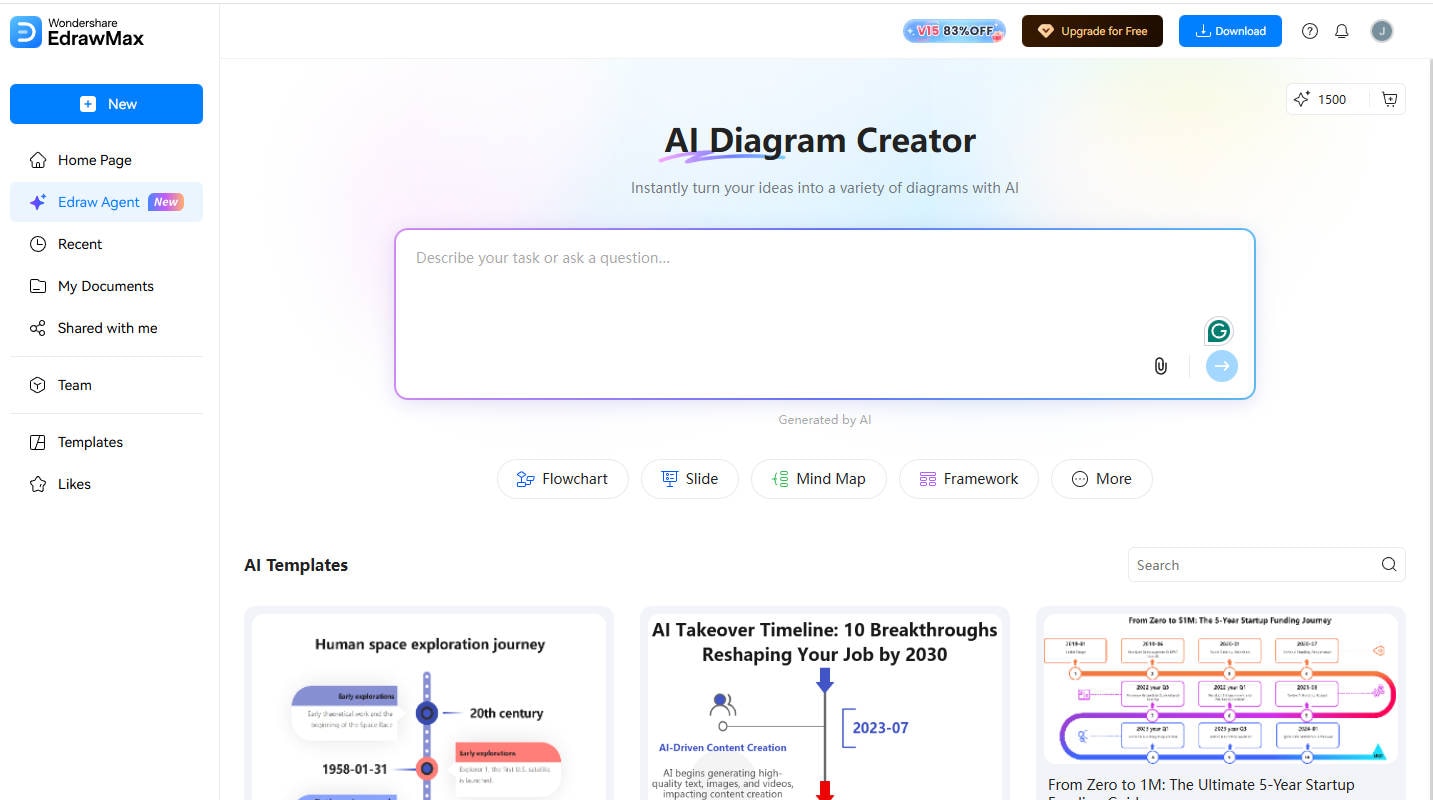
Mermaid is an effective code-based diagramming tool. It stores all the text-based information and can be maintained using VS Code. However, not all people like typing diagrams. If you want a graphical option alongside Mermaid, EdrawMax is a sane option.
 Get 500 free AI tokens
EdrawMax is compatible with the Mermaid syntax, thus you can directly paste your Mermaid code and convert it to editable diagrams. Simultaneously, it also provides you with drag-and-drop tools, templates, and customization. In this manner, you will have the freedom to code diagrams at your convenience or to use visual editing when you find it easier.
Wrapping Up VS Code Mermaid Tools
If you already spend most of your time in VS Code, it makes sense to keep your diagrams there too. Using VS Code Mermaid does not require switching to another tool and can convert ordinary text into easily understandable images in a few seconds.
This is even made easier by the best VS Code Mermaid extensions. With extensions, you can add previews, error checks, and edit. Instead of struggling with extra software, you get diagrams that fit naturally into your coding routine.
If you want to have a graphical option, EdrawMax is your go-to tool. It supports Mermaid code but also lets you design with drag-and-drop tools. Fit Mermaid in VS Code, use EdrawMax when you prefer visuals, and streamline your workflow your way. Give it a try and see if it works for you!
AI Diagram Generator
Enter your prompt. Upload files if needed. Generate diagrams, charts, or slides instantly.




 (AI & Web)