




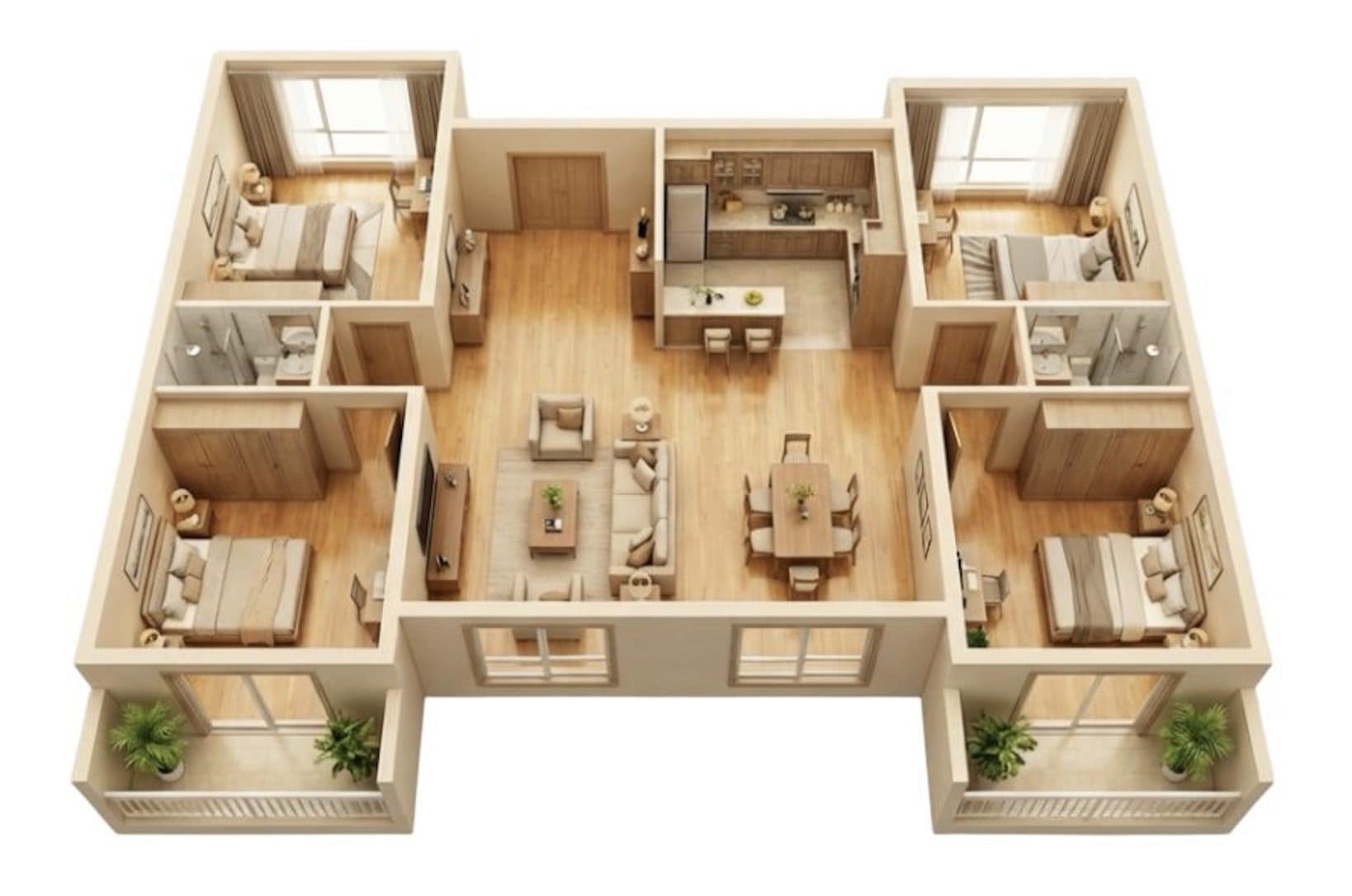
Ever look at a flat blueprint and feel totally lost? It is hard to get excited about a bunch of lines when you cannot tell how a room actually feels. That is why 3D floor plans are such a big deal. They take those flat sketches and add real height and depth.
Using a 3D floor plan maker means you aren't just doodling. You are building a digital version of your home or office. It helps you use every bit of space and makes your plans look way more professional. Whether you are doing this for work or just for fun, or for sales, moving from 2D to 3D is the best way to make sure your ideas work before you start building.
In this article
Why is a 3D Floor Plan Creator Essential?
When building a 3D floor plan from scratch, decide the room program and circulation first, then set the dimensions and place doors and windows before adding furniture. This is different from importing an existing 2D plan for conversion: the initial layout must be designed, not merely visualized.
If you already have a 2D drawing, use the separate 2D-to-3D conversion guide.
Most of us aren't great at picturing a 3D room just by looking at a flat piece of paper. A 3D floor plan creator fixes that. It takes the guesswork out of the process.
- See the space: You will know right away if a king-sized bed leaves you enough room to walk or if the door will hit the dresser.
- Get everyone on board: It helps homeowners and builders see the exact same thing so there are no arguments later.
- Save your cash: For pros, fixing a mistake on a screen costs nothing. Fixing it after you have already poured concrete is a nightmare.
- Play with ideas: It makes designing feel less like a chore and more like a game where you can swap layouts until it feels right.
How to Make a 3D Floor Plan with EdrawMax
You don't need to be an architect to make something that looks great. EdrawMax is built to be easy. The best part is its new 2D to 3D conversion feature, which does the hard work for you. Here is how you do it:
 Get 500 free AI tokens
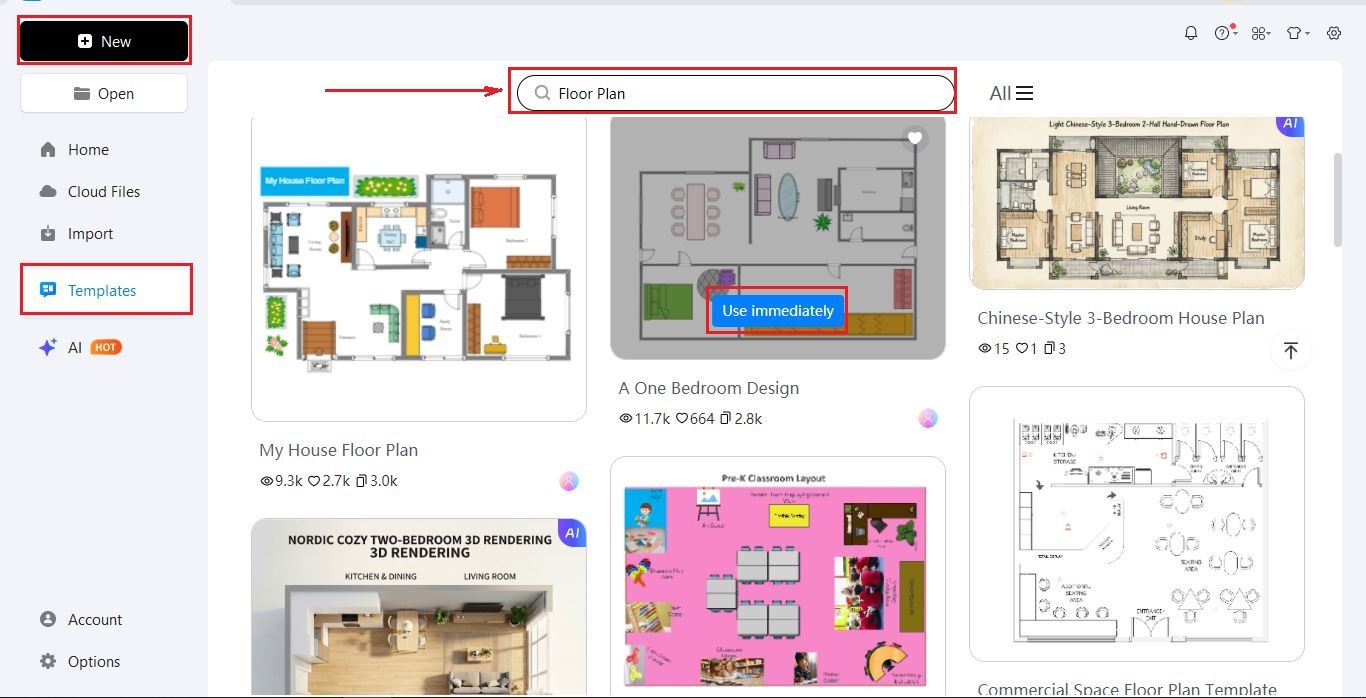
Step1 Login & pick a template
- Open EdrawMax and log in using Wondershare ID or any other social account.
- Go to the Templates section and search Floor Plan in the search box.
- Browse the available options, and then click Use Immediately to start editing.
Step2 Customize your 2D layout
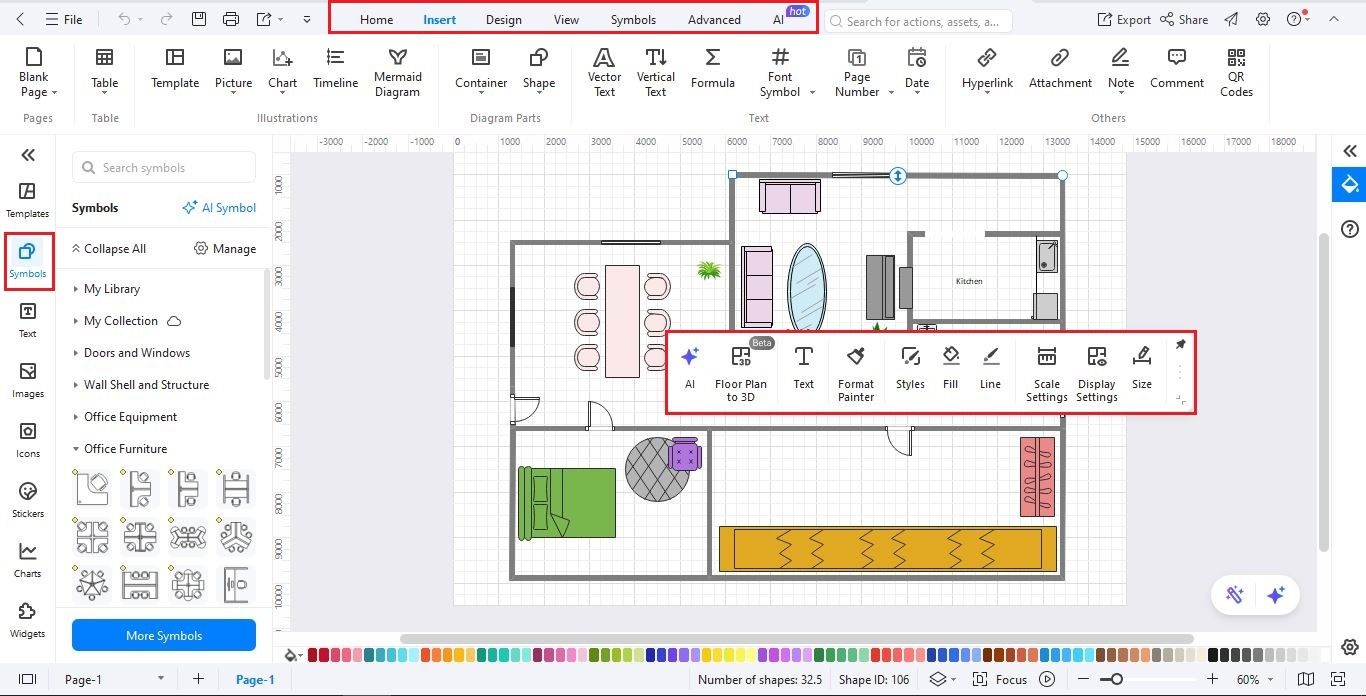
- Once on the editing panel, access floor plan symbols from the left-side Symbols library.
- Drop them onto the canvas and adjust their scale.
- Select an object and click Size to adjust their size.
- Change colors, add labels, or switch themes from the top or floating menu to make your plan clear and professional.
Step3 Use the 2D to 3D feature
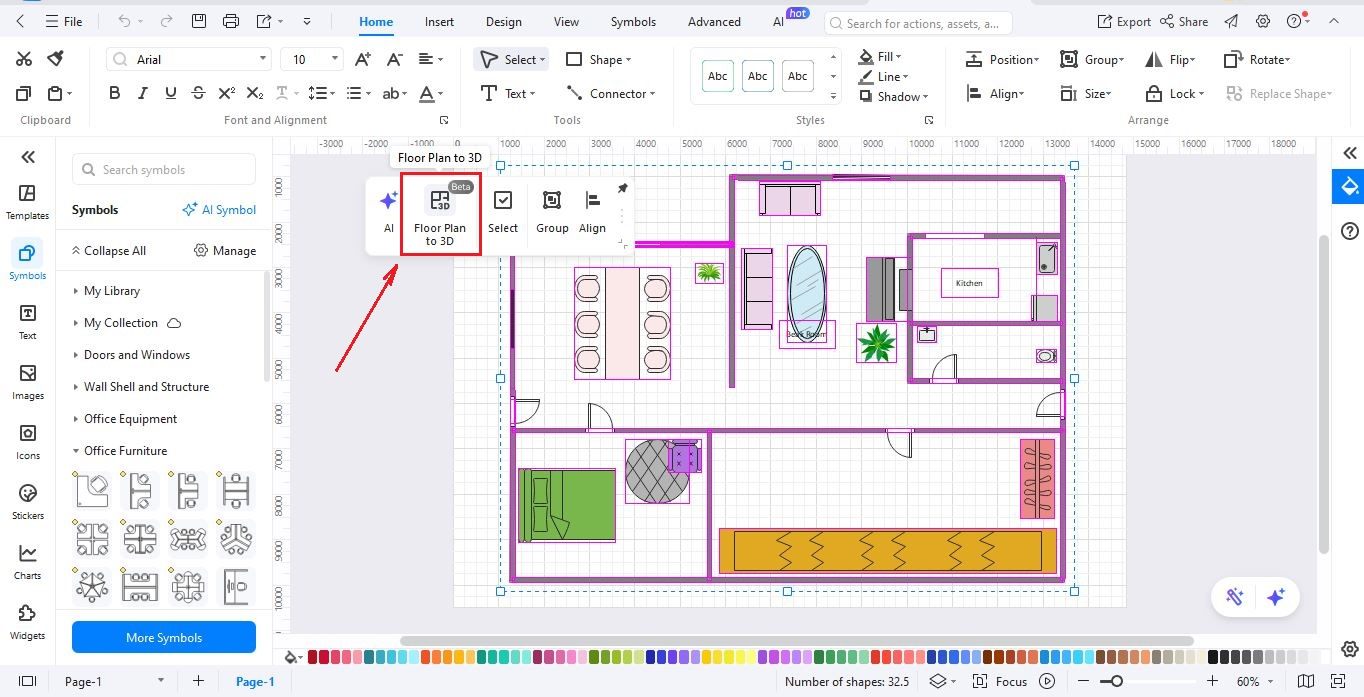
- After you finish your 2D floor plan, click Floor plan to 3D.
- Then change the settings the way you like.
- You can pick from many different styles, so you can choose the one you like best.
Step4 Check the details & optimize
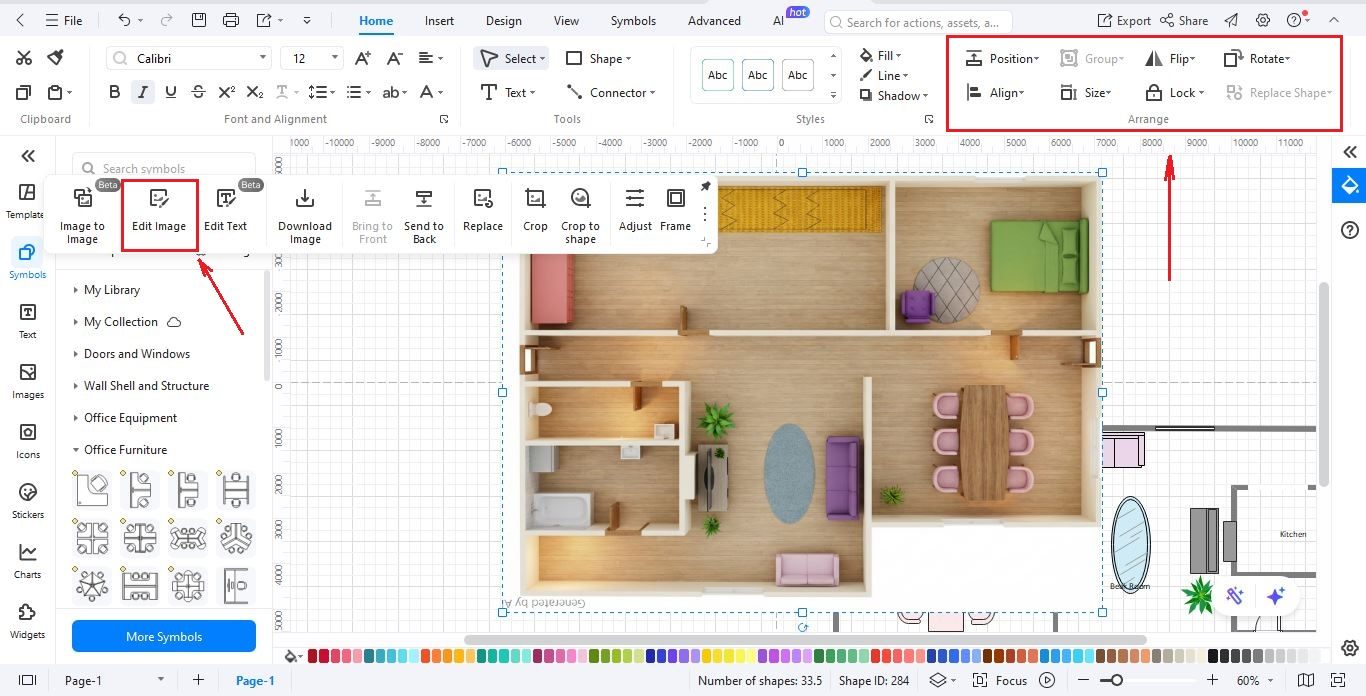
- Use the top right menu bar to view or rotate your plan in all directions.
- Check if the hallway is too tight or if a window is in the wrong place.
- Change the floor color or wall paint to see what fits your style.
Step5 Save, export and share
- When ready, click File > Save to keep an editable version of your work.
- Go to File > Export to download the diagram in various formats such as PNG, PDF, SVG, and more.
- You can also print your diagram to show a contractor or your family exactly what you have in mind.
Why Choose EdrawMax as Your 3D Floor Plan Designer?
Finding the right balance between professional features and ease of use is tricky. While some tools are too basic and others far too complex, EdrawMax hits the sweet spot. Here’s why it’s the best choice for your next floor plan project:
- Better than old-school CAD: Most CAD tools are challenging and take months to learn. EdrawMax is different because there is no steep learning curve. You can simply drag and drop items to build your plan.
- More than just a floor plan tool: Many apps only let you draw rooms, but EdrawMax does much more. You can create your floor plan, circuit diagrams, and plumbing schematics all in one file.
- Massive library with 26,000+ symbols: EdrawMax has a huge library of over 26,000 professional symbols. You can find everything from modern furniture to electrical icons without having to draw any shapes yourself.
- Easy import and export options: If you already have work in other programs, you can import and keep working on them in EdrawMax. You can also export your work into many formats like PDF, Word, or images.
- Work together with your team: EdrawMax works on Windows, Mac, and online browsers so everyone can access the same file. You can also use the cloud tools to share your 3D plans and get feedback from your team in real-time.
The bottom line
To summarize, moving from flat drawings to 3D models is the smartest move you can make for your next project. EdrawMax stands out as a top-rated 3D floor plan maker because it balances professional power with total simplicity. By using the 2D-to-3D tool, you can catch design mistakes early and save yourself a lot of time and money. From the first wall you draw to the final 3D walkthrough, this software supports your creativity every step of the way.
Stop looking at boring blueprints and start bringing your dream spaces to life with EdrawMax today.
AI Diagram Generator
Enter your prompt. Upload files if needed. Generate diagrams, charts, or slides instantly.