




Turning Excel employee data into an org chart sounds easy until you start drawing. Aligning boxes, connecting roles, and fixing layout issues can eat hours.
Using an automatic org chart generator, you can create a full hierarchy from Excel data in seconds, with no design skills required.
In this guide, you'll see how to make a free org chart from Excel, customize it easily, and save hours. I'll also explain how EdrawMax takes automation and editing to the next level.
In this article
Free Automatic Org Chart Generator from Excel
Wondershare EdrawMax is a professional diagramming software built to handle more than 210 diagram types. It combines data linking, visual consistency, and automation, which makes it the best tool for professionals who work with structured visuals like org charts.
- Excel Integration: Instead of redrawing every box, EdrawMax pulls data directly from Excel. Employee IDs, departments, and supervisors automatically convert into a clean, editable org chart.
- Templates and Symbols: EdrawMax offers over 15k templates and 26,000 symbols, covering all layout styles from traditional hierarchies to cross-functional team charts. You can pick a ready design and customize it instantly.
- AI Layout Tools: AI features auto-arrange shapes, balance branches, and align text boxes for a clean, proportional look. This automation reduces editing time and prevents visual clutter.
- Platform Compatibility: Whether you're on Windows, Mac, or a browser, EdrawMax offers identical editing capability. It makes sharing across mixed-device teams simple.
Ideal Users: EdrawMax fits HR teams building workforce maps, business leaders tracking reporting lines, consultants presenting structures to clients, and educators managing institutional roles.
How to Generate an Org Chart from Excel in EdrawMax
Creating an org chart directly from Excel in EdrawMax saves hours of manual work. Here's a step-by-step guide to effortlessly turn your spreadsheet into a professional chart.
 Get 500 free AI tokens
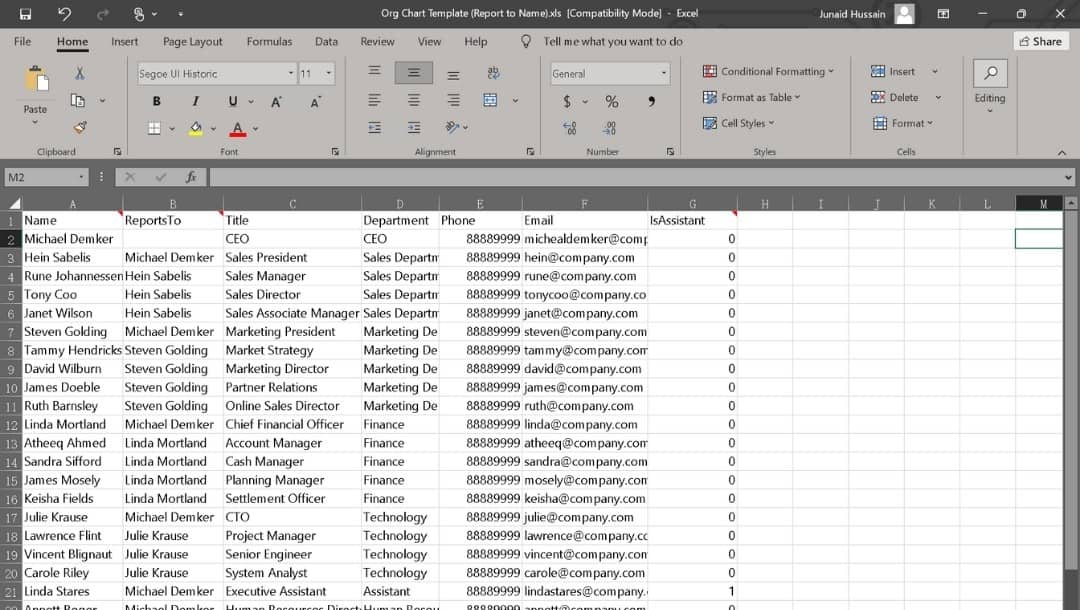
Step1 Prepare Your Excel Data
Open Excel and structure your data carefully.
Use columns like Name, Title, and Reports To
Ensure every employee (except the top head) has a valid manager's name in the “Reports To” column.
Remove any blank rows or merged cells for smooth import.
Save your sheet as .xlsx and close Excel before importing.
Step2 Import Excel Data into EdrawMax
Follow the buttons:
> Import > import Excel
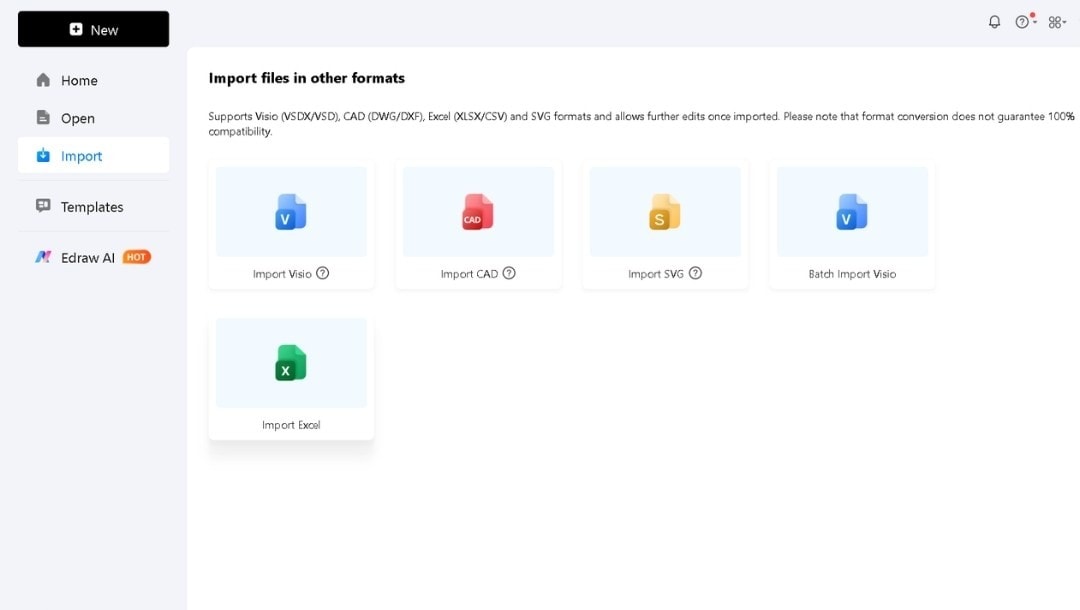
> Org Chart > Import
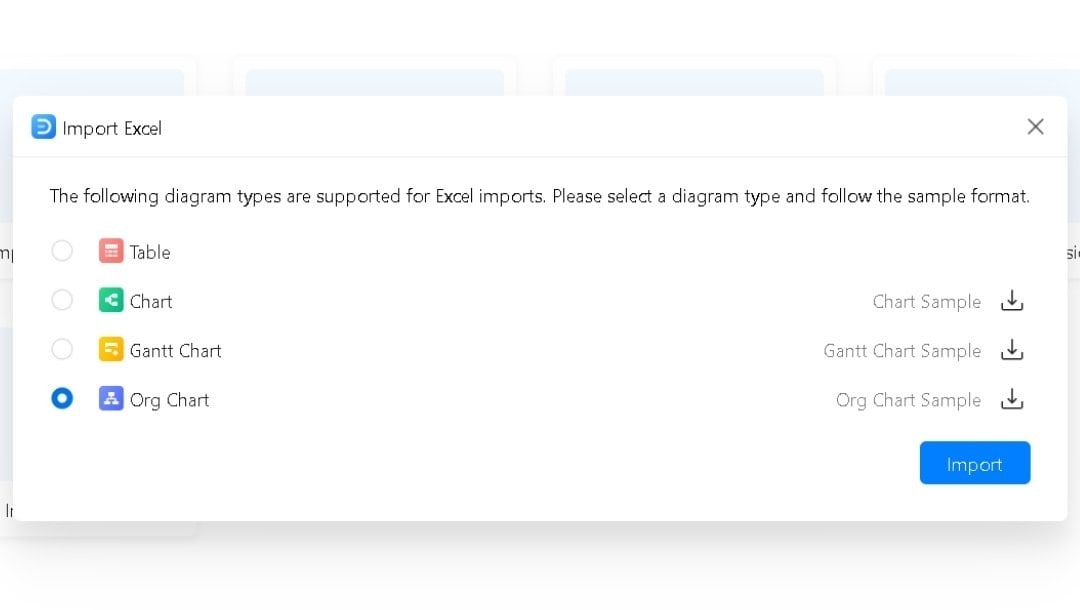
> Browse
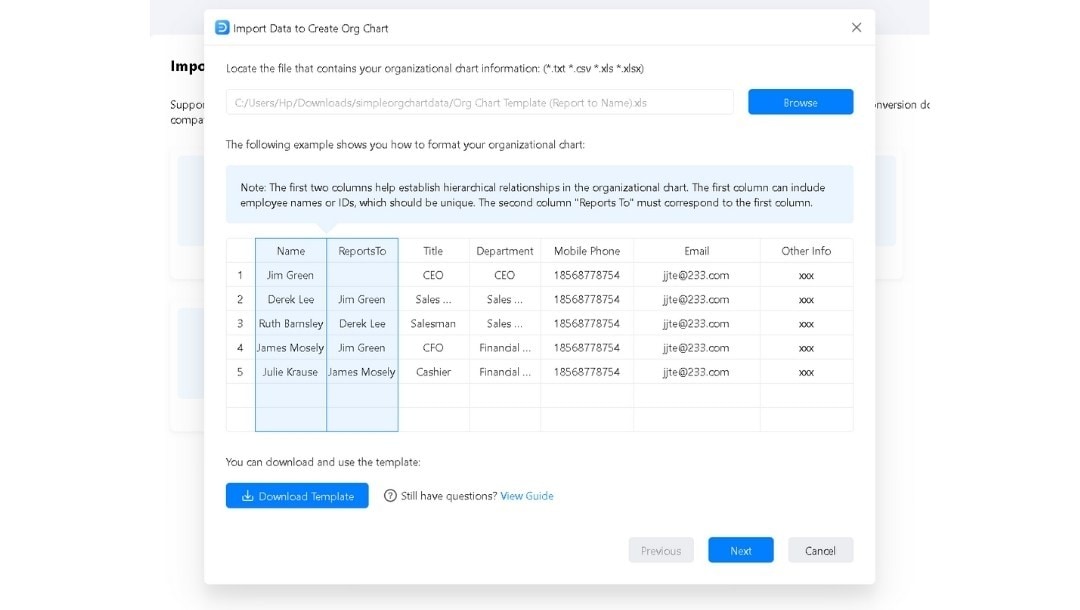
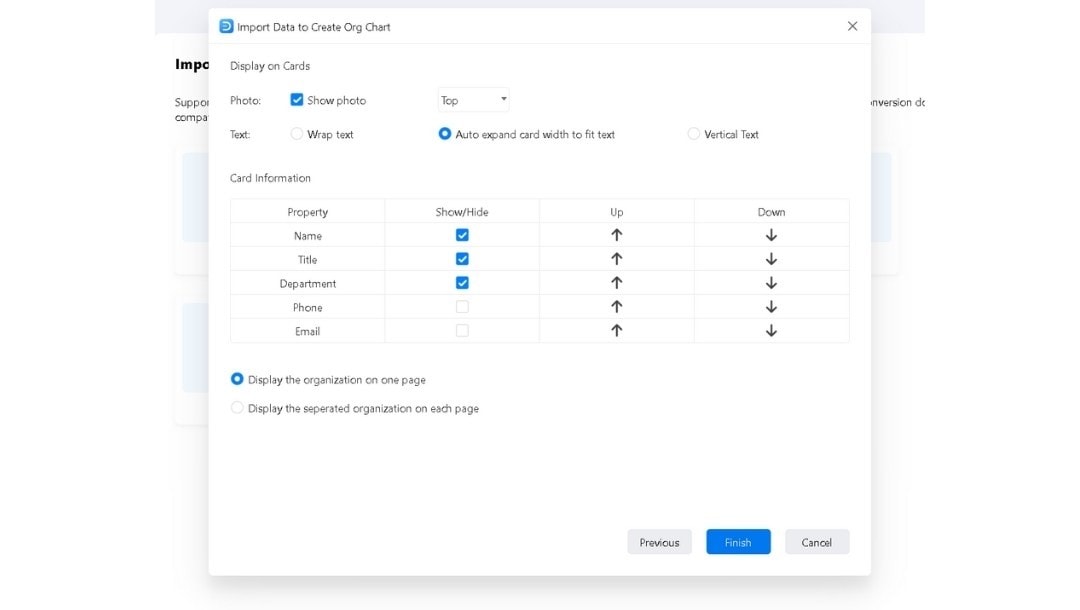
Select your Excel file and click Next. Choose data to show in the Org Chart and other required settings.
Double-check before confirming so the hierarchy imports correctly. Hit Finish.
Step3 Automatically Generate the Chart
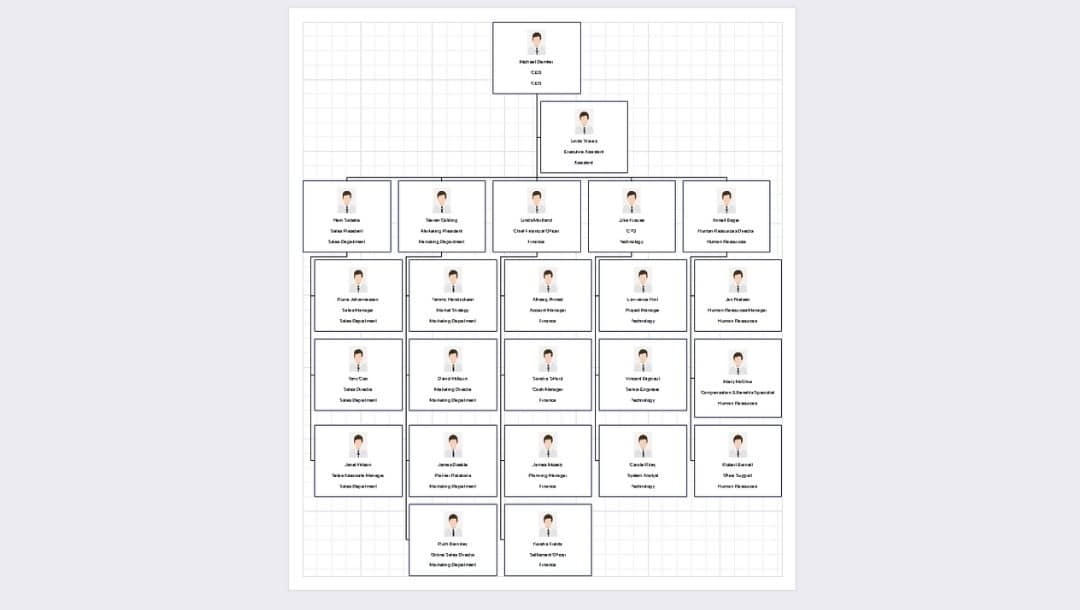
EdrawMax automatically builds your org chart once the mapping is done.
Each team member appears below their supervisor in a clean hierarchy.
You can drag nodes slightly for spacing, but most of the structure will align automatically.
Step4 Customize Your Chart
Refine the chart's look to match your company's style.
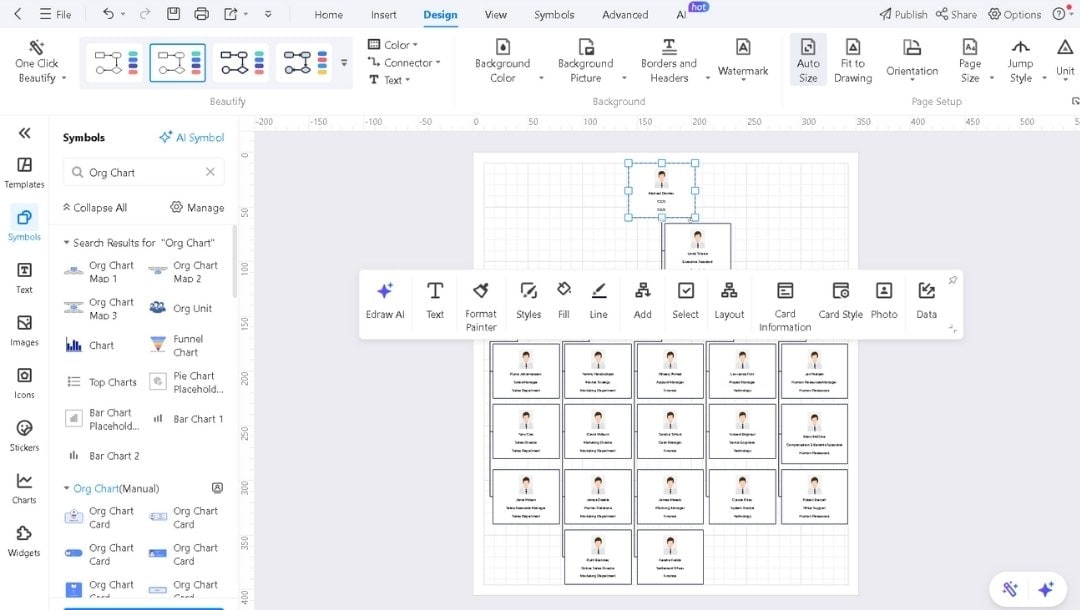
Select any item to modify its style, color, or adjust connector lines and more from the pop-up menu.
Go to the Design tab, try the One Click Beautify button for instant theme changes.
You can add employee photos, job titles, or even department tags inside the nodes.
Drag the useful elements from the symbols library on the left for further enhancement.
Step5 Export Your Final Org Chart
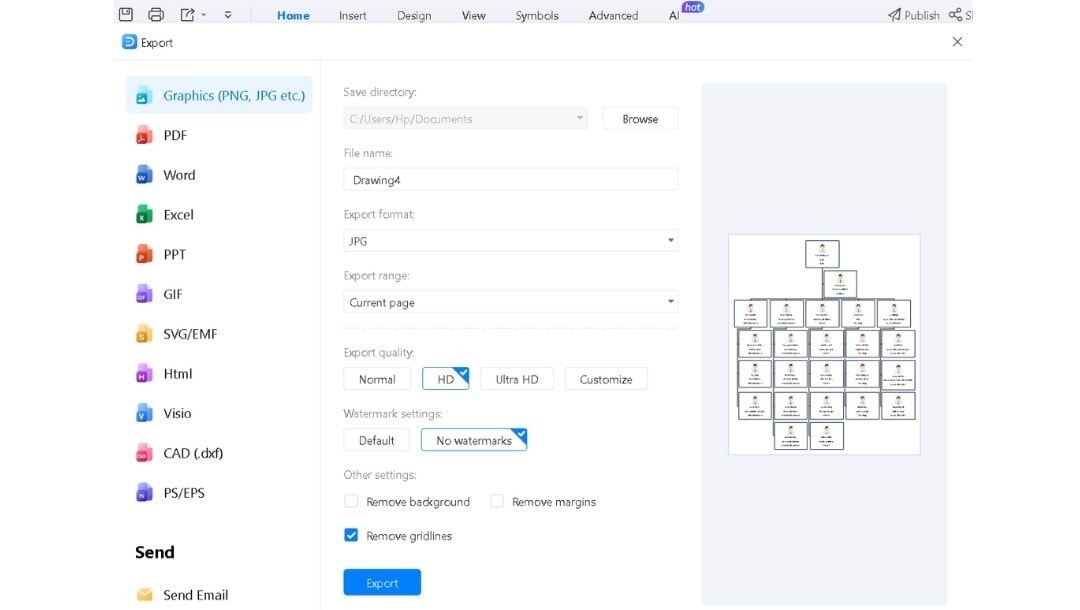
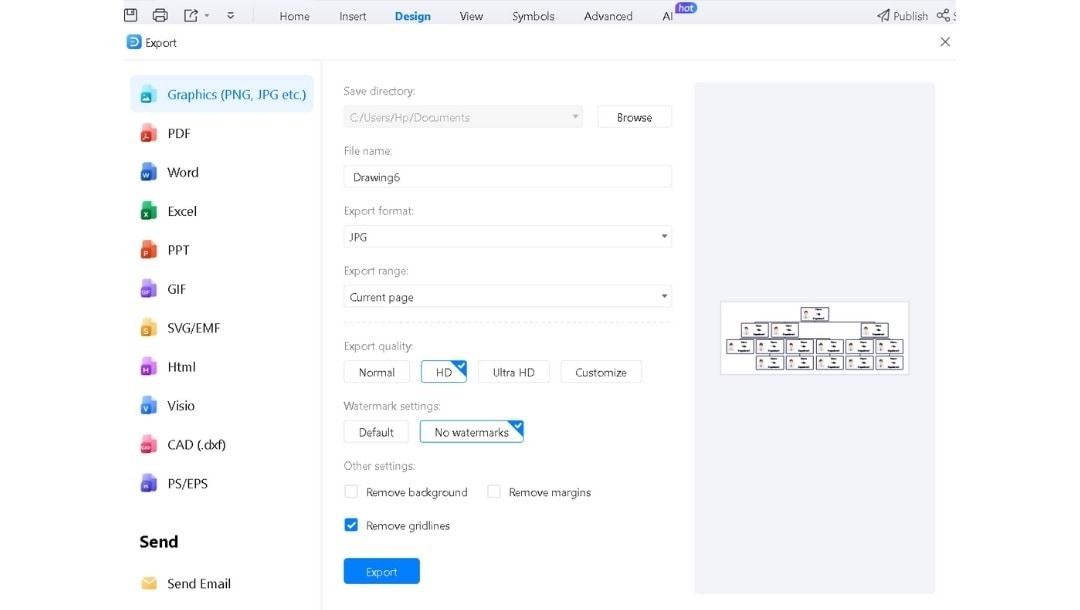
When the chart is ready, tap the Export icon and customize the required settings.
Save it as PDF for HR reports, choose SVG and PNG for presentations, or explore other format options.
Finally, click the blue Export button.
Keep your editable .eddx version (CTRL + S) safe for quick future updates.
How to Create an Org Chart with a Template
If you prefer quick results, EdrawMax templates help you skip manual setup.
Step1 Choose a Suitable Template
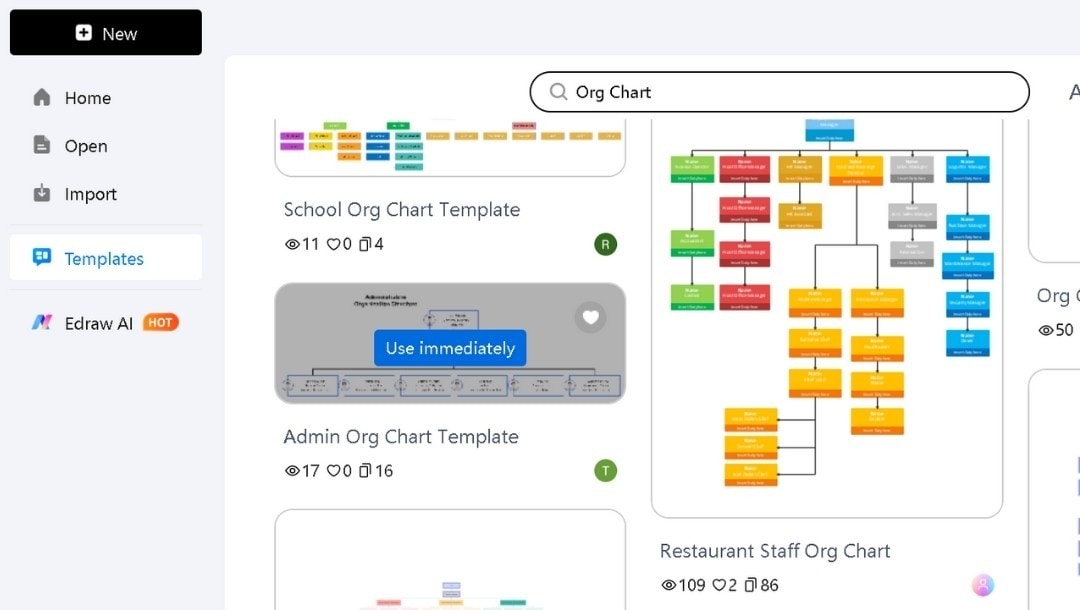
In EdrawMax, go to Templates, search for Org Chart, and explore the ready-to-edit samples. Each layout already includes linked hierarchy lines and organized structures.
Pick a design that fits your reporting style: vertical for traditional hierarchies, horizontal for project teams, or matrix for cross-department roles.
Step2 Edit Details and Layout
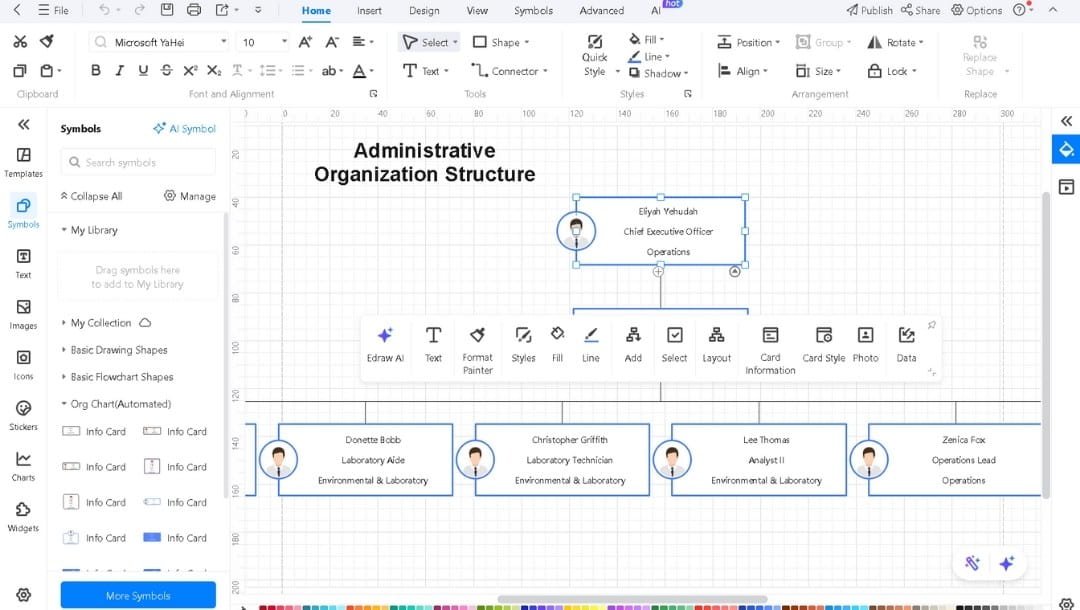
Open your chosen template and replace placeholders with real employee names, titles, and departments.
You can also insert photos for better identification.
Select any element and delete it or adjust shape sizes, apply brand colors, or change fonts to reflect your company's theme.
Explore the Symbol library on the left to add cards or other elements further.
Step3 Finalize and Save
Review your chart for accuracy.
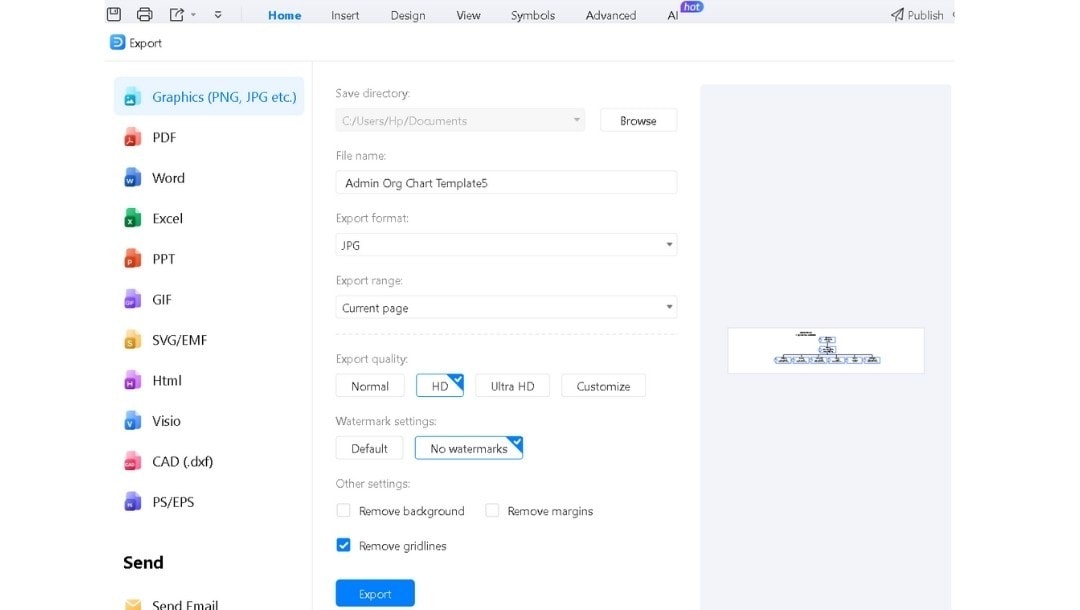
Tap the Export icon once your chart is complete.
Pick PDF for reports, SVG or PNG for slides, or another format if needed.
Hit the blue Export button.
How to Make an Org Chart from Scratch
Step1 Open EdrawMax
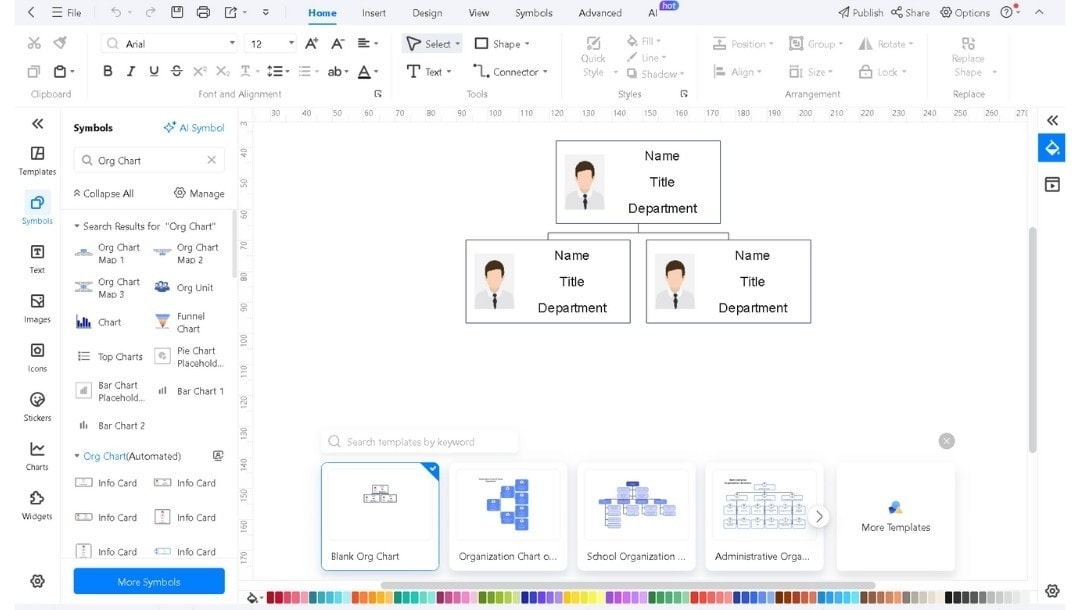
Open EdrawMax, go to + New → Org Chart.

Choose Blank Org Chart.
In the Symbol Library, search “Org Chart” for required shapes.
Step2 Add Main Positions
Add the central position (e.g., CEO) and connect subordinate boxes by dragging or copying and pasting nodes.
You can quickly expand levels for each team or department.
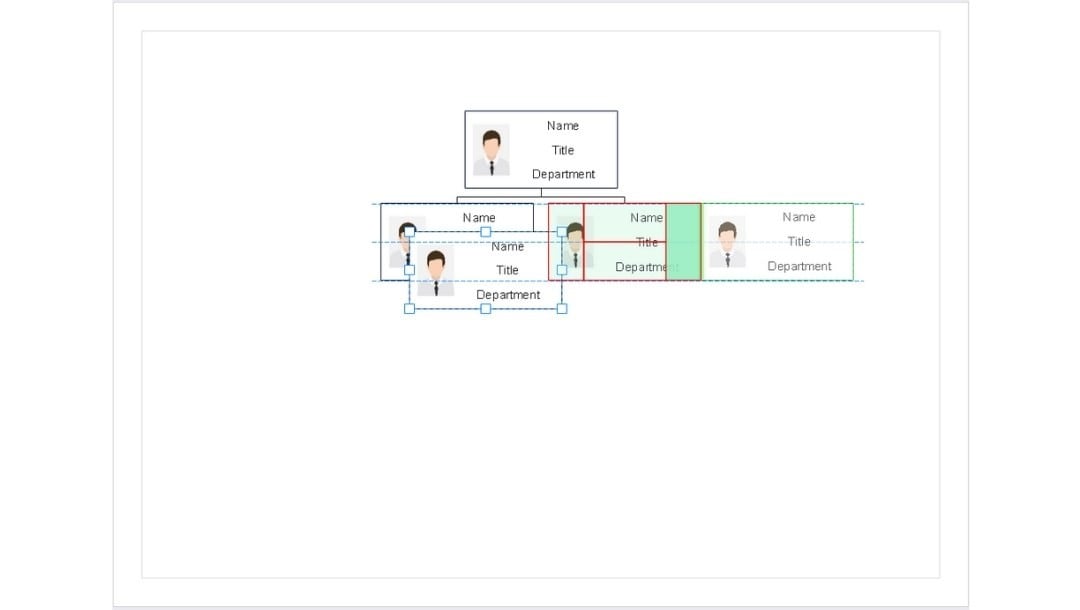
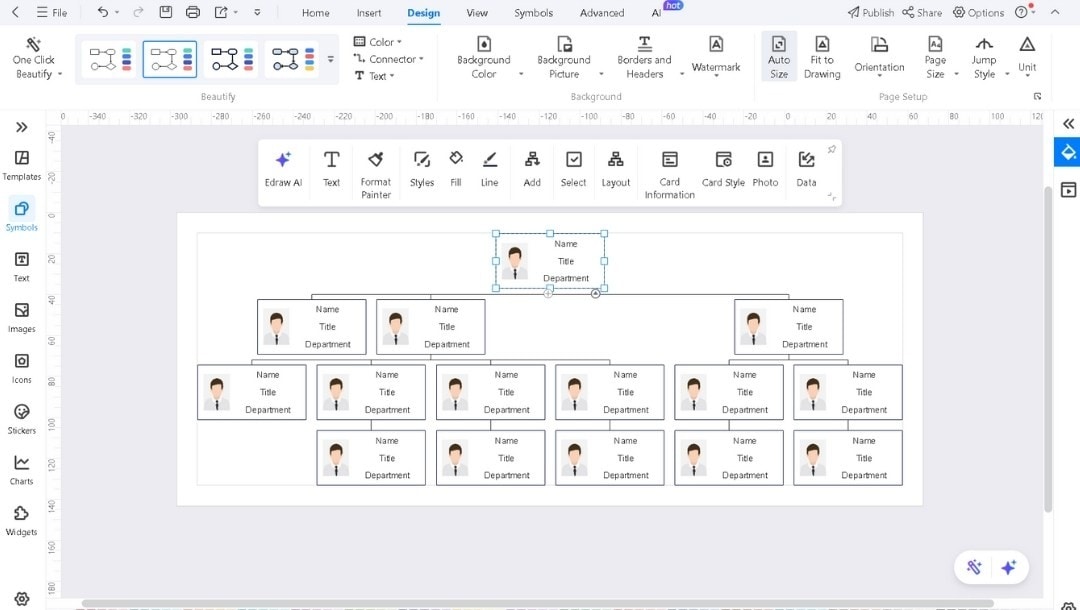
Step3 Customize Employee Details and Layout
Double-click any box to edit role titles or departments.
Use the Design tab or One-Click Beautify to change colors, fonts, and layouts.
Adjust box sizes by dragging corners.
Step4 Save or Export
Finally, click Export and do the same step as I did in the previous method.
Common Issues in Org Chart Creation and Quick Fixes
Incorrect Hierarchy Mapping
If certain employees appear under the wrong supervisor, check the "Reports To" column in your Excel sheet. Make sure all manager names match exactly; even an extra space can break the link. Reimport after correction to refresh the hierarchy.
Font or Text Misalignment
If text spills out or overlaps, select all nodes and go to the Text in Home tab to align based on your needs. Choose a web-safe font like Arial or Calibri to keep formatting consistent across devices.
Missing Data
If employee titles or other data disappear after import, right-click the node to open the Shape Data and verify the mapping fields (Name, Title, Reports To).
Cluttered Visuals
Too many boxes on one page reduce readability. Use Collapse Branch to hide non-critical levels or split large departments into separate charts.
Export Distortion
If shapes appear stretched or clipped after export, preview before saving. Switch orientation to landscape or resize the page layout.
Accidental Edits or Deletions
To avoid layout loss, lock finalized nodes or groups. You can undo it anytime using CTRL + Z.
Quick Recap
Excel makes org chart creation harder than it should be. Boxes won't align properly. Links go missing between positions.
EdrawMax streamlines the entire process. Auto layout arranges everything neatly. Connectors attach automatically. Pre-built templates speed up your work. One interface handles both content and appearance. Your charts come out polished with barely any cleanup required.
So, don’t wait and try EdrawMax today for free to build org charts.
People Also Ask
-
How to create an automatic chart in Excel?
Excel doesn’t directly generate a full org chart automatically. It alone can only visualize hierarchy with SmartArt, which is limited for large or complex structures. You can use tools like EdrawMax to import Excel org data to generate a professional org chart instantly. -
Does Microsoft have an org chart tool?
Yes. Microsoft offers Visio and SmartArt in Excel/PowerPoint for basic org charts. Visio is more advanced but requires a subscription. -
Is there a free org chart maker?
Yes, tools like EdrawMax Online Free and some basic Excel/PowerPoint templates let you make org charts at no cost.
AI Diagram Generator
Enter your prompt. Upload files if needed. Generate diagrams, charts, or slides instantly.





 (AI & Web)