EdrawMax User Guide for Desktop
User Guide for Desktop
-
Get Started with EdrawMax
-
User Interface
-
Basic Operations
-
Advanced Operations
-
Shape Operations
-
Drawing Tools
-
Formatting and Styling
-
Text Operations
-
Symbol and Library
-
Insert/Add Objects
-
Page Settings
-
Presentation Mode
-
AI Features
- How to Make a Diagram with Edraw AI
- AI Slides
- AI Infographics Generator
- AI Copywriting
- AI Stickers
- AI Symbols
- AI Analysis
- AI Drawing
- AI OCR
- EdrawMax Quotation Tool
- AI Diagram Generator
- AI Framework Generator
- EdrawMax AI Copilot
- AI Chatbot
- AI Flowchart
- AI Mind Map
- AI Timeline
- AI Table
- AI List
- AI SWOT Analysis, PEST Analysis, and Lean Canvas
- AI User Profile
-
How to Make a Flowchart
-
How to make an Org Chart
-
How to make a Gantt Chart
-
How to Make a Mind Map
-
More examples
For Desktop
For Mobile
AI Framework Generator
With a prompt or a document file, you can quickly create frameworks for almost any topic with EdrawMax’s AI Framework Generator.
You can find the AI Framework Generator as part of EdrawMax Agent’s AI Diagram Creator. There are two ways you can access it.
❶ Access From the Homepage
- You can access it from the homepage by clicking on Edraw Agent and selecting Framework.
- Then type your prompt or attach any related documents (PDF, JPG/PNG, CSV, XLSX, etc.).
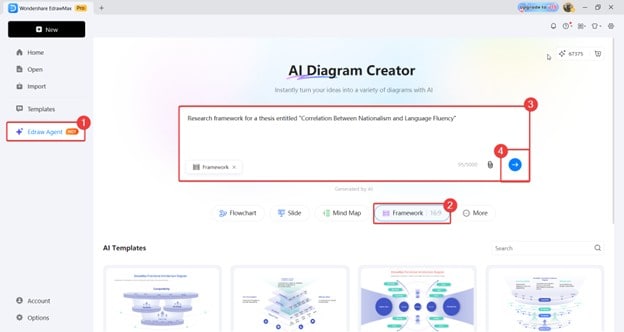
Edraw agent homepage
❷ Access From the Workspace
- Alternatively, you can access it from the workspace by clicking on the Edraw Agent button, then going to Diagram Generation.
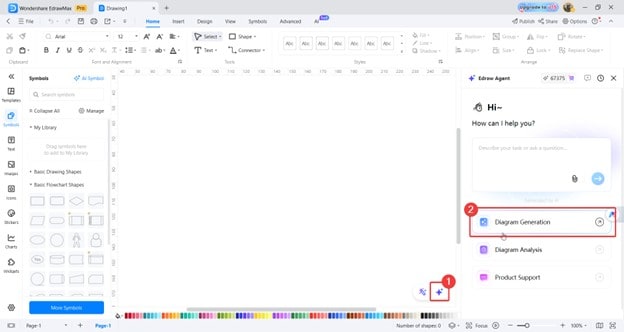
Edraw agent workspace
- In this mode, you need to be more specific in your prompt about the diagram type. Make sure to specify, as shown below (“research framework”).
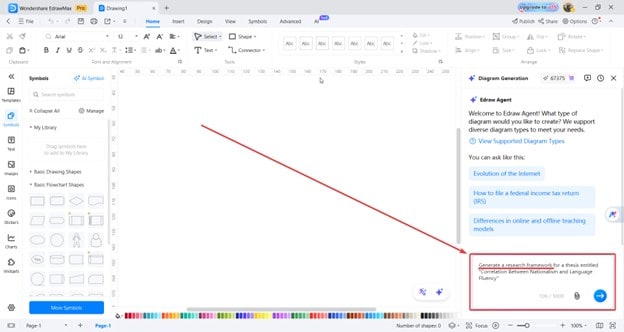
Edraw agent text prompt
 (AI & Web)