EdrawMax User Guide for Desktop
How to Use Custom Symbols to Calculate Project Costs
To be quick, this tool is for network/CCTV installers, designers, building contractors, piping engineers, and other people who need to do a diagram and measure the cost of their project. For example, when a user makes a project for a network installation for customers, they need to make a diagram and calculate the budget for the project. We can use EdrawMax to do both tasks at the same time. While using [Device A] 7 times in the diagram, EdrawMax can add the prices up automatically. If the price is $500 per piece. EdrawMax will export the data as $3500.
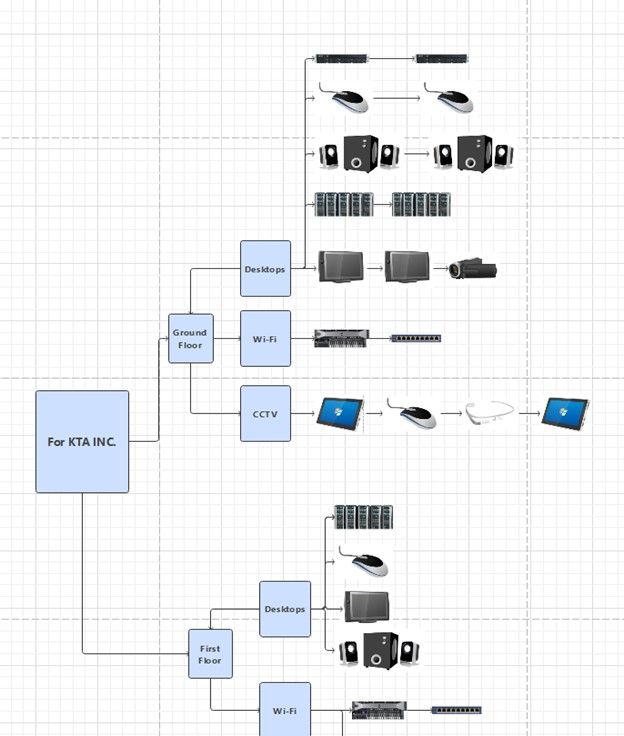
network diagram use case
Basic Logic of this feature:
- Import self-made symbols with price and other information
- Everything you use the symbols for diagramming, the cost of this symbol (device) will be added to the project.
- Export the data of the diagram. The price of this project will be calculated as well
Step ❶ Import symbols
- To begin with, we need to import symbols to My Library. Follow this path: Symbols - My Library - Import symbols.
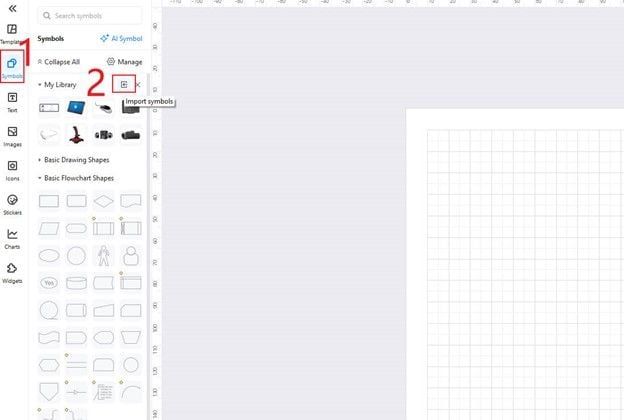
import symbols entrance
Step ❷ Download an example
- To import symbols with a price tag, you need an Excel file. EdrawMax provides an example. Download it and add your own symbols.
- Click
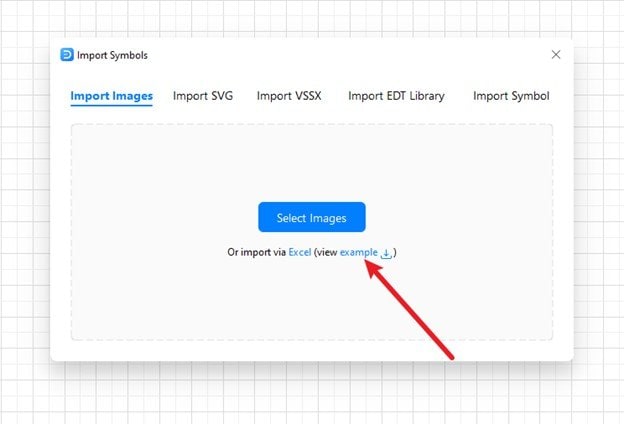
download BOM example file
- And decide the location of the example file. Launch it after.
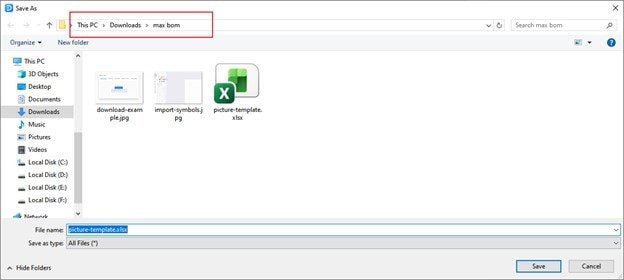
decide BOM example file location
Step ❸ Customize your symbol file
- Launch the example file. There will be tips to make the symbol file.
- You must need a header row to let EdrawMax detect, analyze, and add the file.
- For the header rows, no matter what you type, EdrawMax will take the first column as the Symbol Name and the second column as the Tooltip. For these two columns, you can name them “Device Type”, “ID”, “Device Name”, “Brand Name”, or other text that helps better identify the symbols.
- The column for symbol images must be “Product Images”. Make sure each image is fully contained within its cell; otherwise, the import will fail.
- For other information, you can customize the headers on your own. EdrawMax will analyze them and export them along with the bill later.
- Delete the note inbox before importing the file to EdrawMax.
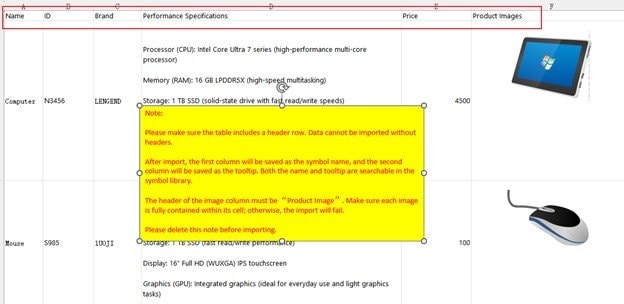
BOM example file details
Step ❹ Import the symbols
- Back in EdrawMax, hit Symbols - Import Symbols, then choose the Excel option. Choose to add the Excel file you edited.
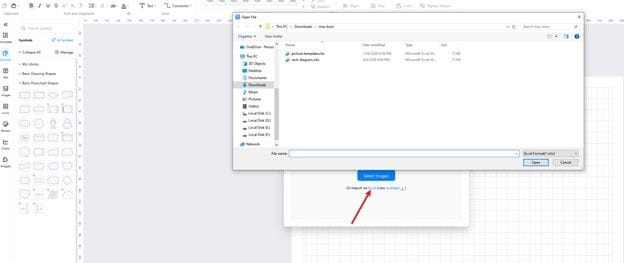
import symbols via Excel
- When it’s done, go to My Library to see if the symbols are there.
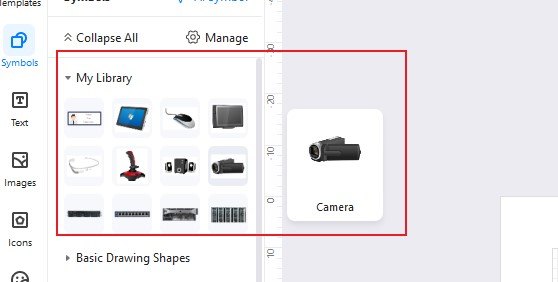
check new symbols
Step ❺ Start to make a diagram with new symbols
- Use the imported symbols to make a diagram for your project.
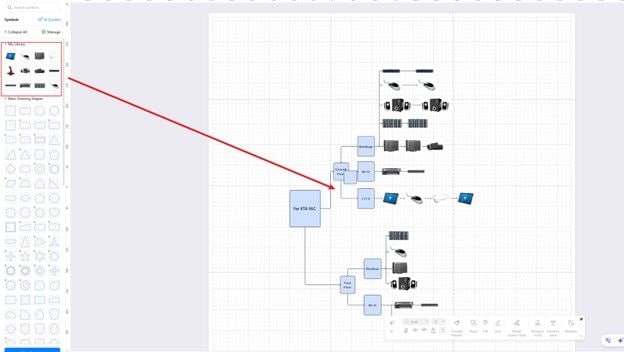
make a diagram with new symbols
Step ❻ Export the quotation
- Locate the Property button on the right end of the canvas. The sidebar appears.
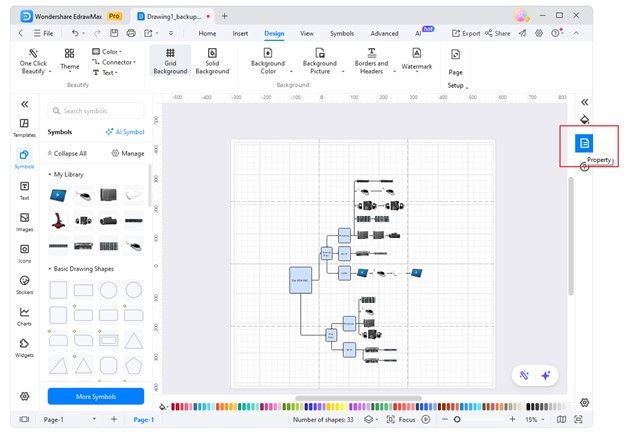
start to export data
- Click on Export data. Then a new pop-up shows up. There, decide the details of the quotation.
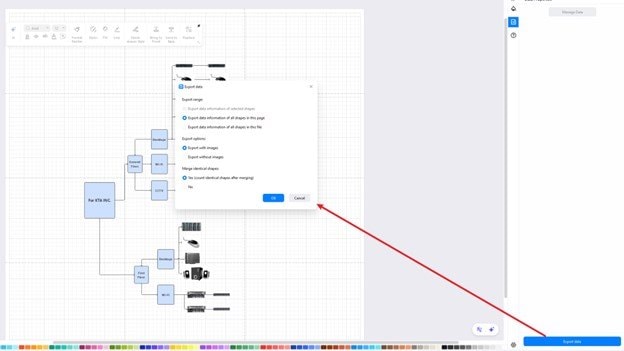
decide quotation data export details
- Area of output:
- To export data of the selected area/shapes, you need to go back to the canvas, long-press the left, and move the cursor to select some shapes. Then, export the data.
- If you make a project with multiple pages and need to export all data to your customer, tick Export data information of all shapes in this file.
- When the file has only one page, or you need to export the data of this page, tick Export data information of all shapes in this page.
- Export options:
- If you need to include your symbol images in your quotation, choose Export with images. Otherwise, tick the other.
- Merge identical shapes:
- Tick Yes: When you use a symbol multiple times in this diagram, you can choose to merge them in a row for the quotation file. In the file, there’s one column that says Count, where you will see the number of this symbol used in the diagram.
- To list all symbols in the diagram one by one without merging, tick No.
- Click OK to generate a quotation. Decide the file location and click Save to complete.
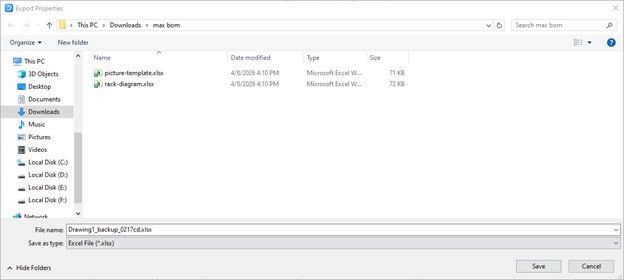
decide quotation data location
- Open the file and check the details, the Price and Count rows in particular. When all data is correct, send the BOM to your customer.
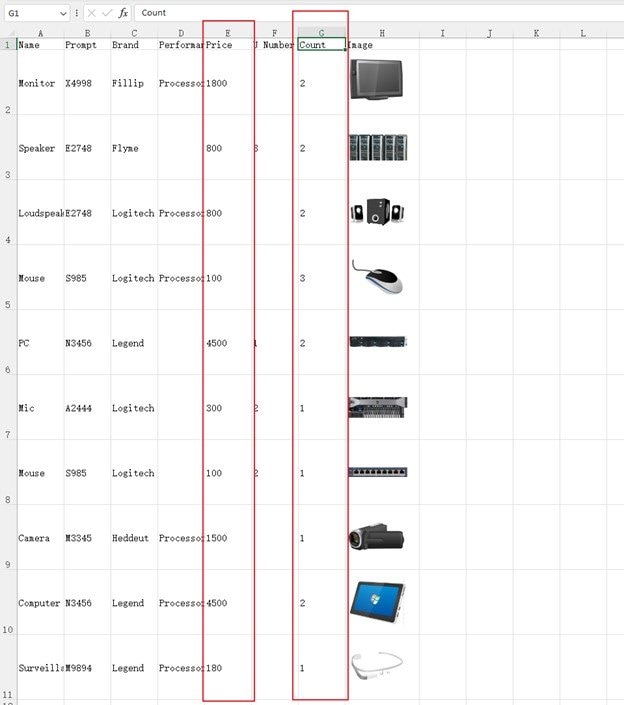
check quotation data
FAQs:
How to change the properties of the symbols?
- You may have entered the wrong data for a symbol, such as the Name. You don’t need to upload the file again.
- When the data under the first two columns is wrong, try this: Locate one symbol from My Library, right-click on it. Select Modify Symbol.
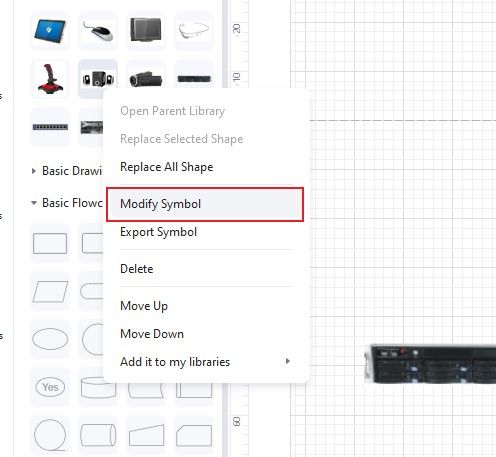
modify symbols
- Rename the symbol then.
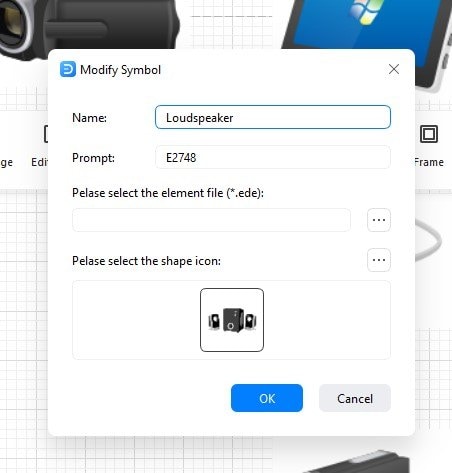
change symbol name
How to change the price of a symbol?
- When you do the price wrong for the file and import it to EdrawMax, you don’t have to redo the whole process.
- Try this:
- Add the symbol to the canvas.
- Click on the symbol and go to Property.
- Change the price directly.
- Back to My Library, right-click on the symbol and delete it.
- Drag the symbol from the canvas to the My Library area.
- Done. This is how you replace the symbol with the wrong price with the new one.
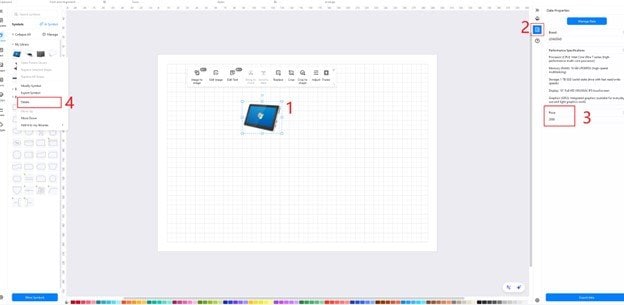
change symbol price
 (AI & Web)